Figma has revolutionized the design world with its collaborative and user-friendly interface. Designers often use it to create visually stunning website prototypes. But what happens when the design is complete? The next crucial step is to convert Figma to WordPress. This process, while essential, can seem daunting. Fortunately, CodeDesign simplifies the process by streamlining the conversion with precision and efficiency.
This guide will walk you through the step-by-step process of converting your Figma design to WordPress using CodeDesign. Whether you’re a designer or a developer, this tutorial will help you seamlessly bridge the gap between design and functionality.
Why Choose CodeDesign for Figma to WordPress Conversion?
While there are many page builders that you can use for Figma to WordPress conversion, here is why CodeDesign is an ideal choice:
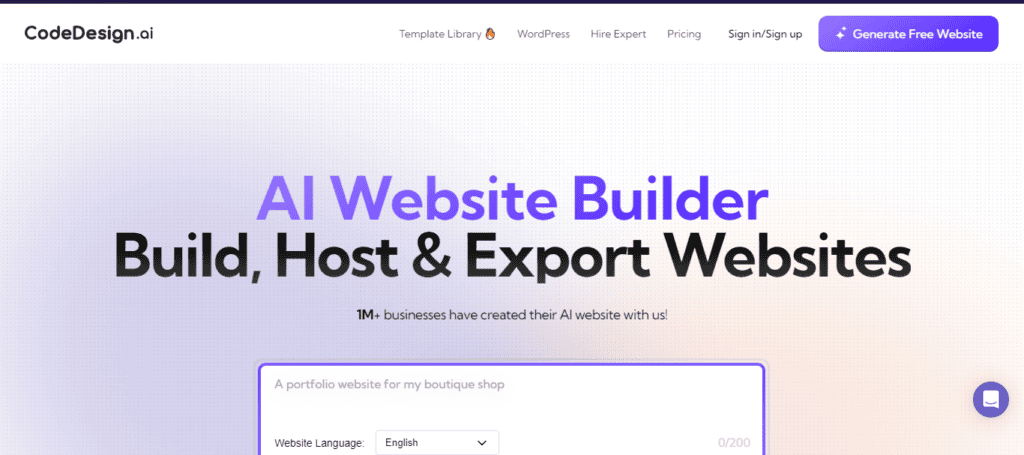
- Efficiency: CodeDesign automates much of the manual coding process, saving time without compromising quality. It ensures your design looks and functions as intended.
- Accuracy: The tool converts pixel-perfect designs from Figma into WordPress themes. This ensures that the final website matches the prototype down to the smallest details.
- Customization: CodeDesign allows flexibility in the code, enabling developers to add custom functionalities or refine the design for optimal user experience.
Read: Best Tips and Tricks for Figma to WordPress Conversion
CodeDesign Makes Figma to WordPress Conversion a Breeze!
Let’s turn your vision into a stunning WordPress website that stands out. Contact us today to get started and see the difference CodeDesign can make for your project!
- Get Started
Preparing Your Figma File for Conversion
Before starting the conversion, it’s crucial to organize your Figma file for optimal results. Follow these steps:
- Organize Layers and Groups: Use meaningful names for layers and groups. For example, name a button layer as “CTA_Button” instead of “Rectangle_23.” Also, group related elements logically to make navigation easier during conversion.
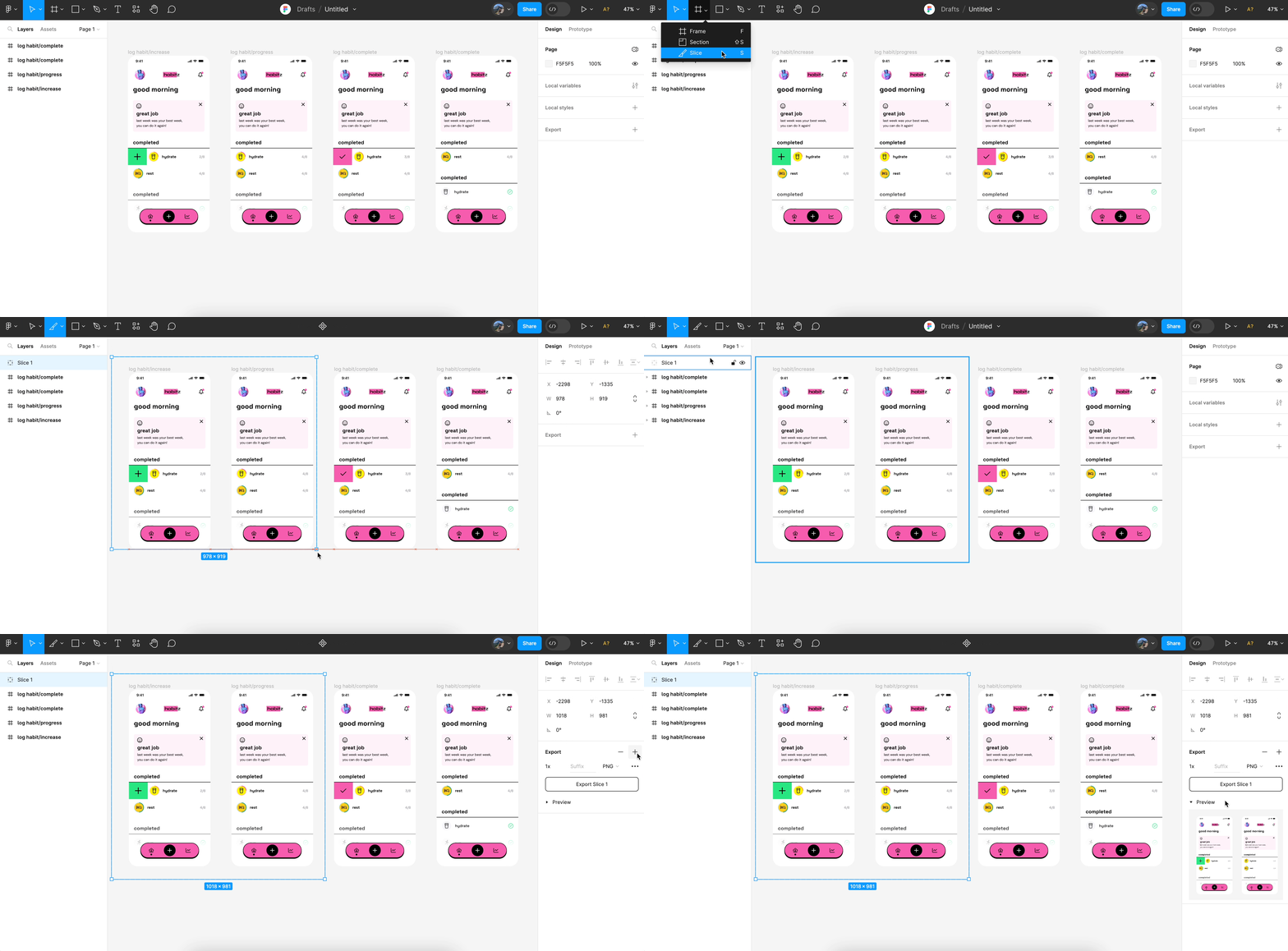
- Export Assets: Identify design elements like logos, icons, and images. Export them in appropriate formats (e.g., SVG or PNG for icons, and JPG for images) to ensure scalability and quality.
- Use Web-Friendly Fonts: Ensure your fonts are web-safe or available in Google Fonts for easy integration during development.
- Define Layout Responsiveness: Specify breakpoints for different screen sizes. Test the design in Figma’s responsive mode to ensure it adapts well to various devices.
Know more: Figma to Astra Template for WordPress
Steps to Convert Figma to WordPress Using CodeDesign
To begin with, export Figma design as HTML/CSS. CodeDesign uses HTML and CSS as the foundation for WordPress themes. Exporting these files from Figma is the first step:
- Open your Figma file.
- Use a Figma-to-code plugin to extract HTML/CSS code.
- Download the exported files and review the code for accuracy.
Install and Set Up CodeDesign
- Download CodeDesign from its official website.
- Install it on your WordPress development environment.
- Configure the settings to match your project requirements.
Import HTML/CSS Files into CodeDesign
- Open the CodeDesign interface.
- Import the HTML and CSS files exported from Figma.
- Map the design elements to WordPress components, such as: Header, Footer, Sidebar, and Content areas
Customize the Code
- Add PHP code to make the design dynamic.
- Use WordPress functions like get_header() and get_footer() to integrate the layout.
- Implement loops for blog posts or dynamic sections.
Test Responsiveness and Functionality
- Preview the website on different devices and browsers.
- Test all links, buttons, and forms for proper functionality.
- Fix any bugs or inconsistencies that arise.
Deploy the Website
Once everything looks perfect, deploy the WordPress theme to your live site. Use a staging environment to ensure the deployment is seamless. Next, if all is good, you can publish your website.
Benefits of Using CodeDesign for Figma to WordPress Conversion
Here are a few of the advantages of using CodeDessign for Figma to WordPress conversion:
- Faster Development: CodeDesign accelerates the transition from prototype to live website, reducing turnaround time significantly.
- High-Quality Code: It generates clean, developer-friendly code that adheres to best practices.
- Responsive Design: CodeDesign ensures that the website performs optimally on all devices, enhancing user experience.
- SEO Optimization: With properly structured HTML and CSS, your site will be SEO-friendly right out of the gate.
Check out: Figma to WordPress DIY Route or Hire a Professional Agency
Common Challenges and How CodeDesign Overcomes Them
While transitioning from Figma to WordPress, you might come across a few challenges. However, CodeDesign helps you to overcome these challenges with ease. Here’s how:
- Maintaining Design Consistency: CodeDesign’s pixel-perfect conversion ensures that the final site matches the Figma prototype exactly.
- Handling Complex Animations: It supports CSS animations and allows developers to add JavaScript for advanced effects.
- Responsive Design Issues: CodeDesign simplifies responsiveness by providing tools to test and adjust layouts for different devices.
Conclusion
Converting a Figma design into a fully functional WordPress site doesn’t have to be a complex process. With CodeDesign, you can achieve a seamless transition from design to development while maintaining the integrity of your design. By following the steps outlined in this guide, you can transform your creative ideas into interactive and responsive websites that meet modern web standards.
Whether you’re a designer looking to bring your vision to life or a developer seeking a reliable tool, CodeDesign bridges the gap effortlessly. Start your Figma to WordPress conversion journey today and deliver websites that stand out.
FAQs About Using CodeDesign for Figma to WordPress Conversion
What is CodeDesign?
CodeDesign is a tool that simplifies the process of converting design files (like Figma) into WordPress themes. It focuses on accuracy, responsiveness, and developer-friendly code.
Do I need coding knowledge to use CodeDesign?
Basic coding knowledge is helpful, but CodeDesign offers features that make the process easier for non-developers.
Can I use CodeDesign for other design tools besides Figma?
Yes, CodeDesign supports designs from various tools, including Adobe XD and Sketch.
How much time does it take to convert a Figma design into WordPress?
The time depends on the complexity of the design. However, CodeDesign significantly reduces the development time compared to manual coding.
Is CodeDesign suitable for responsive websites?
Yes, CodeDesign ensures that your site is responsive and looks great on all devices.
Are there alternatives to CodeDesign for Figma to WordPress conversion?
Yes, other tools like Elementor and Webflow can also convert Figma designs into WordPress. However, CodeDesign offers a more code-focused approach.