

WordPress doesn’t always handle animated GIFs the way you expect, particularly when it comes to file size, resizing, or image optimization plugins. The good news is that you can fix it, and this guide will provide you with the troubleshooting tips for fixing the ‘animated GIFs not working in WordPress’ issue.
Animated GIFs are a great way to add personality, engagement, and clarity to your WordPress content. Whether you’re trying to make a tutorial more visual or just want to add a bit of fun to a blog post, animated GIFs can be highly effective.
But sometimes, after uploading a GIF to WordPress, it just doesn’t animate; it may appear as a static image. This can be frustrating, especially if you’re not sure why it’s happening. So, let’s find out the reasons for this, along with the meaning of animated GIFs.
What Are Animated GIFs?
An animated GIF is a series of images combined into one file that loops continuously without sound. They’re popular for demonstrating concepts, showing short clips, or adding visual excitement to web pages. When added correctly, animated GIFs can enhance your WordPress content by capturing attention and improving engagement. However, they need to be handled carefully during upload and optimization.

Why Your GIFs Aren’t Working in WordPress
Before jumping into solutions, it’s important to understand what could be going wrong. Here are a few common reasons:
- WordPress Resizing: If WordPress automatically resizes your image, the GIF might lose its animation.
- Optimization Plugins: Some image optimization plugins may compress images in ways that may remove animation.
- File Size: A large GIF file size exceeding upload limits or failing to display correctly can cause the ‘animated GIFs not working in WordPress’ error.
- Incorrect Upload: If you accidentally upload a non-animated or static version of the GIF, it won’t play.
Also read: How to Hide Elementor Section in Figma-Modeled WordPress Sites
Actionable Tips to Fix GIFs in WordPress
Let’s start with the basics and ensure the GIF you’re uploading is animated in the first place.
- Go to WordPress Editor ⟶ Media ⟶ Add New in your WordPress dashboard.
- Drag and drop the original animated GIF file.
- Avoid dragging from your browser or clipboard; instead, upload from your computer to ensure file integrity.
Once uploaded, click on the GIF in the Media Library and preview it. If it animates here, you’re good to go. If not, the problem may be with the original file itself.
Tip 1: Use “Full Size” on Your WordPress Site When Inserting the GIF
One of the most common reasons for GIFs appearing static is that WordPress inserts a resized version by default. To fix this, select “Full Size” under the image display options when adding the GIF to a post or page. This ensures WordPress doesn’t compress or crop the animation.
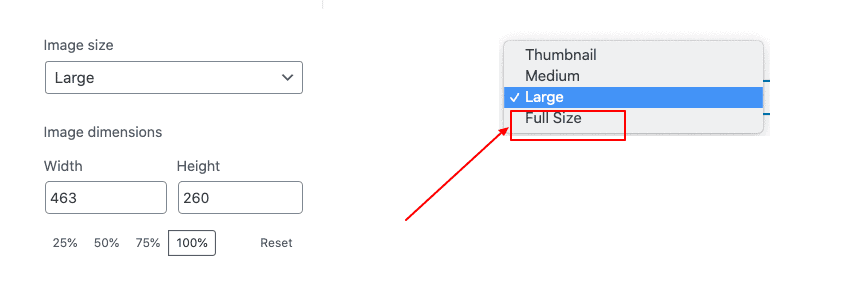
If you don’t choose the full-size option, WordPress may generate smaller versions (thumbnails or medium sizes) that strip out the animation.
What’s the Difference: JPEG vs JPG in Figma to WordPress Workflow
Tip 2: Check the File Size Before Uploading
Large GIF files can be problematic, slow down your site, or be blocked by your hosting limits. To avoid this, keep GIFs under 1MB for optimal performance. If your file is too large, compress it using free tools like:
Compressing your GIF before uploading it on the WordPress website can reduce load time and prevent WordPress from resizing it automatically.
Tip 3: Disable Image Optimization Plugins Temporarily
Plugins like Smush, ShortPixel, or EWWW Image Optimizer are great for compressing images, but they can also interfere with GIFs. To resolve this:
- Go to your plugin settings.
- Temporarily disable image optimization or check for an option to exclude GIFs from optimization.
- Re-upload your GIF and see if it works correctly.
If this solves the problem, leave GIFs excluded or adjust the plugin’s compression settings.
Image Format Comparison: AVIF vs WebP
Tip 4: Re-upload the GIF on the WordPress Website
Sometimes, re-uploading fixes everything, especially after changing plugin settings or selecting full size. To do this:
- Delete the existing GIF from the Media Library.
- Re-upload the original, uncompressed version directly from your computer.
- Insert it again into the post, and make sure to select “Full Size.”
This resets everything and often resolves hidden conflicts from earlier uploads.
Tip 5: Use the WordPress Media Library Efficiently
The Media Library isn’t just for storage; it’s also a way to manage image performance.
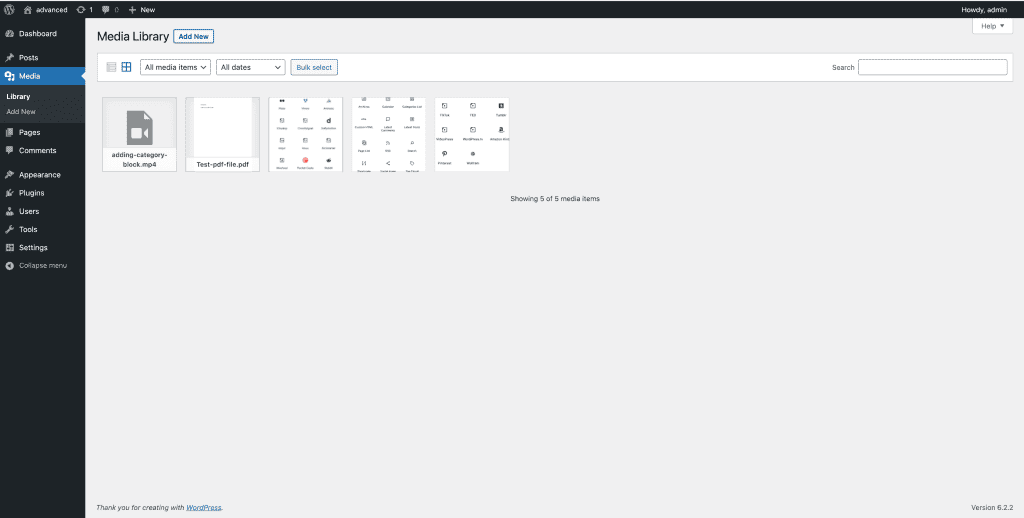
So, to prevent the ‘animated GIFs not working in WordPress’ issue:
- Avoid editing or cropping GIFs inside the Media Library.
- Always upload the exact dimensions you plan to display.
- Don’t rely on WordPress to resize GIFs, as it often removes animation when it does.
Managing GIFs manually also gives you better control over display and playback.
Tip 6: Check Browser Compatibility
Sometimes, the issue isn’t with WordPress; it’s with your browser. So, make sure your browser is updated to the latest version. Clear your browser’s cache and cookies, and try opening the page in another browser (like Firefox or Chrome) to test. Different browsers handle GIFs differently, especially if extensions or ad blockers are interfering.
Learn: How to Convert Figma’s Px to Cm for WordPress Print Outputs
Tip 7: Understand Hosting and Upload Limits
Every hosting provider sets limits on file uploads. If you’re trying to upload a GIF and it fails, check:
- Maximum upload file size (usually found in Media ⟶ Add New).
- PHP settings in your hosting dashboard (e.g., upload_max_filesize, post_max_size).
- Whether your host has specific restrictions on animated media.
If needed, increase these limits through your hosting settings or ask your provider for assistance.
Tip 8: Consider Cloud-Based Optimization
If you frequently upload images, Gifs or other animated media, consider Cloudinary. Cloudinary’s WordPress plugin helps with automated image optimization. It supports animated GIFs and ensures they display correctly across all devices.

It also helps with CDN delivery, which boosts page load speed. Simply put, this tool is ideal for content-heavy or media-rich sites that rely on GIFs and other visuals.
Comparison Guide: WebP vs JPG
Animated GIFs Not Working in WordPress: Final Checklist to Resolve the Issue
Before publishing a post with animated GIFs, run through this quick checklist:
- Did you upload GIFs from your computer?
- Did you select “Full Size” during insertion?
- Is the GIF under 1MB and optimized?
- Are image optimization plugins configured to exclude GIFs?
- Have you cleared your browser cache?
- Is your hosting provider limiting file uploads?
- Have you tried re-uploading the GIF?
These checks can help resolve most common issues.
When to Seek Professional Help
If you’ve tried all these steps and your WordPress GIFs still don’t work, it may be time for expert help.
- Reach out to WordPress support or your WordPress theme developer.
- Check forums like WordPress.org or Reddit’s r/WordPress for advice.
- Contact image plugin support (like Cloudinary or Smush) if you’re using their tools.
Don’t hesitate to seek help, as sometimes, plugin or theme conflicts require professional debugging.
Bonus: Best Practices for Using Animated GIFs in WordPress
Animated GIFs can boost engagement and make your content on WordPress more interactive. However, using them without considering performance or compatibility can lead to display issues. To avoid that, here are some best practices to follow when working with GIFs in WordPress.
- Use GIFs Strategically to Boost Engagement: Animated GIFs are eye-catching. Use them in web pages, blog posts, tutorials, or product highlights to attract attention and make your content more dynamic. Just make sure the GIFs serve a purpose and don’t overwhelm the user experience.
- Ensure Proper Display and Animation: GIFs should play smoothly without appearing as static images. To ensure this, always insert them at their full size and avoid resizing within WordPress. This helps retain the original animation and quality.
- Optimize File Size for Performance: Large GIFs can slow down your site. So, before uploading, use compression tools to reduce file size while maintaining visual quality. Smaller files load faster and reduce bounce rates.
- Use the Media Library for Better Control: The WordPress media library lets you manage and organize GIFs efficiently. So, upload your animated GIFs directly and avoid dragging from external sources to ensure they’re properly handled.
- Fine-Tune Image Optimization Plugins: Many WordPress image optimization plugins strip animations from GIFs by default. To avoid this, check your plugin settings and, if needed, disable optimization for GIFs. This ensures that your animations remain intact and display correctly across devices.
Conclusion
Animated GIFs are a fun and effective way to add life to your WordPress site, but they can be tricky to manage. Whether it’s a plugin stripping the animation, WordPress resizing the image, or a simple upload issue, most problems can be resolved with a few simple tweaks.
By uploading the GIF correctly, selecting the right size, optimizing the file, and managing your plugins, you can ensure that your animated content displays the way it should. And if all else fails, tools like Cloudinary or professional WordPress support are always there to help.
Follow these steps one by one, and soon enough, your GIFs will be back in action.
FAQs About Animated GIFs Not Working in WordPress
Why is my GIF not working in WordPress?
Your GIF may not be working in WordPress because it was resized during upload, compressed by an image optimization plugin, or uploaded incorrectly. These actions can strip the animation and cause it to appear as a static image.
Do animated GIFs work on WordPress?
Yes, animated GIFs work on WordPress. However, to display correctly, they must be uploaded in their original size and not compressed or resized by plugins or theme settings.
Why is my GIF not working on my website?
If your GIF isn’t working on your website, it could be due to file size limits, incorrect upload, or browser compatibility issues. Also, some content management systems or plugins may interfere with GIF playback.
Why are GIFs not accessible?
GIFs may not be accessible because they can cause issues for users with visual or cognitive impairments, especially if they loop endlessly or flash rapidly. They also often lack alternative text, which is essential for screen readers.



