


Designing user interfaces is more than just aligning buttons and images. It’s about delivering smooth, intuitive, and realistic experiences. One key part of this is Scrolling. Mastering the vertical scroll bar in Figma is essential for building prototypes that behave like real-world products.
In this guide, you’ll learn everything you need to know about vertical scrolling in Figma, from the basics to advanced techniques. Whether you’re a beginner or looking to refine your skills, this article will help you design with clarity and confidence.
What is a Scroll Bar in Figma?
Scrolling allows users to move through content that doesn’t fit entirely on the screen. In Figma, you can simulate both horizontal and vertical scrolling to replicate real user interactions.
Vertical scrolling is especially useful for long-form content like landing pages, feeds, or chat interfaces. When set up properly, it mimics how a user would naturally scroll on a website or mobile app. Figma’s prototype features make it easy to create scrollable areas and test user flows. With just a few adjustments, your static frame transforms into an interactive prototype.
Expert Guide: How to Integrate Figma Interactive Components into WordPress
Why is Scrolling Important in UI Design?
Scrolling plays a vital role in modern UI design, especially as digital experiences shift toward mobile-first interfaces. Given the limited screen real estate on smartphones and even tablets, it’s impossible to display all content at once without overwhelming users. That’s where scrolling becomes essential.
By allowing users to move through content vertically or horizontally, designers can present information in manageable chunks. This reduces visual clutter and improves readability, helping users stay focused on one section at a time. It also supports dynamic content loading, enabling interfaces to load more content as users scroll. This is perfect for feeds, product listings, or blog archives.
Moreover, scrolling mirrors how users naturally interact with devices in real life. Prototypes that incorporate scrolling feel more intuitive and polished. It not only enhances usability but also keeps users engaged for longer periods. A well-implemented scroll behavior contributes to a seamless and realistic user journey that drives interaction and retention.
Find out: Is Figma Free for Your Design Needs
Best Practices to Master the Vertical Scroll Bar in Figma
Mastering the vertical scroll bar in Figma is key to creating realistic, interactive prototypes. Here are some practical tips to help you design smooth, scrollable layouts with ease.
Enabling Scrolling in Figma
To enable vertical scrolling in Figma, you need to configure the parent frame’s overflow behavior correctly. This setup allows your design to behave like a real app or website, especially when showcasing long-form content or mobile layouts. Here’s a step-by-step breakdown to get started:
Select the Parent Frame: This is the container that holds all your scrollable content. It could be a mobile screen or a section of a web page. Make sure it’s the top-level frame in your hierarchy.

Open the Prototype Tab: Navigate to the right-hand sidebar and switch from the “Design” tab to the “Prototype” tab. This is where you’ll control interactions and scroll behaviors.
Set Overflow Scrolling Behavior: Under the “Overflow Behavior” section, choose Vertical Scrolling to allow up-and-down navigation. If your design needs horizontal movement too, you can opt for both Vertical & Horizontal.

Enable Clip Content: Turn on the “Clip content” option to hide any elements that extend beyond the frame’s borders. This keeps the layout clean and ensures only the intended scrollable area is visible.
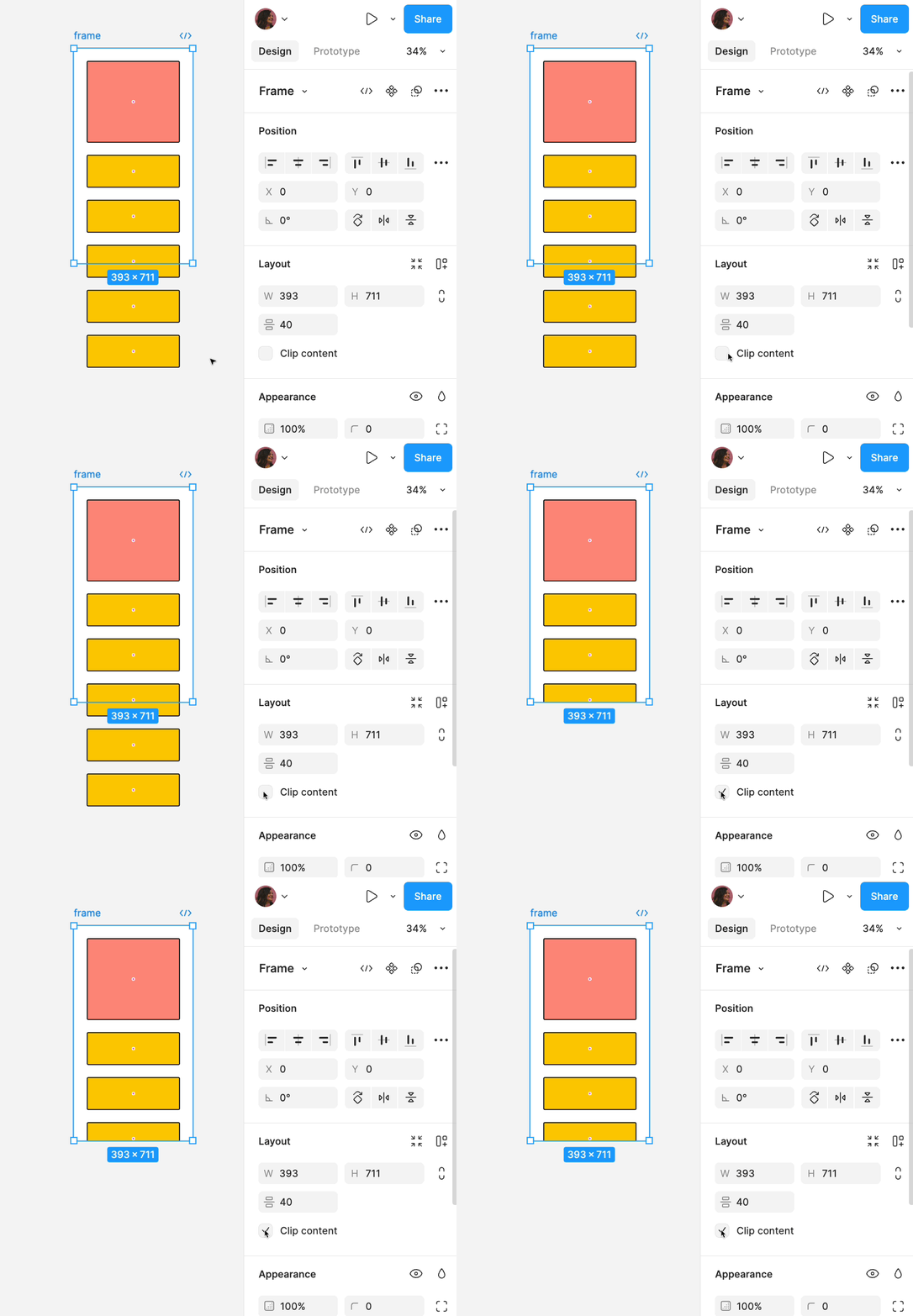
Adjust Frame Size: Make sure the height of the parent frame is smaller than the height of the content inside it. This mismatch is what activates scrolling in Figma’s prototype view.

Fix Layers if Needed: If you have elements like sticky headers or navigation bars, select them and check “Fix position when scrolling” in the design panel. This pins them in place as users scroll through the rest of the content.
Once you complete these steps, your frame becomes an interactive scrollable area in prototype mode. This not only enhances realism but also allows for better user flow testing and feedback.
Read: Figma User Testing for WordPress Websites
Configuring the Scroll Bar in Figma
Once you’ve enabled scrolling in Figma, the next step is refining how the scrollable area behaves and how it fits into the overall realistic user experience. While Figma doesn’t display traditional visual scroll bars like you’d see in a browser or native app, it does a great job of simulating scrolling in prototype mode. This lets you preview how users will actually interact with your design.
Here are some key techniques to configure scrolling:
Use the Design Layers Panel
The Design panel allows you to control the size and positioning of your frame. By adjusting the frame’s dimensions, especially the height, you define exactly what portion of the content is visible at a time. Anything beyond that visible area will be scrollable, provided you’ve set the overflow behavior.
Resize with Purpose
Frame size directly impacts how much content is revealed and how much needs to be scrolled. A shorter frame means more vertical space for users to scroll through, which is common in mobile application designs. Larger frames reduce the need for scrolling but may miss opportunities for interaction and pacing.
Use Auto Layout
Applying Auto Layout to your content helps ensure consistent spacing and alignment as elements move or resize. This is particularly useful when designing responsive layouts or when you need elements to dynamically adjust across devices or breakpoints.
Fix Header Elements
Want your navigation bar or header to stay in place as users scroll? Select that element and check “Fix position when scrolling” in the right-hand panel. This feature helps you create sticky headers or persistent CTAs that remain visible, improving navigation and engagement.
Test in Presentation Mode
Always preview your work in Presentation mode to experience how the scroll behaves. This is where Figma simulates real user interaction. It’s also a great time to spot issues like awkward spacing, incomplete views, or misaligned fixed elements.
By carefully configuring the scroll behavior and layout structure, you ensure your prototype behaves just like a real app or website. This attention to detail not only improves usability but also makes your work more impressive to clients, stakeholders, or collaborators reviewing the design.
Beginner’s Guide: How to Use Figma
Advanced Scrolling Techniques in Figma
Once you’re comfortable setting up basic scroll behavior, it’s time to elevate your prototypes with advanced scrolling techniques. These methods not only make your designs more interactive but also create immersive user experiences that mimic real-world apps and websites.

Why Use Advanced Scrolling Techniques?
Adding advanced scrolling effects isn’t just about flash. It can improve the user experience, guide attention to key areas, and tell a story visually. It also:
- Makes prototypes more engaging and interactive.
- Helps communicate the design intent to developers or clients.
- Helps you stand out with portfolio pieces that feel like real products.
- Provides more creative control over user flow and behavior.
As you grow more comfortable with Figma’s tools and plugins, you’ll find new ways to push the boundaries of what’s possible in a static design tool. Let’s explore some of the most powerful ways to enhance scrolling in Figma.
Parallax Scrolling
Parallax scrolling is a dynamic visual effect in which background and foreground elements move at different speeds as the user scrolls. This technique adds depth and visual interest and is often used in modern landing pages or storytelling websites.
To create parallax scrolling in Figma:
- Use Multiple Layers or Frames: Place background elements on one layer and content on another.
- Animate with Smart Animate: Duplicate your frames and move the layers slightly between each. Then link them using “Smart Animate” to simulate movement.
- Control Scroll Steps Precisely: Fine-tune each transition to control the timing and speed. The illusion works best when transitions are subtle and seamless.
While Figma doesn’t have native parallax support, careful use of animation and layering can achieve impressive effects.
Scroll-Based Animations
Scroll-based animations trigger visual effects as the user moves through the content. These could include fade-ins, slide-ins, scaling effects, or component state changes, which guide users and keep them engaged.
How to implement scroll-based animations in Figma:
- Create Multiple Frames or Components: Set up each screen or section with slightly different visual states.
- Smart Animate: Use this in the Prototype tab to transition between frames.
- Simulate Scroll Triggers: Although Figma doesn’t support native scroll-based triggers, you can simulate this effect by designing sequential frames with subtle changes. As users “click through” or navigate between screens, it creates the illusion of animation on scroll.
Bonus tip: Combine scroll animations with fixed headers or interactive elements to create a polished UX.
Custom Scroll Bars (Visual Indicators)
Figma doesn’t show native scroll bars in the presentation view. However, you can design your own scroll bar visuals to simulate the look and feel of real UI scroll bars. This is especially useful for high-fidelity prototypes. Steps to create a custom scroll bar:
- Design a Scroll Track and Thumb: Use simple shapes (like rectangles) on the side of your frame.
- Smart Animate: Use it to move the scroll thumb as content “scrolls” between frames.
- Sync with Content Flow: Ensure the scroll bar animation aligns with the amount of content being shown or revealed.
This adds visual polish and helps users understand how much content is left to scroll through, just like they would in a live product.
Plugins for Advanced Scrolling Effects
If you’re looking to expand beyond Figma’s built-in features, plugins are your best friend. Several Figma plugins help simulate scrolling effects, animations, and user flow enhancements. Here are some powerful advanced scrolling options:
- Scroll Sequence: It lets you create scroll-driven animations using frame sequences. Ideal for storytelling-style landing pages.
- Figmotion: It adds a timeline-based animation editor inside Figma. More advanced than Smart Animate and great for micro-interactions.
- Aninix: It helps you create lightweight animations and smooth transitions. It’s user-friendly and integrates well with Figma’s design workflow.
- Motion: Another animation plugin that enables frame-by-frame animation preview and export.
Using these plugins can help simulate more complex scrolling behavior, such as scroll-jacking, animated reveals, and even scroll-sync between different elements.
Detailed Guide: How to Make Reaction Text in Figma
Designing for UI/UX in Figma with Scrollbars
Good scrolling is about more than functionality, it’s about experience. Here are some UI/UX best practices when designing scrollable content:
- Visual Cues: A UI designer will always let users know more content exists by partially showing the bottom of the next section.
- Maintain Context: For better understanding, use fixed headers or progress bars to keep users oriented.
- Keep It Simple: In UI/UX design, avoid overloading a single frame with too many interactive scrolls.
- Test Regularly: Use Figma’s presentation mode and device frames to preview how your scrolls perform on different screens.
Remember, scrolling should guide, not confuse.
Final Thoughts: Next Steps for Scroll Mastery
Mastering the vertical scroll bar in Figma is about more than enabling a feature; it’s about improving the user experience.
When done right, scrolling adds flow, clarity, and engagement to your design. From enabling simple vertical scrolls to exploring animations and parallax effects, Figma offers the flexibility to build realistic and interactive prototypes. Here’s your next move:
- Practice by creating scrollable frames in a mobile or web layout.
- Use an auto layout to streamline your responsive designs.
- Explore plugins to add animation and depth.
- Test and iterate often, as user feedback is key.
And don’t forget; that the Figma community is full of resources, templates, and discussions to help you improve. Bookmark tutorials, explore examples and stay updated. The more you experiment, the better your scrolls (and designs) will be.
Vertical Scroll Bar in Figma FAQs
How to do vertical scrolling in Figma?
To do vertical scrolling in Figma, select the parent frame, go to the Prototype panel, and set the overflow behavior to “Vertical Scrolling.” Also, ensure the frame selection is smaller than the content inside.
How do I make my Figma scroll smooth?
To make your Figma scroll smooth, use auto layout to keep elements spaced consistently. Plus, avoid abrupt frame transitions and use “Smart Animate” for smoother effects.
How to do horizontal scrolling in Figma?
To use horizontal scrolling in Figma, follow the same steps as vertical scrolling, but choose “Horizontal Scrolling” under overflow behavior.
How do you fix the scroll position in Figma?
To fix the scroll position in Figma, select the element (like a header or menu), then check the “Fix position when scrolling” box in the design properties panel.
How to make a scrollable bar in Figma?
To make a scrollable bar in Figma, design a scroll bar visually and use Smart Animate to move it as the user scrolls. Use overlays or component states to simulate movement.
What’s the difference between a fixed position and scrollable content?
The difference between a fixed position and scrollable content is Visibility.
- Fixed Position: Stays visible while you scroll (e.g., sticky headers).
- Scrollable Content: Moves with the scroll inside a scroll-enabled frame.



