


Creating a seamless and visually stunning online store takes more than just installing WooCommerce. You need great design and that’s where Figma comes in. Figma is a design tool that allows designers and developers to collaborate in real-time. But how do you take those beautiful Figma designs and bring them to life in your WooCommerce-powered WordPress site?
In this guide, we’ll walk you through the entire process of integrating Figma designs with WooCommerce in WordPress. Whether you’re a designer, developer, or entrepreneur, this guide will help you bridge the gap between design and functionality effortlessly.
Why Use Figma with WooCommerce?
Figma is a cloud-based UI/UX design tool that enables real-time collaboration. Designers can build interactive prototypes and layouts, while developers can directly inspect, export, and code the elements.
WooCommerce, on the other hand, is the most popular eCommerce plugin for WordPress. It powers over 5 million stores worldwide.

By combining Figma’s design capabilities with WooCommerce’s eCommerce features, you get:
- A custom, brand-consistent store
- Faster design-to-development cycles
- Better collaboration between teams
- Control over UX and conversion elements
Need Help Integrating Your Figma Designs with WooCommerce?
We specialize in turning detailed Figma prototypes into fully responsive, conversion-optimized WooCommerce stores.
Preparing Your Figma Design
First things first, you need a well-structured Figma file. Here’s what to check:
- Use components and styles: Keep your design clean and modular.
- Organize layers: Group sections logically (e.g., headers, product cards, footers).
- Include layout grids: This ensures alignment during the build.
- Create responsive variants: Desktop, tablet, and mobile.
- Label everything clearly: This helps the developer during handoff.
Pro tip: Use Figma’s Prototype feature to map out user journeys, such as browsing a product, adding it to the cart, and checking out.
Know more: How to Prepare a Figma File for WordPress Developers
Translating Figma to WordPress: What You Need to Know
Here’s the truth, you can’t directly “import” Figma into WordPress. You need to translate the designs into HTML, CSS, or use a page builder that supports design customization. There are two main ways to do this:
- Manual method: Code the design using HTML/CSS/JS and integrate it into a custom theme or child theme.
- Visual builders: Use tools like Elementor, Bricks Builder, or Gutenberg with WooCommerce blocks.
Method 1: Manual Development
Ideal for: Developers who need pixel-perfect control
- Export assets (images, SVGs) from Figma.
- Use Figma’s inspect panel to grab styles and dimensions.
- Build a custom WordPress theme or a child theme.
- Add WooCommerce templates (single product, shop page, cart, etc.).
- Style them using the CSS from your Figma design.
This method offers full customization but takes more time.
Related: How to Convert Figma to HTML/CSS
Method 2: Using Elementor or Other Page Builders
Ideal for: Designers and non-developers

- Use Elementor Pro or Elementor + WooCommerce Add-ons.
- Build each section (header, product cards, etc.) using Elementor widgets.
- Use Figma to WordPress plugins like Anima or Fignel for layout export.
- Match fonts, colors, padding, and responsiveness.
Fast and visual, page builders perfect for MVPs and smaller teams.
Check out: How to Create Gutenberg Blocks Based on Figma Designs
Method 3: Use Figma Plugins and Export Tools
Some tools and plugins bridge the gap:
- Anima: Exports Figma to HTML, React, or Vue.
- TeleportHQ: Design-to-code platform that syncs with Figma.
Once exported, you can embed or adjust the output inside WordPress using code snippets or custom blocks.
Manual Figma to WooCommerce Conversion Using Elementor
Suppose you’re not comfortable with custom coding or just want a faster, visual workflow. In that case, Elementor or Gutenberg can be a great way to manually convert your Figma design into a functional WooCommerce store. Here’s a simple, step-by-step process to guide you:
Step 1. Install Elementor and WooCommerce
Start by installing the Elementor page builder (preferably Elementor Pro for full design control) and the WooCommerce plugin. These are the core tools you’ll need to build your store visually and add eCommerce functionality. Make sure both plugins are updated to the latest versions for security and performance.
Step 2. Create a Staging Site
Before making changes to your live website, it’s best to create a staging environment. Use a plugin like BlogVault to clone your site. This lets you experiment, design, and test without affecting your live store. It also is especially helpful when working with custom designs from Figma.
Step 3. Open Your Figma File and Start Section by Section
Now, open your Figma design and break it down into manageable sections. Then, recreate each one inside WordPress using Elementor or Gutenberg blocks. Here’s how to go about it:
- Hero Banners: Use Elementor’s Hero widget or build a section with background images, overlay text, and a CTA button.
- Featured Products: Add a WooCommerce Product Grid widget. Style it to match your design (spacing, borders, font styles).
- Testimonials: Use testimonial widgets or custom layouts. Add star ratings, client photos, and quotes to match your Figma layout.
- Cart Page: WooCommerce provides a default cart, but you can customize it with CSS or use Elementor Pro’s Cart widget to control the layout visually.
Take it one section at a time. Match margins, padding, font sizes, and alignments as closely as possible.
Step 4. Use Elementor’s Global Styles
To save time and maintain consistency, define your global styles in Elementor. Set global:
- Fonts
- Colors
- Button styles
- Heading sizes
This ensures that all elements across the site align with your Figma design without having to style each item individually. Not only does this speed up your workflow, but it also helps with brand consistency.
Step 5. Add WooCommerce Widgets
Next, use Elementor’s built-in WooCommerce widgets to integrate the eCommerce functionality into your pages:
- Product Grid to showcase collections
- Add to Cart Button on product or landing pages
- Cart and Checkout widgets for the shopping flow
- Product Categories or Filters for better navigation
Simply drag and drop these widgets where they belong, based on your Figma wireframe or mockup.
Step 6. Style Each Widget to Match Your Figma Prototype
Finally, dive into each widget and style it according to your Figma file:
- Adjust font families, colors, and line heights
- Match spacing and alignment
- Use custom icons or SVGs exported from Figma
- Replace placeholder images with optimized visuals from your design
If using Gutenberg, use custom CSS classes or blocks like Kadence or Stackable to achieve more control. Always preview each section on mobile and tablet views to ensure responsiveness.
Step 7: Testing and Launching Your WooCommerce Site
Before going live:
- Check mobile responsiveness thoroughly.
- Validate performance with GTmetrix or PageSpeed Insights.
- Install SEO plugins like AIOSEO or Yoast.
- Connect Google Analytics and Facebook Pixel.
Once everything checks out, push your staging site live!
By following this process, you can manually and visually recreate your Figma design inside WordPress without writing much (or any) code. It’s a flexible, efficient way to translate your UI/UX vision into a dynamic, WooCommerce-powered site.
Check out: How to Create Figma to Elementor WordPress Template
Best Practices for Responsive WooCommerce Design
Your WooCommerce store must look and perform flawlessly on every device, from large desktop screens to small mobile phones. A responsive design doesn’t just enhance user experience; it also boosts engagement, reduces bounce rates, and improves conversions.
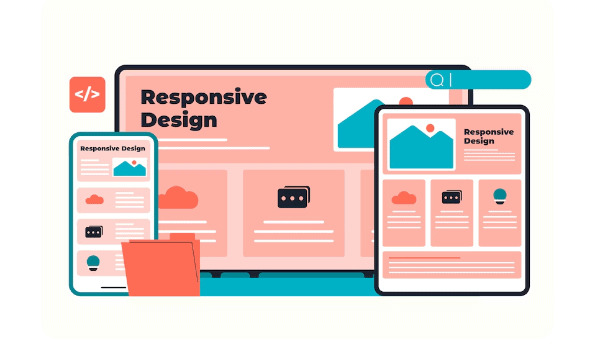
Here’s how you can ensure your store adapts seamlessly across screen sizes:
Start with a Mobile-First Approach
It’s always a smart idea to design with mobile users in mind first. Mobile-first design ensures that the most essential content and functionality are prioritized for smaller screens.
If your Figma file includes only desktop layouts, ask your designer to create mobile and tablet variants as well. This not only prepares you for better responsiveness but also aligns with Google’s mobile-first indexing.
Use Flexible Layout Units
Instead of fixed pixel values, use flexible units like percentages (%), em, or rem in your styling. These units scale better across different screen sizes and make your layout more fluid. For example:
- Use width: 100% for containers instead of width: 1200px
- Set font sizes with rem to maintain consistency
This small change makes a big difference in how your store adapts to different devices.
Find out: How to Convert Px to Inches for Figma to WordPress Projects
Set Custom Breakpoints
Most page builders like Elementor allow you to set breakpoints for desktop, tablet, and mobile views. Use these breakpoints to adjust spacing, font sizes, and visibility of elements.
If you’re using custom CSS, implement media queries like:
@media (max-width: 768px) { .product-grid { flex-direction: column; } }This gives you full control over how your content rearranges based on screen size.
Optimize Key Pages for Mobile Users
While it’s important to make the entire site responsive, focus extra attention on critical pages like:
- Product detail pages
- Cart and checkout flows
- Navigation menus
- Call-to-action sections (e.g., Buy Now, Add to Cart)
Make sure buttons are easy to tap, input fields are properly spaced, and nothing requires zooming in or scrolling sideways. A smooth checkout experience on mobile can drastically reduce cart abandonment.
Test Across Devices and Browsers
Finally, test your WooCommerce site on real devices whenever possible. Use browser developer tools to simulate screen sizes, but also leverage tools like:
- BrowserStack for cross-browser/device testing
- Responsive Design Checker
- Google Chrome DevTools for mobile emulation
Don’t forget to check loading times, button placement, and readability. Plus, always preview both landscape and portrait orientations.
Related: How to Make Your Figma to WordPress Site Fully Responsive
Final Thoughts
Integrating Figma designs with WooCommerce in WordPress isn’t as hard as it sounds. With the right approach, you can turn your static designs into a fully functional eCommerce website that looks amazing and converts well.
Start with clean designs. Choose a method that fits your team’s skill set, whether it’s hand-coding, using Elementor, or plugins. And remember: testing and responsiveness are key to user experience and sales.
By aligning your design and development process, you’ll save time, reduce errors, and create a store that truly reflects your brand.
Figma Designs to WooCommerce FAQs
Can you directly import Figma files into WordPress?
No, you can’t directly import. However, you can export assets and use tools or plugins to assist with the transition.
Which is better for converting Figma, Elementor or Gutenberg?
Elementor offers more visual flexibility and is beginner-friendly. Whereas, Gutenberg is lighter and native but may require more styling knowledge.
Do I need to know coding to integrate Figma with WooCommerce?
Not necessarily. With tools like Elementor and design export plugins, you can build an online store without deep coding knowledge. But web developers can unlock more customization.
How do I make sure my WooCommerce site matches the Figma design?
To make sure the WooCommerce site matches the Figma design, use the Figma inspect tool to copy exact values (padding, colors, fonts) and apply them in Elementor or your theme’s customizer. Also, test thoroughly.



