Figma has revolutionized how designers create, collaborate, and bring ideas to life. Whether you’re a beginner exploring user interface design or a professional leading design teams, Figma empowers you to build visually appealing, functional, and scalable digital products. From real-time collaboration to creating reusable design systems, Figma offers an intuitive workspace that enhances creativity and efficiency. In this guide, we’ll explore the best Figma design tips and tricks to help you get the most out of your workflow, with practical examples you can apply right away.
A Brief Overview of Figma Design Tool
Figma is a cloud-based design and prototyping tool used by UI/UX designers to create websites, apps, and interfaces collaboratively. Unlike traditional design tools that require constant file sharing, Figma allows multiple designers to work on the same project in real time.

Its popularity stems from its ease of use, accessibility, and community-driven features. You can design, prototype, and share all in one place.
If you’re new, start by exploring the Figma Community. You’ll find templates, design kits, and plugins shared by other designers. It’s a great way to learn, experiment, and stay updated with design trends.
From Figma Frames to WordPress Fame!
Design with creativity, build with confidence, and launch a website that truly stands out.
Basic Figma Design Tips: Setting Up Your Project for Success
Before you begin designing, ensure your project is set up with the correct frame dimensions. For example:
- Mobile apps: Use frames like iPhone 14 (390×844) or Android devices (360×800).
- Web projects: Start with desktop sizes like 1440×1024 or 1920×1080.
This ensures that your layout adapts seamlessly to real-world screen sizes. You can access these frame presets directly from Figma’s Frame Tool (F).
Example: If you’re designing a wellness app for breathing exercises, set up mobile frames first. This helps maintain alignment and ensures responsive layout consistency across screens.
Use Auto Layout for Responsive Designs
Auto Layout is one of the most powerful features in Figma. It allows your designs to automatically adjust spacing, padding, and alignment when elements change in size or order.
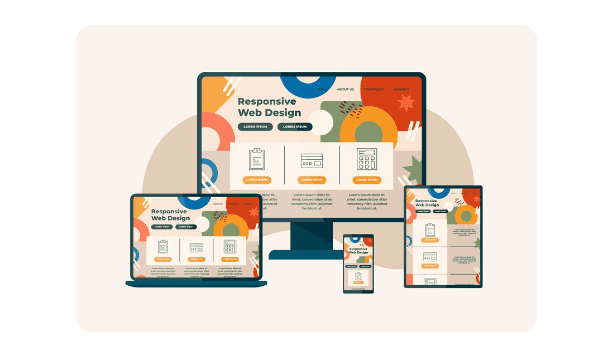
For instance, if you’re designing a navigation bar or a list of cards, Auto Layout ensures elements remain visually balanced even when text or icons change.
Pro Tip: Use Auto Layout when creating buttons, forms, or responsive cards to ensure optimal layout and responsiveness. It saves hours of manual resizing later.
Organize Layers and Components
A clean file structure enhances collaboration and efficiency. Use naming conventions such as:
- Header/Navigation
- Content/Cards
- Footer/Buttons
Group elements logically and use color-coded layers to identify components quickly.
Example: In your wellness app, group screens into Onboarding, Home, and Progress Tracker, allowing team members to easily navigate your design file.
Build a Reusable Design System
Creating a design system in Figma ensures visual consistency across all screens. It includes reusable elements like buttons, color palettes, icons, and typography styles. You can build your system manually or start with templates available in the Figma Community.
Pro Tip: Use Components and Variants for elements like buttons or input fields. For instance, you can create a single button component with multiple states: default, hover, and disabled.
Set Up Consistent Typography
Typography has a direct impact on readability and visual hierarchy. As such, define font sizes and weights early in the design process. For web projects, consider:
- Headings: 32px (Bold)
- Subheadings: 24px (Medium)
- Body text: 16px (Regular)
- Captions: 12px (Light)
Use Styles in Figma to maintain consistency. This makes it easy to apply global changes when you update your font choices later.
Tips for Designing Efficiently with Figma
Figma offers a variety of design tools, ranging from basic shapes to the advanced Arc Tool, which allows you to create circular progress indicators or unique iconography.
Example: In your wellness app, use the Arc Tool to visualize a breathing timer that fills gradually as the user inhales and exhales.
This not only enhances usability but also adds an interactive visual appeal.
- Use Layout Grids and Constraints: Layout grids help maintain visual balance and alignment. For mobile designs, use 4-point or 8-point spacing grids to ensure consistent spacing across elements. Apply constraints to make your design responsive.
For example, fix a button to the bottom of the frame so it remains in place across screen sizes.
- Incorporate AI and Prompts for Hybrid Design Workflows: Figma is increasingly integrating AI-powered tools. You can use Figma Make or community plugins to generate UI elements automatically based on prompts.
Example: Type a prompt like “Create a login screen for a fitness app,” and the plugin will generate an editable layout for you. This hybrid workflow accelerates brainstorming and enables you to focus on refining design details.
- Create and Reuse Components: Components are the backbone of scalable Figma projects. Whenever you design a button, card, or icon that you plan to reuse, make it a Component (Cmd/Ctrl + Alt + K).
Example: In your web dashboard, create components for navigation items or user cards. If you ever update one component (such as changing a color), all instances are updated automatically.
- Manage Complex Projects with Pages and Layers: For large design systems or multi-screen projects, use multiple pages in a Figma file. For example: Style Guide, Componenets, Screens, and Prototypes.
Use the Layers Panel to stay organized and reduce confusion, especially when collaborating in teams.
Tips for Collaboration and Prototyping in Figma
Figma’s biggest advantage is its real-time collaboration. Multiple designers can edit the same file simultaneously, comment on and review designs in real-time.
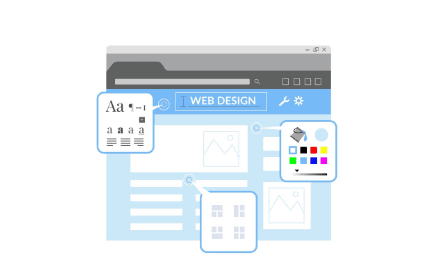
Invite teammates or stakeholders with “Can View” or “Can Edit” access, and use comments to discuss feedback without switching tools.
Example: During a design sprint, your UX designer can refine layouts while your copywriter edits microcopy, all in real time.
- Use Version History for Safety: Mistakes happen. Fortunately, Figma keeps a version history of every file. You can restore earlier versions or view who made changes and when.
Pro Tip: Label key checkpoints, such as “Client Review v1” or “Final Design v2,” to track project milestones.
- Prototype Interactions and Flows: Turn your static designs into interactive prototypes. Use Prototype Mode to link buttons to screens, add transitions, and simulate user journeys.
Example: For the wellness app, you can link the “Start Breathing” button to an animation screen showing a circular progress indicator.
Use Smart Animate for smooth transitions between frames.
- Gather Feedback: Figma enables stakeholders to provide direct comments on the design. Encourage clients or teammates to leave specific feedback using pins. You can also export prototypes and share them via links, no need for heavy files or PDFs.
Advanced Figma Tips and Tricks for Experienced Users
As designers grow more comfortable with Figma, mastering its advanced capabilities becomes essential to elevate design quality and productivity.
These expert-level tips help streamline workflows, strengthen design systems, and optimize collaboration. Whether you’re working solo or leading a design team, these advanced Figma tricks will help you design smarter and faster.
Use Plugins to Automate Tasks
Plugins are Figma’s secret weapon for efficiency. They automate repetitive tasks, accelerate design processes, and foster creativity. From generating content to optimizing handoff, plugins save valuable time.
For instance, Content Reel quickly adds placeholder text and images, while Autoflow visually maps out user journeys. Similarly, Iconify offers instant access to thousands of icons, and Unsplash lets you insert stock images directly into your layouts.
By integrating the right plugins, you can maintain consistency and focus on design strategy instead of routine tasks.
Create Dynamic Variants for Flexible Design Systems
Dynamic variants make your design system adaptable and scalable. Instead of creating multiple separate components, you can combine them into a single set with multiple states or styles.
For example, you can have a single “Button” component with Primary, Secondary, and Disabled variants. This setup makes it easier to swap styles quickly and maintain consistency throughout your design system.
As your project grows, variants keep your workflow organized and flexible.
Master Constraints and Auto Layout Nesting
Constraints and nested Auto Layouts allow you to design truly responsive interfaces. They automatically adjust spacing, alignment, and element behavior when resizing frames.
For instance, if you design a card layout that includes an icon, title, and description, nested Auto Layout ensures that the spacing remains consistent, no matter the screen size.
This approach saves time and guarantees pixel-perfect responsiveness across devices.
Use Figma Mirror for Real-Device Testing
Figma Mirror allows you to preview designs directly on your mobile device. By syncing your Figma file to the Figma Mirror app, you can test spacing, readability, and tap targets in real time. This step bridges the gap between design and user experience, ensuring your visuals translate seamlessly across screens.
Leverage Figma’s Dev Mode
Figma’s Dev Mode enhances collaboration between designers and developers. It allows developers to inspect elements, copy CSS or code snippets, and view component properties. This reduces design-to-development friction, ensuring faster and more accurate implementation of UI elements.
Stay Inspired with the Figma Community
The Figma Community is an invaluable resource for ongoing learning and inspiration. You can explore design templates, UI kits, icon sets, and even experimental projects shared by fellow designers. By engaging with the community, you stay updated on design trends, discover new techniques, and find inspiration for your next project.
These advanced Figma tips and tricks empower experienced designers to design faster, collaborate better, and maintain a professional edge.
Bonus: Figma Keyboard Shortcuts for Speed
Efficiency in design isn’t just about creativity; it’s also about speed. Mastering Figma keyboard shortcuts can significantly boost your productivity and help you navigate design tasks with ease. These shortcuts save time, reduce repetitive clicks, and allow you to stay focused on creating great designs.
- Add Text (T): Press T to quickly add text to your canvas. This shortcut is perfect for inserting headings, labels, or body content without breaking your workflow.
- Create Rectangle (R): Use R to draw rectangles instantly. It’s ideal for creating buttons, cards, or layout placeholders.
- Create Ellipse (O): Tap O to design circular or oval shapes. Great for icons, buttons, or decorative UI elements.
- Create Frame (F): Press F to make frames, which act as containers for layouts or screens.
- Group Elements (Cmd/Ctrl + G): Group multiple layers together to stay organized and move elements as one unit.
- Quick Actions (Cmd/Ctrl + /): Use this to access tools or plugins instantly, streamlining your entire design process.
Memorizing these shortcuts will make your Figma workflow faster, smoother, and far more enjoyable.
To Sum Up
Figma is more than just a design tool; it’s a collaborative platform that bridges creativity and teamwork. By applying these Figma tips and tricks, designers can streamline their workflow, maintain consistency, and bring ideas to life faster.
Whether you’re designing a wellness app, a web dashboard, or an eCommerce site, Figma offers the flexibility and tools you need to succeed. Start small, explore features like Auto Layout and Components, and gradually build your own design system.
With consistent practice and smart workflows, you’ll not only create better designs but also collaborate more effectively, which is the true essence of modern design.
FAQs on Figma Design Tips
How can I improve my workflow using Figma?
Figma offers time-saving features like Auto Layout and reusable components that help streamline your Figma design process while maintaining consistency across projects.
What’s the best way to create a balanced web layout?
Use a horizontal grid and apply layout hints to maintain equal spacing and achieve a better visual balance across different screen sizes.
How do I maintain a consistent design system?
Establish the same visual language using font styles, visual style, and components to build a consistent UI that looks cohesive in all new frames.
Can Figma support creative concept development?
Yes, it’s excellent for concept ideation. You can design a mobile onboarding screen for a wellness app focused on breathing, keeping clear intent and structure.
How do prompts enhance workflow in Figma?
In Figma AI, prompts enhance workflow by allowing designers to use a prompt library that blends creativity with automation, enabling a seamless hybrid human-AI workflow for faster and smarter design generation.
What styles should I explore for modern UI design?
Experiment with minimalistic style, futuristic sci-fi aesthetics, or even an Apple Vision Pro style to create UI inspired designs for product teams.
What should product designers prioritize in layouts?
Every product designer should add essential constraints to form screen elements, ensuring each layer aligns properly for the mobile version and other different contexts.