


Great UI design not only enhances user experience but also plays a key role in determining the success of any digital product. However, one common bottleneck in the product development cycle is converting UI to code.
Traditionally, this process involved manual handoffs where developers would interpret design files and rebuild them using front-end frameworks. This method was time-consuming and error-prone, which led to the invention of UI designs to code conversion tools.
These tools automate much of the translation process, allowing developers to focus on refining user interactions and business logic instead of replicating design layouts from scratch.
In this blog post, we’ll explore the best tools available to convert UI into production-ready code, how they work, and what makes them stand out.
What is UI to Code Conversion?
UI to code conversion refers to the process of transforming design mockups into actual front-end code. Depending on the tool and platform, this can include HTML, CSS, JavaScript, React, Flutter, Swift, and more.
The goal is to reduce the manual effort involved in building interfaces by allowing developers to generate code directly from design files created in tools like Figma, Sketch, or Adobe XD. While it doesn’t eliminate the need for development expertise, it significantly speeds up workflows and reduces miscommunication between teams.
Benefits of UI to Code Tools
UI to code tools have become a game-changer for modern development teams. By automating the translation of design files into functional code, these tools streamline workflows and bridge the gap between designers and developers.
Below are some key benefits that make them worth integrating into your development process.
- Faster Development Cycles: UI-to-code tools speed up the front-end development phase by eliminating the need to manually recreate layouts in code. Teams can go from prototype to working product in a fraction of the time.
- Consistent Design Implementation: Automated code generation allows less room for deviation from the original design. This ensures brand consistency and visual accuracy across different pages and devices.
- Reduced Human Error: Manual coding often introduces errors due to misinterpretation of design specs. These tools help minimize such mistakes by accurately translating design elements into code.
- Streamlined Designer-Developer Handoff: Designers can export their work in developer-friendly formats, making collaboration smoother and reducing the back-and-forth during handoffs.
- More Focus on Functionality and Performance: Since layout and styling are largely automated, developers can spend more time optimizing performance and building core features instead of focusing on UI replication.
Overall, these tools not only improve efficiency but also enhance the quality of digital products.
Find out: How to Convert Figma Designs to WordPress Using Elementor
Key Features to Look For in UI-to-Code Tools
Not all tools are equal. So, before choosing the right platform, consider the following features:
- Design Software Compatibility: The tool should seamlessly integrate with your design platform of choice. Whether you use Figma, Sketch, or Adobe XD, ensure the tool can import files directly or offer plugins/extensions.
- Framework and Language Support: Look for tools that generate code in the languages and frameworks your team uses. Popular options include React, Vue, Angular, Flutter, and Swift.
- Ease of Use: A good tool should have an intuitive interface with minimal setup. Even non-developers should find it easy to generate and understand the output.
- Customization Options: Generated code is rarely perfect out-of-the-box. Ensure the tool allows tweaking, component naming, or integration with your existing design system.
Read: How to Convert a Figma Design to a React-Powered WordPress Website
Turn Your UI Design into a WordPress Website Faster Than Ever
Stop wasting time on manual coding. With us, you can go from UI to production-ready WordPress site swiftly. Get started now.
Top Tools for Converting UI to Code
Let’s dive into the most effective tools available for turning UI designs into functional code. Each of these offers unique strengths depending on your workflow.
Figma to Code
Figma is a leading UI/UX design tool known for its collaborative features and flexibility. Beyond design, it offers strong support for code generation through a variety of plugins and integrations, making it a preferred choice for design-to-development workflows.

- Key Features: Figma supports numerous plugins, such as Figma to HTML, Figma to React, and Figma to Flutter, allowing developers to generate code directly from design elements. Additionally, its real-time collaboration and cloud-based design files enhance team productivity. The component-based structure also ensures reusable and scalable code.
- Supported Frameworks: Figma-generated code is compatible with multiple front-end technologies, including HTML/CSS, React, Flutter, and Swift.
- Pros: Figma’s plugin ecosystem is diverse and growing, providing solutions for a wide range of frameworks. Its cloud-based system ensures that updates are always accessible, and thanks to its intuitive interface, handoffs between teams are simplified.
- Cons: Plugin quality and functionality can vary, and many advanced features are locked behind premium versions or require paid subscriptions.
Overall, Figma remains a powerful choice for converting designs into clean, production-ready code.
Sketch to Code
Sketch continues to be a trusted design tool for UI designers, especially those working within the macOS ecosystem. While it doesn’t offer built-in code export, it integrates well with third-party tools that enable smooth UI to code conversion.
- Key Features: Sketch works seamlessly with platforms like Zeplin, Avocode, and Sketch2React, which assist in transforming design files into code. It offers clean, vector-based design capabilities and supports reusable symbols and components. This makes it suitable for building consistent and scalable interfaces.
- Supported Platforms: Sketch-based designs can be converted into code for several environments, including HTML/CSS, React, and iOS (via Xcode or plugins).
- Pros: Sketch is known for being lightweight and user-friendly, which makes it ideal for quick iterations. It has strong plugin support that extends its functionality and is particularly ideal for macOS users.
- Cons: Sketch is limited to macOS, which may be a barrier for cross-platform teams. It also lacks native code export, relying heavily on external tools for developer handoff.
Despite its limitations, Sketch remains a reliable option for design-to-code workflows with the right plugin setup.
Read more: Best Prototyping Tools for UI/UX Designers
Adobe XD to Code
Adobe XD is a feature-rich UI/UX design tool that caters to both designers and developers. Known for its clean interface and integration with Adobe Creative Cloud, it also provides several options for exporting code and assets to speed up development.
- Key Features: Adobe XD allows users to export CSS directly from design layers, making styling easier for front-end developers. It supports a variety of plugins for HTML/CSS export, React Native, and Flutter. Additionally, it offers design specs and asset export options, ensuring that developers have everything they need during handoff.
- Supported Frameworks: Designs created in Adobe XD can be exported or integrated with HTML/CSS, React Native, and Flutter.
- Pros: Thanks to its tight integration with Adobe Creative Cloud, Adobe XD works smoothly within existing Adobe workflows. It also offers intuitive handoff features, and its growing plugin ecosystem expands export capabilities across multiple frameworks.
- Cons: Adobe XD has limited support for advanced components, which can restrict complex interactions. Also, the generated code may need manual cleanup to meet production standards.
Still, Adobe XD remains a strong tool for teams looking to streamline design-to-development pipelines.
Easy Steps: How to Convert Figma to Adobe XD
Framer
Framer is a powerful design tool created with developers in mind. It combines design and coding capabilities in one platform, making it ideal for teams that value precision and interactivity in their prototypes.
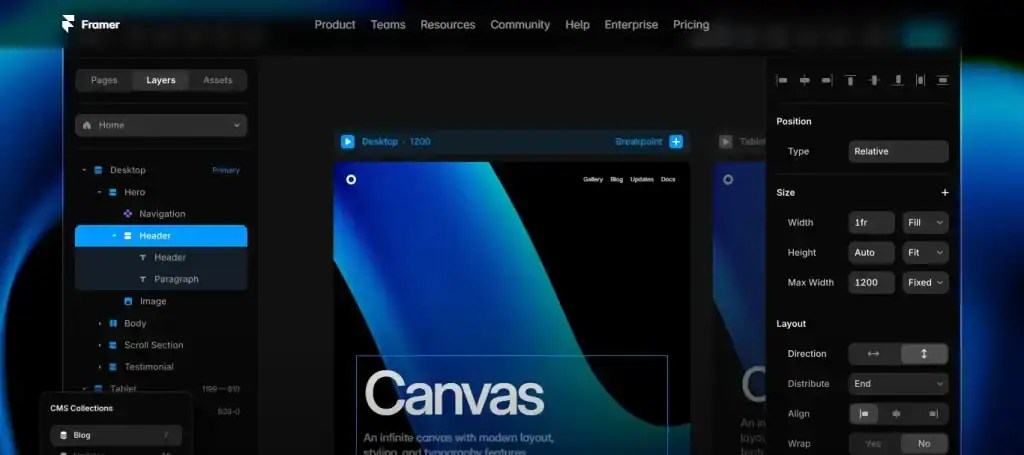
- Key Features: Framer allows users to design and code within a single platform, reducing the need for external tools. It offers real-time interaction previews, enabling instant feedback during the design process. Most importantly, it supports direct export to production-ready React code, streamlining the transition from design to development.
- Supported Framework: Framer is specifically built for React.
- Pros: Framer excels with its high-fidelity design-to-code workflow, offering results that closely mirror the final product. It’s also great for interactive prototyping and provides a minimal learning curve for developers familiar with React.
- Cons: On the downside, Framer only supports React, limiting flexibility for teams using other frameworks. It’s also less suited for projects requiring complex backend integration.
Still, Framer offers a clean and efficient path from concept to code for front-end-focused teams.
Simple Steps: How to Convert Figma to Framer
Anima AI Design to Code
Anima is a versatile design-to-code tool that helps teams convert static designs into responsive, developer-friendly code. It supports multiple design platforms, making it a flexible solution for cross-tool workflows.

- Key Features: Anima enables users to convert designs into responsive HTML, CSS, and React code, significantly speeding up front-end development. It also supports interactive components, allowing more dynamic previews. Additionally, features like live preview and team collaboration enhance workflow efficiency.
- Supported Frameworks: Anima-generated code is compatible with HTML/CSS and React.
- Pros: Anima stands out for its high-quality, production-ready semantic code It offers responsive design output and works seamlessly across Figma, Adobe XD, and Sketch, giving teams more flexibility.
- Cons: Many premium features are behind a paywall, which may limit accessibility for some users. There are also some constraints when dealing with highly customized components.
Despite these limitations, Anima is a strong choice for teams aiming to bridge design and development efficiently.
Also read: Guide to Converting Figma Designs to HTML Code
Locofy.ai Design to Code with AI
Locofy.ai is an emerging UI-to-code tool known for producing clean, developer-ready code. It’s designed to simplify the transition from design to development, especially for modern front-end frameworks.
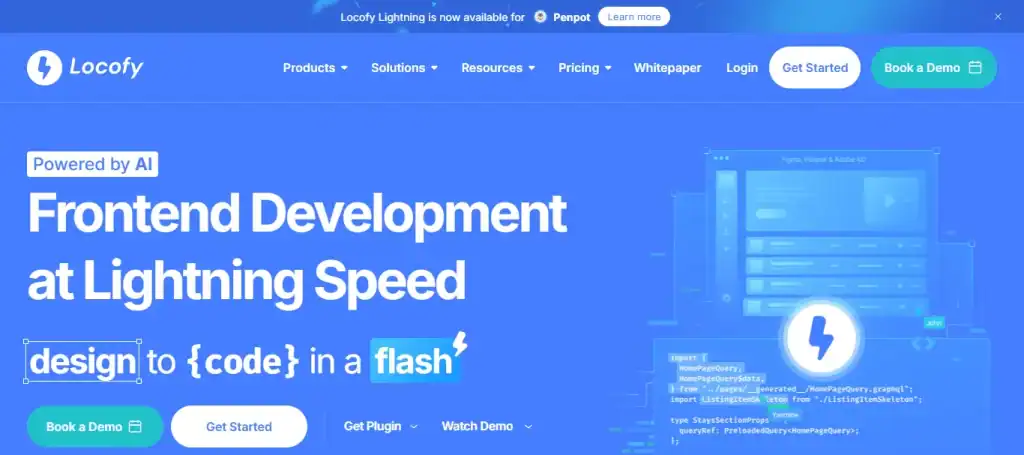
- Key Features: Locofy.ai offers support for Figma and Adobe XD, making it accessible to a wide range of designers. It can convert designs into React, React Native, and Next.js code. Features like visual layer mapping and component detection ensure better control over how design elements are translated into code.
- Supported Frameworks: Locofy.ai supports React, Next.js, React Native, and HTML/CSS.
- Pros: Locofy.ai delivers clean and editable code, which developers can easily integrate into their projects. It also provides comprehensive documentation and allows for quick integration with existing design systems.
- Cons: There is a learning curve for advanced features, and the free tier has some limitations, especially for larger projects.
Overall, Locofy.ai is a strong contender for teams seeking scalable and developer-friendly design-to-code solutions.
Quick Steps: How to Convert Figma to Beaver Builder
Builder.io AI-Powered Visual Development Platform
Builder.io is a flexible visual development platform that combines design and code in a single workflow. It enables users to build fully functional web pages using a no-code or low-code approach, making it ideal for teams looking to accelerate front-end development.
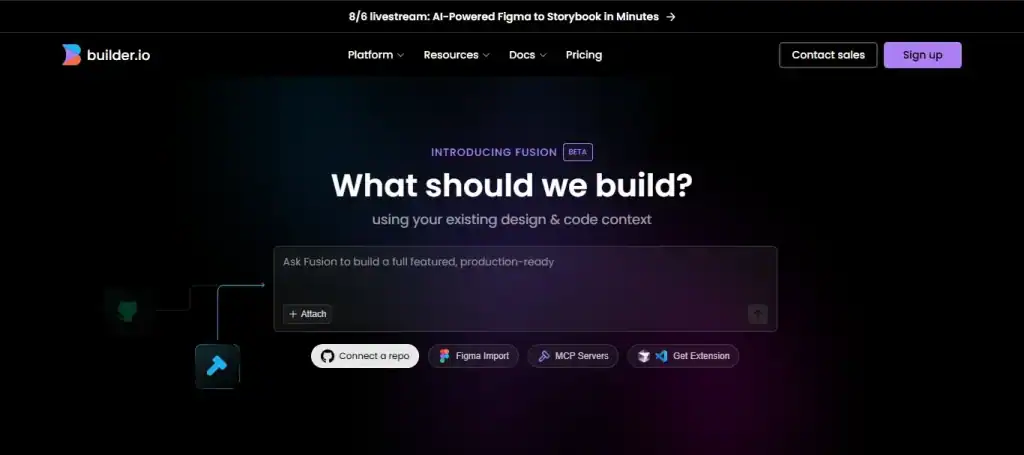
- Key Features: Builder.io features a drag-and-drop editor that simplifies UI creation without writing code. It also connects seamlessly with APIs and backend systems, supporting dynamic content. Additionally, it can export code for React, Vue, Angular, and Web Components, catering to diverse tech stacks.
- Supported Frameworks: Builder.io supports React, Vue, Angular, and Web Components.
- Pros: It’s particularly powerful for dynamic web applications, offering highly customizable code output. It’s also excellent for marketing teams and CMS-based workflows, enabling quick iterations without developer bottlenecks.
- Cons: Builder.io comes with a steeper learning curve for developers unfamiliar with visual tools, and it may overcomplicate simpler projects with its advanced features.
Still, it’s a strong option for scalable, flexible front-end development.
Learn: How to Convert Figma to Canva
Lovable (Lovable.dev)
Lovable is an AI-powered platform designed to turn simple text prompts or design files into full-stack web applications. It’s ideal for rapid prototyping and generating both UI and backend code with minimal effort.
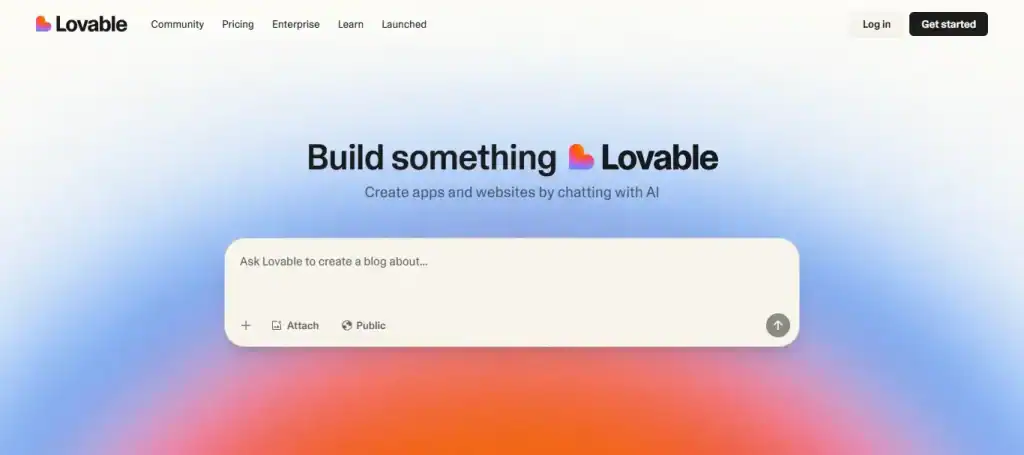
- Key Features: Lovable offers a prompt-based builder that transforms plain English descriptions into interactive UIs. It supports design imports from Figma or screenshots and generates React with Tailwind CSS, complete with routing, APIs, and integrations like Stripe or Supabase.
- Supported Frameworks: Lovable supports React + Tailwind CSS, Supabase, OpenAPI, Stripe, and more.
- Pros: The platform enables quick MVP development, supports editable and exportable code via GitHub, and is beginner-friendly. It helps non-developers build functioning apps quickly.
- Cons: It’s less suitable for large-scale production apps. Prompt sensitivity can lead to inconsistent code, and highly customized UIs may require manual refinement. Scaling and migrating projects may also be challenging.
Still, Lovable is a strong option for fast, low-effort web app creation.
Guide to: Figma to Astra Template for WordPress
Final Thoughts
The line between design and development is becoming increasingly blurred. With the rise of UI-to-code tools, teams can iterate faster, collaborate more efficiently, and build more consistent digital experiences.
Choosing the right tool depends on your workflow, tech stack, and team skill set. Whether you’re a solo developer looking to speed up HTML/CSS tasks or a product team aiming for full React integration, there’s a tool that fits your needs.
We recommend experimenting with a few of these platforms to find what works best for you. The future of UI design is no longer static; it’s interactive, responsive, and closer than ever to code.
FAQs About UI Design to Code
What is a UI to code tool?
A UI to code tool converts design files into front-end code, helping developers build user interfaces faster and more accurately.
Can I use these tools without coding knowledge?
Yes, many tools like Builder.io and Anima offer no-code or low-code features, allowing non-developers to generate code with minimal technical skills.
Which design platforms are commonly supported?
Most UI to code tools support Figma, Sketch, and Adobe XD. Some tools even offer plugins or direct integrations with these platforms.
Is the generated code production-ready?
While many tools provide clean, semantic code, it often requires manual review or optimization before going live in a production environment.
Do these tools support responsive design?
Yes, tools like Anima and Locofy.ai generate responsive layouts that adapt to different screen sizes and devices.
Can these tools integrate with my design system?
Some tools, such as Locofy.ai and Builder.io, allow integration with custom design systems for consistent component usage.
Are these tools free to use?
Most tools offer a free tier with limited features. For advanced capabilities, responsive code, or integrations, a paid plan is usually required.



