


In web development, translating Figma mockups into WordPress themes is a crucial skill for creating visually appealing and fully functional websites. This process involves a seamless integration between design and development, ensuring that the artistic vision is preserved while maintaining technical excellence.
In this article, we’ll explore best practices for converting Figma designs into WordPress themes. We will cover essential steps like preparing design assets, implementing responsive design principles, and testing. Mastering these practices will enable you to easily deliver user-friendly WordPress sites, bridging the gap between creativity and functionality.
Why Use Figma for WordPress Theme Design?
Figma offers a powerful platform for designing WordPress themes that stand out in both aesthetics and functionality. By leveraging Figma, you can streamline the design and development process, resulting in high-quality websites.

Utilizing Figma for WordPress development offers numerous advantages, which are:
- Enhanced Aesthetic Appeal and User Experience: Using Figma ensures that your WordPress themes are visually appealing and engaging for users.
- Real-Time Collaborative Environment: Figma allows multiple stakeholders to contribute simultaneously. This ensures that the design aligns with everyone’s vision before development begins.
- Early Usability Testing and Feedback: Figma prototypes enable designers to test interfaces and gather critical feedback early in the process, reducing costly revisions later on.
Further reading: Top Benefits of Using Figma for WordPress Web Design
Hiring a Professional for Converting Figma Mockups to WordPress Themes and Websites
While acquiring the skills to convert Figma mockups yourself can be rewarding, enlisting the help of a professional agency like figtowp can offer significant advantages. Professional WordPress conversion service brings expertise and efficiency to the table, ensuring a polished final product.

Here are some of the advantages of hiring a professional:
- Time Savings: Professionals can complete the conversion process more quickly, freeing up your time for other important tasks.
- High-Quality Results: Skilled WordPress developers are adept at translating Figma designs into functional WordPress themes. Thereby, ensuring that the final website is both visually appealing and technically sound.
- Efficiency and Expertise: With extensive experience, web developers can navigate potential challenges seamlessly, optimizing the development process and delivering a superior product.
Convert Figma Designs into a Dynamic WordPress Site
Our team is ready to help you create a website that captures the essence of your design while ensuring top-notch functionality. Get in touch with us today.
Preparing for Figma to WordPress Conversion
It’s crucial to lay the groundwork effectively to ensure a seamless transition from Figma designs to a WordPress site. This involves setting up your WordPress environment and properly preparing all necessary assets.
Setting Up the WordPress Environment
If not done already, the first step to converting Figma designs to a WordPress site is setting up the WordPress environment.
- WordPress Installation: First, install WordPress on your selected web hosting platform. This will be the core system where your site operates and where you will integrate your Figma designs.
- Compatibility Requirements: Ensure your installation meets all necessary compatibility requirements for the design elements imported from Figma. This includes checking for PHP version compatibility, database credentials, and any server settings that could affect your theme’s performance.
- WordPress Theme Folder: Create a custom theme folder within your WordPress installation. This folder will house your theme’s specific files and resources, allowing you to manage and organize them.
- Organizing Theme Files: Organize your WordPress theme files thoughtfully by creating essential template files such as
functions.php,header.php,footer.php, and more. Proper organization ensures a straightforward path from aesthetic design to functional implementation.
Know more: Best UI/UX Design Trends
Analyzing and Exporting Figma Assets
Another essential step in converting Figma designs to a WordPress theme is carefully analyzing and exporting design assets. Ensuring these assets are properly prepared will streamline the conversion process and contribute to the overall success of your project.
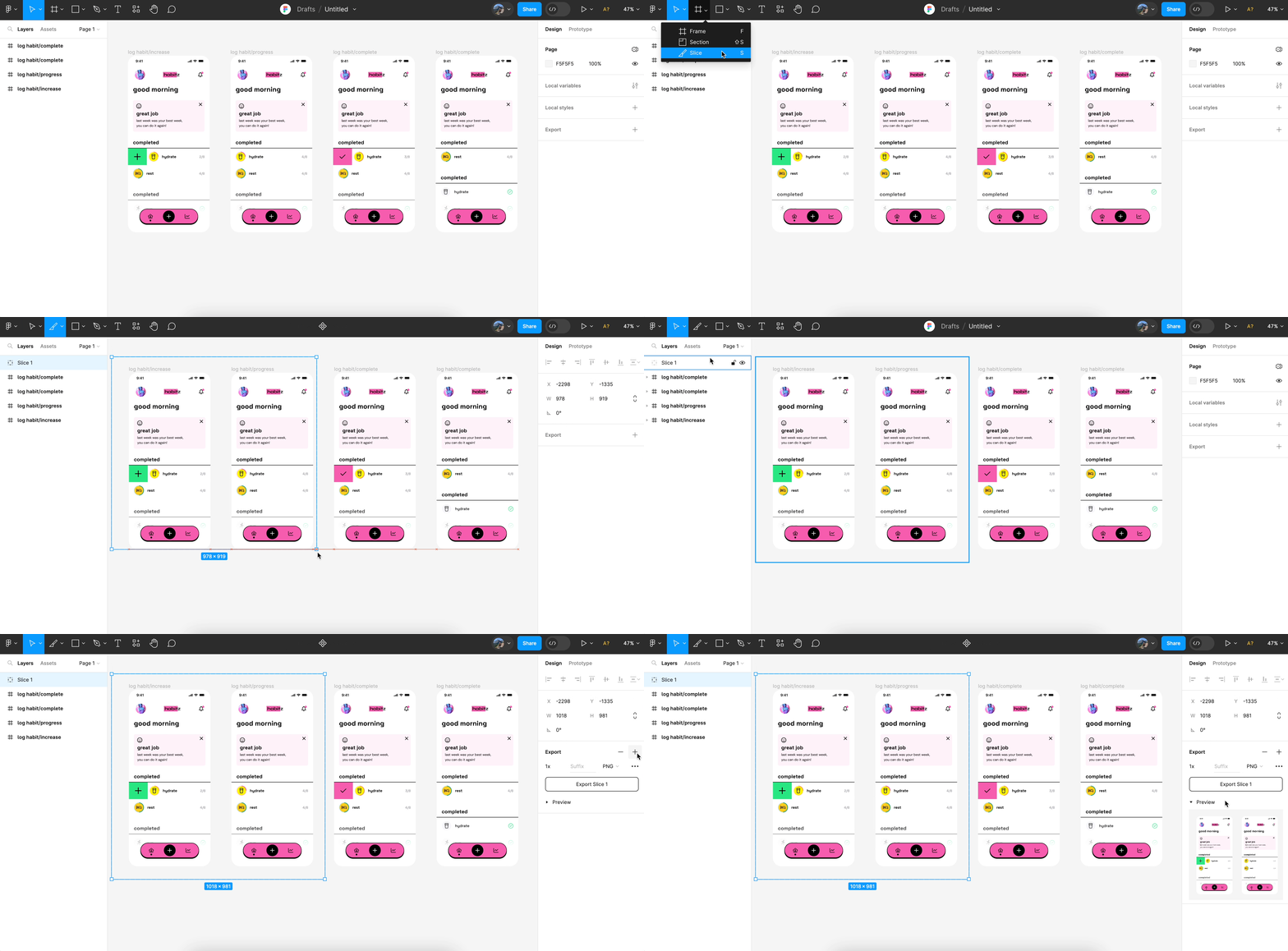
- Asset Analysis: Begin by thoroughly analyzing the Figma design to identify all necessary assets for the theme conversion. Key elements typically include images, icons, and fonts. Pay attention to detail in this step to ensure nothing is overlooked, which could cause issues later on.
- Utilizing Export Features: Leverage Figma’s robust export capabilities to extract these assets. Ensure you select the correct formats that are compatible with WordPress, such as PNG, SVG, or JPEG for images and icons, and the appropriate web font formats for typography.
- Organization and Preparation: Once exported, organize these assets logically in your WordPress theme folder. Properly naming and categorizing files will make integration smoother. This meticulous preparation and organization of assets help enhance efficiency and ensure a seamless transition from design to development.
Find out: How to Choose the Right WordPress Theme for Your Figma Design
Converting Figma Mockups to WordPress Themes
The process of converting Figma mockups into custom WordPress themes requires careful translation of design elements into functional website components. This involves leveraging various web development tools and techniques.
Design Component Conversion
Translating design components from Figma into WordPress elements is a critical step in the conversion process. This WordPress theme development phase involves utilizing various web development languages and techniques.
- Using HTML, CSS, and PHP: Use these coding languages to replicate the design components from your Figma mockups accurately. HTML files provide the structure, CSS files control the styling, and PHP files integrate the dynamic elements necessary for WordPress functionality.
- Integrating WordPress Template Files: Essential to defining your theme’s structure, WordPress template files such as
header.php,footer.php, andpage.phpare integrated into the theme. These files ensure consistency and are fundamental to the site’s layout and functionality.
- Utilizing Custom Post Types and Advanced Custom Fields: To manage dynamic content and maintain site flexibility, consider implementing custom post types. These allow content to be categorized and displayed in varied formats. Advanced custom fields further enhance this by enabling custom data input, providing robust options for tailoring content to specific needs.
Learn about: Unlimited Figma to WordPress Conversions for Busy Digital Agencies
Responsive Design Implementation
Incorporating responsive design is essential in modern web development to ensure that your website delivers a consistent and user-friendly experience across all devices.

- Utilizing CSS Media Queries: Use CSS media queries to apply conditional styles based on screen size and device characteristics. This allows you to dynamically adjust layouts, font sizes, and other design elements, ensuring the site remains visually appealing and easy to navigate on any device.
- Adopting Flexible Layout Techniques: Implement flexible layouts using techniques such as fluid grids, flexible images, and responsive typography. These help maintain visual consistency by automatically adjusting elements to fit within the screen’s dimensions. Thus, ensuring a cohesive appearance across desktops, tablets, and smartphones.
- Testing Across Various Devices: To guarantee a consistent user experience, conduct thorough testing of your site’s responsiveness. Utilize tools or physical devices to check how your site behaves on various screen sizes and resolutions. This ensures that all users, regardless of their device, enjoy a fully functional and aesthetically pleasing website.
Tips: Design Accessibility to Ensure Figma Designs Translate Well to WordPress
Best Practices for Figma to WordPress Conversion
Adhering to industry best practices is essential for a successful transition from Figma mockups to a fully functional WordPress website. These practices ensure efficiency, maintain design integrity, and optimize functionality throughout the conversion process.
Techniques for Converting Figma Designs
Consider using WordPress page builders like Elementor to simplify the conversion process. These tools provide a drag-and-drop editor that can streamline the creation of complex layouts without intensive coding.
- Leverage CSS Frameworks: Implement CSS frameworks such as Bootstrap or Tailwind CSS, which offer pre-designed components that bridge the gap between static designs and dynamic web elements. This can help maintain consistency and expedite web development.
- Optimize Performance and Accessibility: Focus on performance and accessibility by using optimized image files, clean and organized code, and accessibility features (like alt text for images). This ensures a fast and inclusive user experience.
Know about: How to Convert Figma to HTML/CSS
HTML Code Process for Figma to WordPress Conversion
Begin by setting up a local WordPress environment, such as using XAMPP or MAMP, which allows you to safely develop and test your new theme without affecting a live site.
- Mapping Out Required Theme Files: Identify and map out essential WordPress theme files, including functions.php, header.php, footer.php, index.php, and any other necessary WordPress template tags. These WordPress functions organization is key to maintaining structure and functionality.
- Integrating HTML with PHP Templates: Export Figma pages as HTML and carefully integrate these into the corresponding PHP template files within your theme structure. This ensures that the static design elements are correctly associated with WordPress’s dynamic content management system, laying the foundation for a fully operational theme.
Guide to: Converting Figma Designs to HTML Code and Building a WordPress Website
Testing and Launching the WordPress Theme
After converting your Figma designs into a WordPress theme, the next steps involve rigorous testing and a smooth deployment.
Testing and Debugging
Conduct thorough testing of your WordPress theme to verify that all design elements are functioning as expected. This includes checking all links for accuracy, ensuring images load correctly, and confirming that interactive components, such as forms and buttons, respond as intended.
Also, identify and resolve any issues uncovered during testing. This might involve refining your code, adjusting styles, or revising interactive elements. Effective debugging is essential to eliminating errors and ensuring a seamless user experience without any visual or functional glitches.
Deploying the WordPress Theme
Once testing is complete and all elements are verified to be working, deploy your WordPress theme by uploading it to your WordPress dashboard. Use the theme installer to activate it, and then configure any relevant settings to ensure your site is visually appealing and functions as intended.
After deployment, make any necessary final adjustments. This might involve tweaking minor visual elements, optimizing for performance, and ensuring that all settings align with the initial design vision. These final touches help solidify the launch of a polished and fully functional website.
Complete Guide: Steps to Streamline WordPress Theme Customization with Figma
Conclusion
Translating Figma mockups into WordPress themes requires precision and understanding of both platforms. By following these best practices, you can bridge the gap between design and development, creating seamless and functional WordPress sites.
Key takeaways include leveraging CSS frameworks, utilizing flexible page builders, and ensuring site speed and performance optimization. Whether doing it yourself or hiring a professional, these skills are invaluable for any web developer aiming to master the art of integrating Figma and WordPress.
FAQs About Converting Figma Mockups into WordPress Themes
How to convert Figma design to WordPress theme?
Start by exporting design assets from Figma, then develop the necessary HTML, CSS, and PHP files, and integrate them into the WordPress environment for a seamless conversion.
How to embed Figma prototype in WordPress?
To display the prototype, generate an embed code in Figma and insert it into a WordPress post using the HTML editor.
How do I make a mockup with Figma plugins?
Use Figma plugins to easily add mockup frames or templates while designing your interfaces, enhancing your projects with ready-made visual elements. Check out the WordPress plugin repository to find relevant plugins.
What are the key steps to prepare for Figma to WordPress conversion?
Set up the WordPress environment and export Figma assets in compatible formats, ensuring all design elements are ready for integration.
How to ensure responsive design in WordPress themes?
Implement responsive design by using CSS media queries and testing across various devices to ensure the theme maintains its functionality and appearance on different screen sizes.



