


Design tools are evolving fast, and modern workflows demand more than just static mockups. While Figma is the go-to for interface design, Framer takes your design to the next level by making it interactive and functional without the need for complex coding. If you’re ready to bring your Figma designs to life, this guide will walk you through the process of converting Figma to Framer step by step.
Whether you’re a UI/UX designer, a developer, or a product team member, knowing how to move your design from Figma to Framer can help you build fully interactive prototypes that look and feel like real products.
What is Framer and its Key Features?
Framer is a web-based design and prototyping tool that allows you to create interactive, responsive websites and interfaces without writing complex code.

It is widely used by designers, developers, and startups to quickly build real, production-ready prototypes. It’s especially valued for its ability to seamlessly import Figma designs, enabling teams to bring static designs to life with interactivity and animation.
Key Features of Framer include:
- Visual Design Tools: Drag-and-drop interface for creating layouts and components.
- Interactive Prototyping: Add animations, transitions, and micro-interactions with ease.
- Responsive Design: Built-in tools for designing across desktop, tablet, and mobile.
- Code Components: Supports custom code (React) for advanced functionality.
- Real-Time Collaboration: Multiple team members can design and prototype together live.
- CMS & Hosting: Publish sites directly with Framer’s built-in CMS and custom domains.
- Figma Import: Quickly import Figma designs to bring them to life in Framer.
It’s a great tool for bridging the gap between design and development.
From Figma to Framer Without the Fuss!
Let our pros handle the heavy lifting and turn your static designs into stunning, interactive experiences. Get started now!
Step-by-Step Conversion from Figma to Framer
Converting your designs from Figma to Framer might seem challenging, but with the right steps, it can be a smooth and rewarding process. Let’s walk you through each stage, ensuring your transition is seamless and your final product is top-notch.
Step 1: Preparing Your Figma Design for Export
Before you jump into Framer, it’s important to clean up your Figma file. A well-structured Figma design can save you time and reduce frustration during the conversion process. Here’s what you need to do:
- Organize your layers: Make sure every frame, group, and component is properly named. Avoid messy nesting or vague layer names like “Group 42.”
- Use auto layout: Framer supports responsive design features, so using Figma’s auto layout will make things more fluid later.
- Flatten vector icons if needed: Framer may not fully support complex vector shapes. Using Figma features flatten them as PNG or SVG to ensure they render properly.
- Check text styles and colors: Use consistent styles in Figma, as Framer can import them with minimal tweaking.
- Remove unused elements: Hidden or unused layers can clutter the import process.
- Avoid Unsupported Effects: Some Figma effects, like certain blend modes, filters, or masks, might not transfer perfectly to Framer. Identify these ahead of time and simplify or adjust them if possible.
The cleaner your Figma file is, the easier it will be to recreate your design in Framer.
Step 2: Exporting Assets from Figma
Next, it’s time to export assets such as images, icons, or logos that you’ll need in Framer workflow.
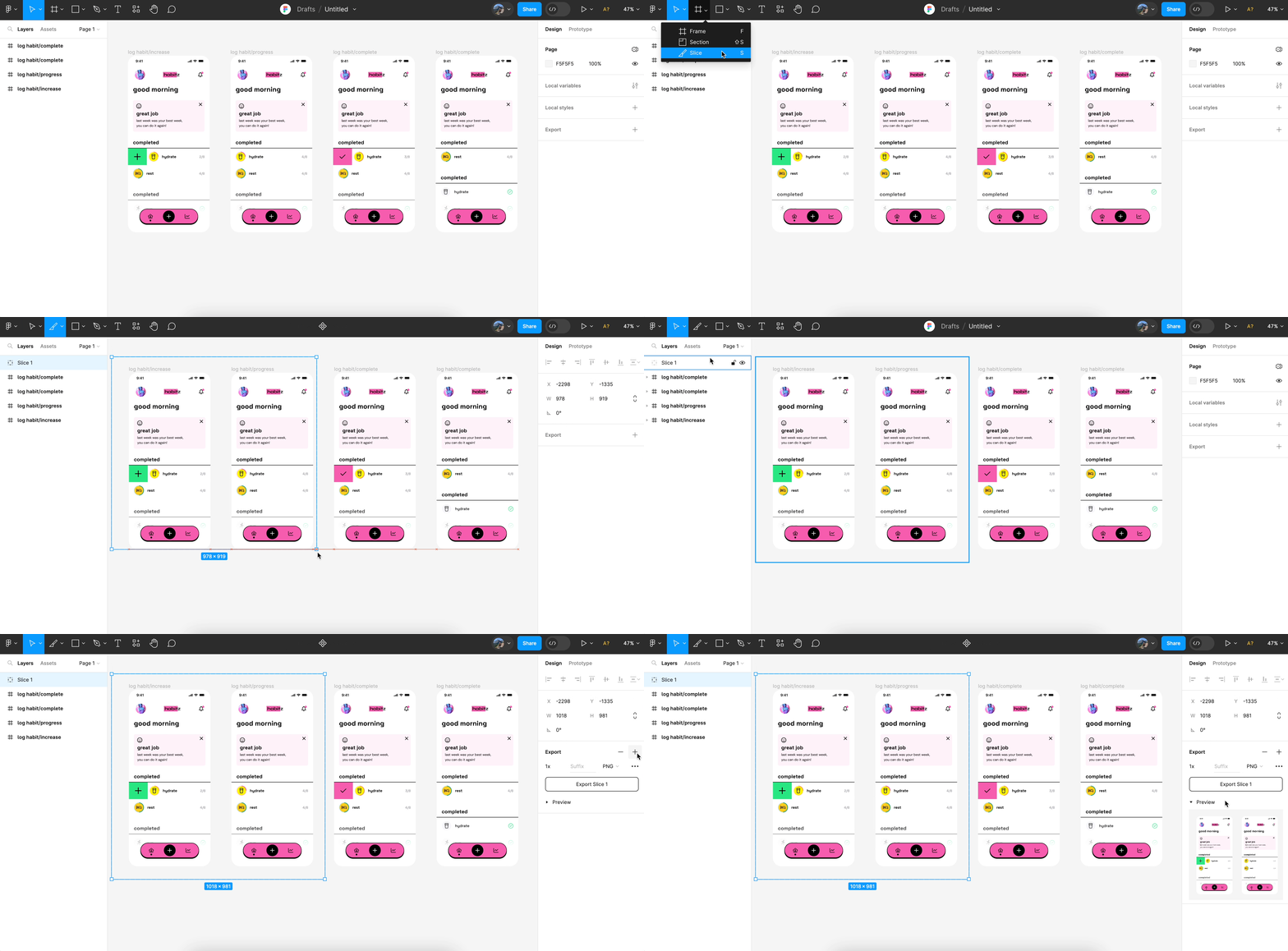
Here’s how to do it efficiently:
- Select the asset in your Figma file. You can also select multiple assets to export them together.
- Click on the “Export” section in the right-hand properties panel.
- Choose the file format. PNG and SVG are most commonly used in Framer.
- Set the correct resolution (1x, 2x, or 3x, depending on your design needs).
- Click “Export” and save them to your project folder.
For dynamic content, such as icons or illustrations, SVG is the preferred format because it’s lightweight and scalable. Also, keep file names descriptive for easy reference later.
Check out: Top Websites for Finding Figma to WordPress Freelancers
Step 3: Setting Up Your Framer Project
Once your assets are ready, open Framer and create a new project.
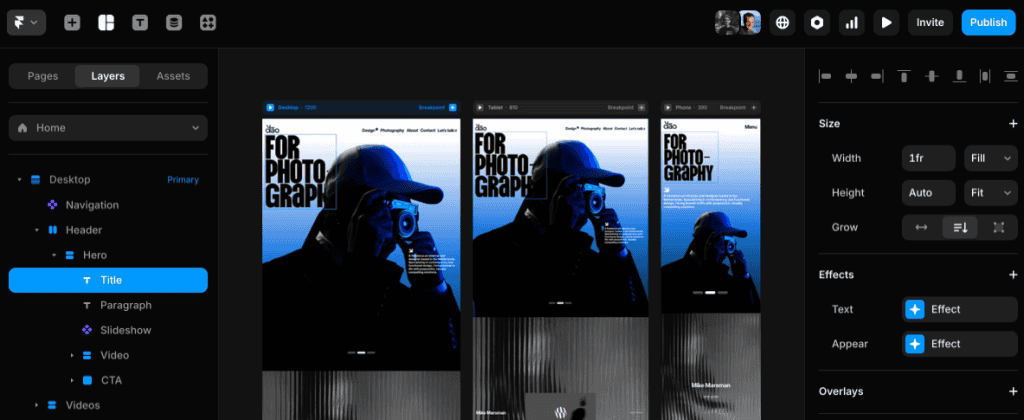
Here’s what you should do:
- Choose a blank Framer canvas or start from a pre made Framer template. You can also open an existing project and Paste on the canvas.
- Set the frame size to match your Figma design, whether it’s desktop, mobile, or tablet.
- Upload your exported assets into the Framer project’s asset library.
- If you’re working in a team, invite collaborators right away to keep everyone on the same page.
- Configure global styles, such as colors and typography, to match your design system and maintain consistency.
Framer’s drag-and-drop interface is intuitive, and it lets you import static images and turn them into interactive features in minutes.
Find Out: How to Convert Figma to Canva
Step 4: Recreating the Design in Framer
Now, the fun begins, bringing your static design to life in Framer. Here’s how to do it:
- Start by rebuilding your layout using Framer’s visual editor. Use stacks, grids, and containers to mirror your Figma structure.
- Add your exported images and align them accordingly.
- Use Framer’s built-in components like buttons, input fields, or sliders to replicate UI and graphical elements. Or you can use Framer plugins to create interactive components.
- Apply consistent styles by copying your color palette and typography settings from Figma. Also, make use of Google or custom fonts.
- Keep each layer name clear and grouped logically. This is especially helpful when adding interactions later or working in teams.
If you used Figma’s auto layout, it’s easier to recreate a responsive layout in Framer using its flexible design tools. This is also the stage where you should test layout responsiveness. Resize the canvas to see how it adapts to different screen sizes.
Get More Out of Figma: How to Convert Figma to HTML/CSS
Step 5: Adding Interactivity and Animations in Framer
This is where Framer shines. Once the visual layout is ready, you can bring it to life with interactions and animations.
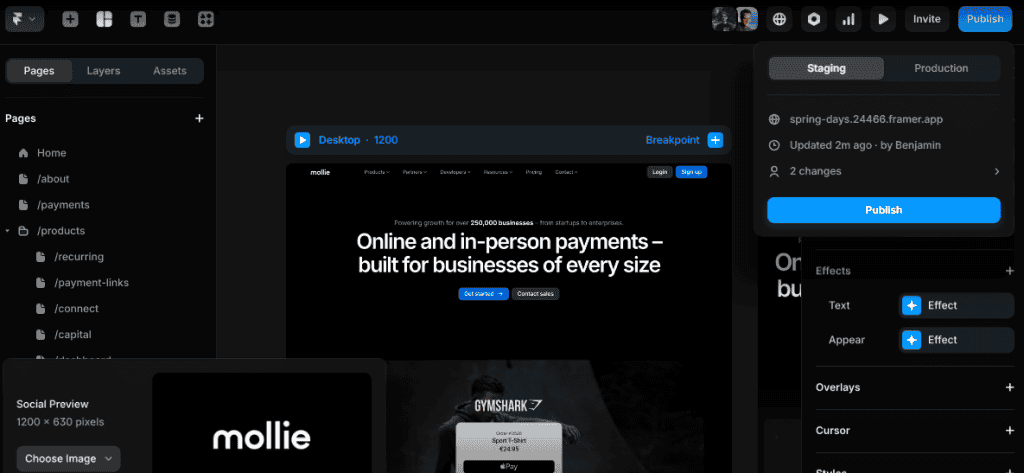
Here’s what you can do:
- Add links between pages or frames to simulate navigation.
- Use hover, click, and scroll effects to make your UI interactive.
- Introduce micro-animations to buttons, icons, or images for a more dynamic experience.
- Set page transitions to give your prototype a polished feel.
- Use Framer’s code components if you want to build something custom.
Framer also offers smart components and variants. It is ideal for elements like toggles, dropdowns, or models that require different states.
Nice work!
You’ve successfully converted your Figma design into a Framer prototype. Now it’s time to put your creation to the test.
Start gathering feedback, refine your interactions, and keep improving. This prototype is a powerful tool for communicating your ideas and exploring user experiences. The more you use and iterate on it, the better your final product will be. Keep pushing your design skills and see where this new interactive approach takes you.
Also Read: How to Convert Figma to Gutenberg
Criteria for Successful Figma to Framer Conversion
When converting your Figma design to Framer, certain key factors determine the quality of your final prototype. These criteria will help you assess how well you’ve maintained your original vision while leveraging Framer’s interactive capabilities.
- Visual consistency: Framer prototype closely matches the original Figma design
- Asset quality: Exported images and icons are crisp and optimized for web use
- Interaction fidelity: Prototype accurately represents intended user flows and behaviors
- Performance: Animations and transitions run smoothly without lag or glitches
- Responsive design: Prototype adapts well to different screen sizes and orientations
- Code cleanliness: Framer project structure is well-organized and easy to navigate
- Accessibility: Interactive elements are keyboard accessible and screen reader friendly
- Component Reuse: Reusable elements (e.g., buttons, cards, modals) are built using components and variants, making the project scalable and consistent.
Keep Reading: Mastering the Conversion from Figma to Divi
Best Practices for Figma to Framer Conversion
Follow these best practices to ensure a smooth transition from Figma to Framer and create high-quality interactive prototypes. These tips will help you work efficiently and make the most of both tools’ strengths.
- Design with interactivity in mind: Even in Figma, think about how elements will behave in Framer.
- Use components and styles consistently: This makes importing and recreating much faster.
- Keep your asset library clean and organized.
- Test early and often: Don’t wait until the end to check interactivity. Test as you build.
- Collaborate in real-time: Framer supports live collaboration, just like Figma.
Also, consider documenting your design system in Framer once it’s built. This can be reused for future projects and shared with your team.
Also Find Out: Tips and Tricks for Figma to WordPress Conversion
Parting Thoughts: Taking Your Designs Further
You’ve learned how to turn Figma designs into Framer prototypes. What’s next? Here are some ideas to keep you moving:
- Try new things. Push your designs. See what wild interactions you can create in Framer.
- Show your work early. Get feedback on your prototypes from colleagues or clients.
- Talk to developers. Your Framer prototypes can help bridge the gap between design and code.
- Keep learning. Figma and Framer are always changing. Take time to play with new features.
- Think about your process. What worked well? What was tricky? Jot down notes after each project.
Remember, you’re not just making prototypes. You’re growing as a designer. So go on, make something cool. Your Framer prototypes could spark the next big idea in design.
FAQs About Figma to Framer
Can I convert Figma to Framer?
Yes, you can. To convert Figma designs to Framer, start by importing assets and then manually recreating layouts, interactivity, and animations using Framer’s design tools.
Is Framer better than Figma?
Framer is better for building interactive, responsive prototypes. Figma excels at static UI/UX design and collaboration. The best tool depends on your project needs.
Can I convert Figma design to code?
Yes, you can. Figma offers code snippets (CSS, iOS, Android) and plugins like Anima, Figma to React, or Framer for more advanced design-to-code workflows.
How to make a frame on Figma?
To make a frame in Figma, click the Frame tool (F) from the top menu or press F on your keyboard, then click and drag on the canvas to create a new frame.



