


This article will explain why converting px to inches is important, how pixels per inch (PPI) affect your images, and the best tools and methods for accurate conversions.
When working on web design projects, particularly when transferring designs from Figma to WordPress, understanding how to convert pixels (px) to inches is essential. This conversion ensures that image resolution and quality are maintained across different platforms.
Whether you are preparing images for printing, resizing them for web use, or standardizing designs across screens, knowing how to convert pixels to inches will help streamline your workflow.
Why Convert Pixels to Inches for Figma to WordPress Projects?
Converting pixels to inches helps maintain the quality and consistency of your graphics and images.
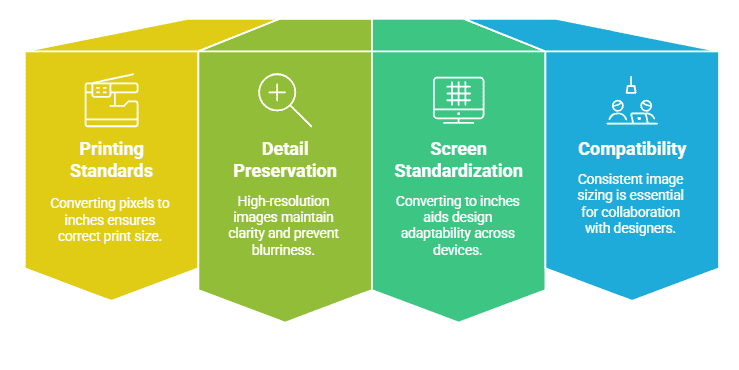
Here are the main reasons why this conversion is essential:
- Meeting Printing Standards: If your design needs to be printed, converting pixels to inches ensures the correct print size and resolution.
- Preserving Detail and Clarity: High-resolution images maintain detail, which helps prevent blurriness or pixelation.
- Standardizing Across Screens: Different devices have varying resolutions. So, converting to inches allows for better design adaptability.
- Ensuring Compatibility and Collaboration: Working with web designers and developers requires a consistent approach to image sizing and resolution.
By converting pixels to inches, you determine the optimal size and resolution for your project, thereby ensuring high-quality output.
Further reading: How to Convert Figma’s Px to Cm for WordPress Print Outputs
Pixels Per Inch (PPI): Understanding PPI and Aspect Ratio
Pixels per inch (PPI) measures how many pixels fit into a single linear inch of an image. The higher the PPI, the sharper the image. PPI is critical when converting pixels to inches, as it directly affects image quality and display clarity.
To prevent distortions, always maintain the aspect ratio when resizing images. Most design tools, including Figma, Photoshop, and Canva, offer options to lock the aspect ratio while adjusting image dimensions. This ensures that images do not stretch or become skewed.
Converting Px to Inches: Methods and Tools
Depending on your project needs, there are several methods and tools that you can use to convert pixels to inches.
Using a Converter Tool for Pixels to Inches Conversion
The easiest way to convert pixels to inches is by using an online converter tool. These tools allow you to input pixel dimensions and select a resolution (e.g., 72 DPI for screens or 300 DPI for print). The tool then provides the equivalent dimensions in inches.
The right pixel-to-inch converter tool will help you determine the correct dimensions quickly. This is especially useful for resizing images for:
- Web design and digital marketing
- Printing brochures, posters, and flyers
- Photo editing and high-quality visual presentations
Pixels to Inches Conversion Table
Apart from the inches converter online tool, you can follow this table for common pixel-to-inch conversions at different PPI settings:
| Pixels | 72 PPI (Web) | 300 PPI (Print) |
| 500 px | 6.94 inches | 1.67 inches |
| 1000 px | 13.89 inches | 3.33 inches |
| 2000 px | 27.78 inches | 6.67 inches |
| 3000 px | 41.67 inches | 10 inches |
Converting Px to Inches for Figma to WordPress Projects: Best Practices
When designing for Figma and WordPress, converting pixels to inches is essential for maintaining accuracy, quality, and consistency. Whether you’re preparing images for print or optimizing them for web display, following best practices ensures your designs look professional.
Determine the Resolution
Before converting pixels to inches, identify the resolution of your image. Screen designs typically use 96 DPI, while print requires 300 DPI or higher. Choosing the right resolution helps maintain clarity and detail.
Use the Pixels to Inches Formula
To convert pixels to inches, use this simple formula: Pixels ÷ DPI = Inches
For example, if an image is 1000×750 pixels at 96 DPI, the converted size is:
- 1000 ÷ 96 = 10.42 inches
- 750 ÷ 96 = 7.81 inches
This method ensures your image dimensions are accurate for their intended use.
Calculate Required Pixels for New Designs
When creating a new design, determine the necessary pixel dimensions by multiplying inches by DPI.
For instance, if you need an image to be 10 inches wide at 96 DPI, the pixel width should be:
10 × 96 = 960 pixels
This approach ensures your design is properly scaled and retains high-quality resolution.
Maintain Aspect Ratio
To prevent distortion, always maintain the aspect ratio when resizing. Most design tools allow you to lock aspect ratios while adjusting dimensions.
By following these best practices, you can ensure that your Figma designs translate smoothly to WordPress without losing quality or clarity.
Also read: Best Prototyping Tools for UI/UX Designers
Converting Px to Inches for Graphic Design: Best Practices
When designing for screens or print, accurately converting pixels to inches is essential. Here’s how you can ensure your designs maintain their intended quality:
Determine the Resolution: Start by identifying the required resolution for your design. Common resolutions include:
- 96 DPI for screens
- 300 DPI for print
Use the Conversion Formula: To convert pixels to inches, apply this formula: Pixels / DPI = Inches
For example, if an image is 1000×750 pixels at 96 DPI, the converted dimensions would be 10.42 inches by 7.81 inches.
Calculate Pixels for New Designs: If you’re starting a new design, determine the desired size in inches first, then multiply by the resolution to find the necessary pixel dimensions.
For instance, if you need an image to be 10 inches wide at 96 DPI, the required pixel width would be 960 pixels.
By following these steps, you can ensure your designs are properly scaled and maintain their intended quality.
Know more: The Role of Figma in Building Mobile-Responsive WordPress Websites
Px to Inches: Common Challenges and Solutions
Accurate pixel-to-inch conversions are crucial when designing in Figma and exporting images for WordPress. Incorrect sizing can lead to blurry images, compression issues, and inconsistent design elements. As such, here are some common challenges and their solutions.
Set the Correct Export Resolution in Figma
Before exporting images from Figma, make sure the resolution matches WordPress display settings. Standard screen resolution is 96 DPI, while high-resolution displays may require 150 DPI or higher. Choosing the right resolution prevents images from appearing pixelated or stretched.
Use Figma’s Built-in Resizing Tools
Figma offers resizing options that help maintain the aspect ratio while adjusting dimensions. Also, always enable the “Constrain Proportions” setting to prevent image distortion. This ensures your images scale correctly when displayed on different devices.
Match WordPress Theme Settings
WordPress themes have predefined image size requirements. If your images do not match these dimensions, WordPress may compress or crop them, resulting in a loss of quality. So, check your theme’s recommended image sizes and adjust your Figma exports accordingly.
Check out: WordPress Website Redesigns Made Easy Using Figma
Streamlining the Conversion Process by Using Graphic Design Software
Converting pixels to inches can be simplified using graphic design software. Tools like Photoshop, Canva, Figma, and CorelDRAW offer resizing features that help maintain image quality and accuracy. Here’s how you can efficiently manage the conversion process.
Use Photo Editing Software
Software like Photoshop and online tools like Canva allow you to resize images easily. Open the image, select the resize option, and enter the desired pixel dimensions. These tools ensure that your images maintain clarity when resized.
After resizing the image, always save it in a high-quality format (such as PNG or JPEG) to preserve resolution. This step ensures that the final image looks sharp when uploaded to WordPress or printed.
Utilize Figma’s Built-in Tools
Figma provides resizing tools that help designers scale images while maintaining aspect ratio. Using the “Scale” or “Resize” options, you can adjust dimensions precisely without distorting the design.
Simplify Conversion with CorelDRAW
For more technical projects, software like CorelDRAW offers advanced tools for managing pixel-to-inch conversions. It provides precise measurement controls that are useful for both digital and print designs.
Read about: Pros and Cons of Using Page Builders in Figma to WordPress Conversion
Summary
Converting pixels to inches is essential for ensuring that designs transition seamlessly from Figma to WordPress without losing quality. By understanding PPI, using converter tools, and following best practices for resizing, you can maintain clarity and precision in your projects.
Whether you’re designing for digital screens or print media, accurate conversions will help you achieve professional, high-quality visuals. Also, use online tools or graphic design software to simplify the process and optimize your projects for their intended use.
FAQs About Pixels to Inches
What does pixel densities mean?
Pixel density refers to the number of pixels within a specific area, usually measured as pixels per inch (PPI) or dots per inch (DPI). There are varying pixel densities. Higher pixel density results in sharper and more detailed images, while lower pixel density can make images appear blurry or pixelated.
What is the best PPI for web design?
For web design, 72 PPI or 96 PPI is ideal for web images. Whereas, 300 PPI is best for print.
How do I resize images in Figma for WordPress?
To resize images in Figma to WordPress, use the export settings in Figma to adjust the resolution and image size before uploading to WordPress.
Can I increase the PPI of an existing image?
Yes, you can increase the PPI of an existing image. However, increasing PPI without adding real detail can cause blurriness. Here, it’s best to use AI-powered upscaling tools for better results.
What happens if I use the wrong PPI for my images?
If you use the wrong or low PPI for images, it could result in blurry prints. Whereas, using high PPI for the web may cause slow loading times.
Why convert inches from px?
Converting pixels to inches ensures accurate sizing for print and digital image designs. It helps maintain image clarity, prevents distortion, and ensures compatibility with printing standards and screen resolutions.
How can I ensure high-quality images in a new graphic design project?
To achieve high-quality images in a new graphic design project, start by setting the correct screen DPI (e.g., 96 DPI for web or 300 DPI for print). If available, you can also use an existing graphic design template and ensure your images are properly scaled. Maintaining the right resolution helps keep your visuals sharper and professional.



