


Creating consistent, branded visuals for social media has become essential for marketing teams. But for many teams, this process is often slow, disjointed, or reliant on a designer’s availability. That’s where Figma Buzz comes in.
Figma Buzz is changing the game by making it incredibly easy to create on-brand static assets, fast. Whether you’re a marketer, content creator, or designer, this tool simplifies the entire design workflow, especially when it comes to creating social media assets, brand templates, and even bulk content for campaigns.
In this article, we’ll explore how to use Figma Buzz to create social templates. We’ll also look at best practices, advanced features like bulk creation, and how professional teams can create and make the most of this free and powerful tool.
What is Figma Buzz?
Figma Buzz is a collaborative tool built on top of the Figma Design platform. It allows teams or organizations to create, manage, and distribute on-brand templates for social media, ads, and one-pagers.

With Buzz, users can:
- Start from a template or build from scratch
- Use brand assets like logos, colors, and fonts
- Access templates from team libraries or the Figma Community
- Lock certain elements to maintain brand consistency
- Enable editable areas for text or images
- Create content in bulk using spreadsheets
- Collaborate in real-time and publish brand templates for team use
Even better, Figma Buzz is currently available for free, with advanced publishing features included in paid plans.
Read more: Best Practices to Consider When Migrating to Figma Design System
Why Do Professional Teams Choose Figma Buzz?
Many professional teams use Buzz to scale branded content. The reason? It’s built for both designers and non-designers alike.
Let’s say your marketing team wants to push 50 posts for a new campaign. Instead of designing each one manually, Buzz allows you to build a single template, upload a spreadsheet with content, and automatically generate assets for each post.
Teams can also create five team templates on the free plan. These templates serve as branded starting points, perfect for scaling creative output across channels. Buzz is ideal for:
- Social media marketing teams
- Content marketers
- Internal communications teams
- Ad agencies and design studios
- Product teams needing fast mockups
In short, Figma Buzz helps create assets in Figma with precision, speed, and consistency.
Know more: Complete Guide to Workspaces in Figma Enterprise
Collaborating and Publishing Templates
Figma Buzz includes robust collaboration features that make it easy for teams to work together.
- Use the Buzz file browser to organize designs
- Share templates via links or team access
- Limit editing rights to specific users or roles
- Use the publishing feature to control template availability
- Choose seat types: dev, content, or full
These features help teams scale their design operations without compromising quality or security. And with Buzz’s Starter Plan, you get access to all these tools for free. Advanced permissions and publishing options are available in paid plans.
Who Should Use Figma Buzz?
Figma Buzz is perfect for any team that creates branded content regularly. If you belong to one of the following, it’s worth trying:
- Marketing teams running campaigns across multiple channels
- Content teams that need templates for blogs, social, and email
- Startup teams without a full-time designer
- Agencies creating visual assets for multiple clients
- Enterprise teams needing brand consistency at scale
Thanks to the free starter plan, you can test Buzz without any risk. And if you need more, publishing templates are available on all paid plans.
What’s Best: Figma to WordPress Automation vs Professional Services
Designing with Brand Assets in Figma Buzz
One of Buzz’s best features is how it integrates brand assets directly into the template design process. Here’s how it works:
- Teams can upload brand fonts, logos, color palettes, and illustrations.
- These assets are stored in team libraries or added from the Figma Community.
- Templates use editable areas to allow safe customizations.
- Design elements like logos, frames, or backgrounds can be locked to prevent changes.
So, even if someone on your team doesn’t have a design background, they can still create polished, on-brand content.
For example, a social media coordinator can choose a template, update the copy and image, and export it in minutes without needing design help. Templates can include:
- Instagram and Facebook posts
- Twitter/X graphics
- LinkedIn banners
- Display ads
- Event one-pagers
And since Buzz supports multiple platform sizes, one design can be easily repurposed across channels.
Learn: How to Prepare a Figma File for WordPress Developers
Steps to Create Social Templates with Figma Buzz
Creating social templates in Figma Buzz is quick and intuitive, even for users with little to no design experience. Here’s a step-by-step guide to help you build branded templates your entire team can use with ease.
Step 1: Start with a Design
Begin by deciding whether you want to build your template from scratch or start with an existing design.
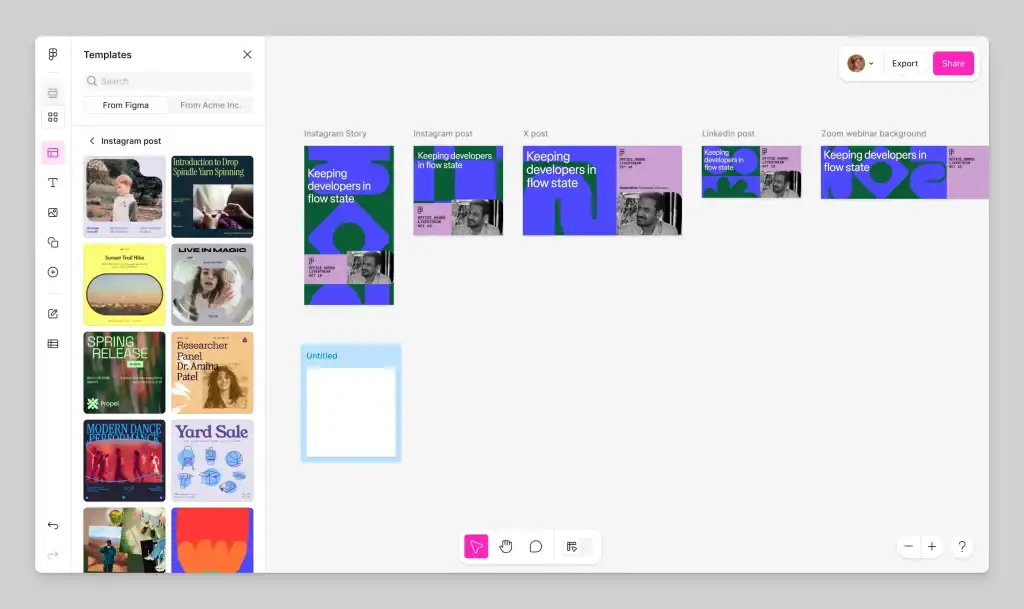
You can import a completed Figma file and paste it directly into Buzz. Or, explore Buzz’s pre-designed starter templates, which are optimized for different platforms like Instagram, LinkedIn, Facebook, and more.
This flexibility lets your team start immediately, whether you want a fully custom design or a quick tweak of an existing layout.
Step 2: Set Editable Areas
Next, determine which parts of the template your team should be able to change.
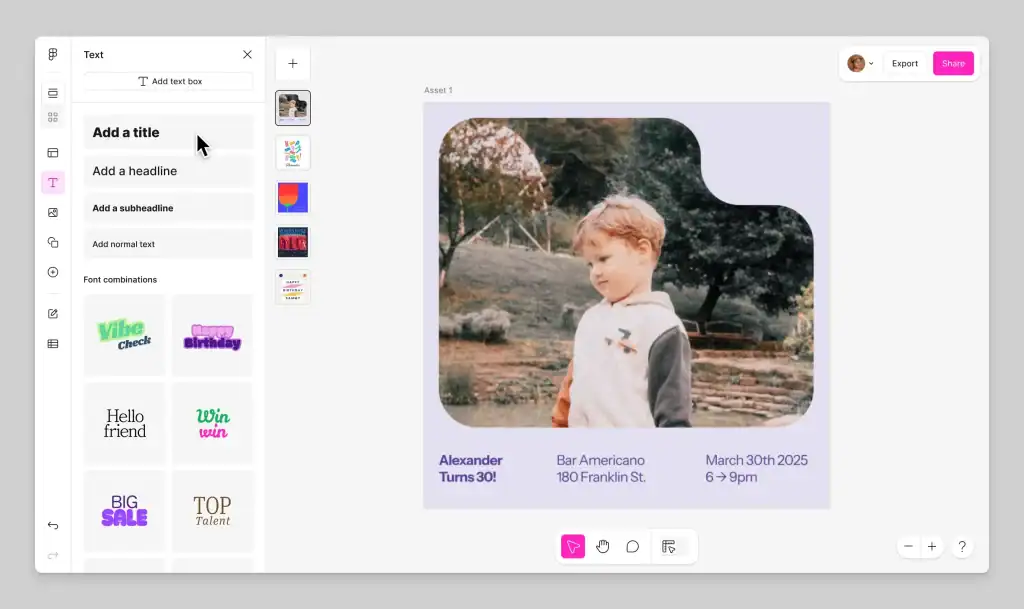
These typically include:
- Headline or main text
- Subheadings or captions
- CTA buttons or taglines
- Image placeholders or background visuals
At the same time, lock your core brand elements, such as logos, primary colors, and typography styles. This ensures that your brand identity stays intact no matter who edits the content.
Buzz gives you control over what’s editable and what remains fixed, which is essential for maintaining visual consistency across all campaigns.
Best Guide: How to Make a Blur in Figma
Step 3: Save and Share the Template
Save the file as a reusable Buzz template once your design is finalized and editable areas are defined. You can then:
- Share it internally with team members
- Assign editing rights based on roles or seat types (e.g., content seat, dev seat)
- Publish templates so only approved users can access or customize them
This step is key to scaling your design system. By using shared templates, you avoid repeated design work and ensure your assets stay on-brand across the board.
Step 4: Create New Assets
With the template in place, team members can now create social media posts by simply updating the editable fields. They can:
- Change the copy or images within the allowed areas
- Preview the final asset before export
- Download the finished design for use across platforms
Even those without design training can contribute to campaigns with confidence. The user-friendly interface guides them through the process, helping teams create polished, on-brand assets quickly and independently.
Learn: How to Crop in Figma
Bulk Creation of Social Media Templates
One of Figma Buzz’s standout features is its bulk content generation capability. This is especially valuable for marketing teams that need to produce a large volume of branded content quickly.
Whether you’re running a seasonal campaign, launching a product, or promoting an event, Buzz’s bulk create feature helps you scale efficiently while staying on brand.
How it Works
Figma Buzz allows teams to upload .csv or .xlsx spreadsheets containing text and image data. Each row in the spreadsheet represents a unique content variation. For example, your spreadsheet might look like this:
| Headline | Subtext | Image URL |
| Summer Sale | Up to 50% Off | link-to-image1 |
| Back to School | Essentials for Less | link-to-image2 |
Once uploaded, Buzz enables you to map each column to specific editable layers in your template. This means the “Headline” column connects to the headline text layer, “Subtext” to a caption, and “Image URL” to a designated image placeholder.
Buzz then automatically generates a new version of the design for each row, saving hours of manual editing.
Key Features of Bulk Create in Figma Buzz
Here are the core benefits of using the bulk create tool:
- Upload .xlsx or .csv files to create multiple assets from a single template.
- Map spreadsheet fields directly to editable design layers in your Buzz file.
- Generate dozens or even hundreds of assets in just a few clicks.
- Maintain brand consistency by locking core brand elements during the process.
- Add bulk image assets (supported with .xlsx files only) to streamline image-heavy content creation.
This feature is especially helpful for:
- Seasonal campaigns (e.g., summer sales, holiday promotions)
- E-commerce catalogs featuring product variations
- Event marketing materials with changing speaker names, dates, or themes
- Paid ad creatives with tailored messaging by audience or channel
Enhanced with AI-Powered Design Tools
To make content creation even smarter, Figma Buzz integrates with AI tools like GPT-image-1 and Gemini. These tools can:
- Generate image placeholders when assets aren’t available
- Enhance or suggest visual variations for stronger creative direction
- Fill in creative gaps when scaling quickly
This AI integration is ideal when your spreadsheet lacks visual assets or when your team wants to explore creative options at scale.
Why is Bulk Creation a Game-Changer?
Traditional design workflows often involve manually editing files repeatedly. But with Buzz’s bulk create feature, you eliminate repetitive tasks and empower your team to focus on strategy, not layout. You can launch entire content libraries in minutes instead of days without sacrificing design quality or brand consistency.
Best Practices for Creating Effective Templates in Figma Buzz
To fully leverage the power of Figma Buzz, following a few best practices is essential. Whether you’re building templates for social media, ads, or promotional materials, these tips will help you maintain consistency, speed up production, and empower your team.
Define Clear Brand Guidelines First
Before jumping into template creation, start with a solid foundation: your brand identity. Make sure all brand assets are standardized, including:
- Logos (full color, monochrome, icon-only)
- Brand colors and gradients
- Font families and typography styles
- Tone of voice and copy guidelines
Use Figma Buzz’s locking features to protect these elements in every template. This prevents team members from accidentally altering core visual assets, which could dilute your brand consistency over time.
Pro Tip: Create a “brand master file” inside Figma or use Figma’s Team Libraries to ensure everyone uses the same source assets.
Which Tool is Right for Your Team: Figma vs FigJam
Organize Your Assets with BrandyHQ
Keeping your brand elements organized and accessible is crucial, especially when collaborating with large teams.
BrandyHQ is a great tool that integrates with Figma to manage and distribute brand assets like logos, fonts, and colors. It acts as a central source of truth for your brand, making it easier for team members to stay aligned.
Use BrandyHQ to:
- Host brand guidelines
- Share asset kits with internal and external teams
- Link your design tools for real-time updates
This ensures consistency across every template created in Figma Buzz.
Use Templates Strategically
Not every campaign needs a fresh design. One of Buzz’s biggest advantages is the ability to repurpose templates for multiple use cases.
Instead of starting from scratch each time, reuse existing templates and simply update the messaging. For example:
- Swap headlines for different product promotions
- Change images for seasonal campaigns
- Adjust CTAs based on platform or audience
This approach saves time, ensures faster campaign launches, and visually aligns all design output with your brand identity.
A Beginner’s Guide: How to Use Figma
Keep Editable Fields Simple
When setting up your Buzz templates, less is more. Define editable fields that are straightforward and easy to manage, such as:
- Title (e.g., campaign headline)
- Subtitle (e.g., short description or tagline)
- Image (e.g., background or product image)
- Call-to-Action (CTA) (e.g., “Shop Now,” “Learn More”)
Avoid giving full design control unless absolutely necessary. Limiting customization ensures that each output remains visually cohesive and brand-approved.
Train Your Team for Success
Figma Buzz is designed to be user-friendly, but onboarding your team is still essential, especially for non-designers. Host a short training session or create a simple guide showing how to:
- Access and open Buzz templates
- Edit approved fields confidently
- Export final assets in the correct formats
- Use the bulk create feature for scaled content production
This boosts adoption and empowers marketing, content, and sales teams to create on-brand visuals without needing help from the design team.
Use AI Tools Wisely
Figma Buzz supports AI-powered tools like GPT-image-1 and Gemini, making it easier to:
- Auto-generate placeholder images when assets are missing
- Enhance visual styling to align with campaign tone
- Experiment with layout variations during template creation
However, while AI can speed up the creative process, reviewing generated content is important to ensure it meets your brand standards. Always check:
- Visual style alignment
- Brand tone in text and messaging
- Compliance with your brand voice and values
AI can be a powerful ally, but human oversight remains critical for polished, professional output.
Find Out: Is Figma Free for Your Design Needs
Conclusion: Start Creating Smarter with Figma Buzz
Creating branded content shouldn’t be a bottleneck. With Figma Buzz, you can design, customize, and scale social templates with ease, whether you’re a designer or not.
From team-based brand templates to bulk social media asset generation, Figma Buzz puts powerful design tools into everyone’s hands. Its collaborative features, AI integrations, and easy-to-use interface make it one of the best-kept secrets in digital content creation today.
If your team wants to:
- Stay on brand
- Save design hours
- Empower non-designers
- Scale content creation
… then it’s time to try Figma Buzz.
So, sign up, create five team templates, and start building your next campaign today.



