


Figma is an innovative, web-based design tool that allows students to create, prototype, and collaborate seamlessly in real-time. The company offers an Education Plan designed to offer affordable use of Figma for students. Figma offers students and educators free access to premium features, including the ability to create free education teams, manage projects, and utilize community support. This guide will walk you through setting up your Figma account, exploring advanced design tools, and leveraging Figma’s vibrant community resources.
Using Figma for Students
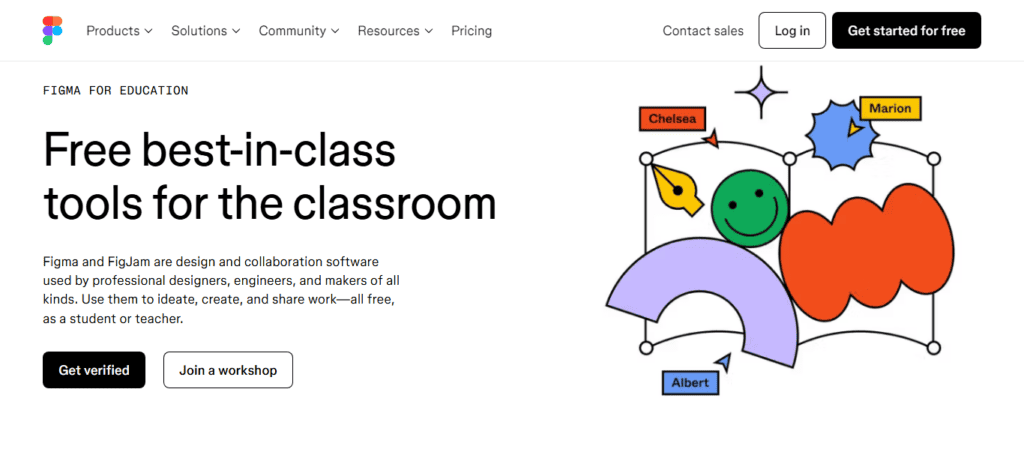
Accessing Figma’s powerful tools is simple for students. By applying for education status, you can unlock the full potential of Figma’s free version. Here’s a quick guide to get you started:
Create a Figma Account
To get started, visit Figma’s website and sign up using your student email address. This ensures eligibility for the free Education Plan. You can also register using a Google account linked to your student email.
Learn About: Top 10 Best Prototyping Tools for UI/UX Designers
Verify Your Student Status
Applying for education status is easy:
- Go to the Education Plan page and click “Apply Now.”
- Complete the form by providing your school’s name, your role (student or educator), and any necessary proof of enrollment.
- Submit the form to begin the review process.
Email Verification and Account Activation
After applying, check your inbox for a verification link. Click the link to confirm your Figma account and complete the registration process.
Once your email is verified, log in to Figma. If your application is approved, your account will automatically gain access to the premium features included in the Education Plan, such as creating unlimited files and collaborating in real-time.
Troubleshooting Tip: Didn’t receive the verification email? Check your spam folder or request a new one. You can also contact Figma’s community support for assistance if necessary.
Read: How to Design Landing Pages in Figma and Launch Them on WordPress?
Mastering Design Fundamentals in Figma
Once you’ve set up your Figma account, it’s time to explore the essential tools that help you design, manage files, and collaborate effectively.

Understanding Figma’s Design Interface
Figma’s interface is user-friendly, and designed to maximize creativity and collaboration. Familiarize yourself with the key components:
- Toolbar: Access essential tools such as shapes, text, and frames.
- Layers Panel: Organize your design elements efficiently using layers.
- Properties Panel: Adjust attributes like size, color, and effects to customize your design.
Discover: The Role of Designers and Developers in Figma to WordPress Conversion
File and Project Management
Organizing your work is crucial in Figma. Learn how to:
- Create and manage multiple files and pages within projects.
- Use Figma’s automatic version history to review and restore past iterations.
Collaboration and Free Education Teams
Figma for students emphasizes teamwork. Use the free version to create free education teams:
- Share files with team members by generating a link.
- Collaborate in real-time, with multiple users editing the same design.
- Add comments and get instant feedback from peers or educators.
Learn: The Role of Figma in Building Mobile-Responsive WordPress Websites
Advanced Features: Explore Figma for Students
Once you’ve mastered the basics, take your skills to the next level by exploring Figma’s advanced tools:
Complex Design Techniques
- Components and Variants: Create reusable components to maintain consistency.
- Auto Layout: Use Auto Layout to create responsive designs that adjust dynamically.
- Grids and Constraints: Apply grids for precise alignment and ensure elements resize effectively.
Read: Best Page Builders for Figma to WordPress Conversion in 2025 [Expert Picks]
Interactive Prototyping: Transform static designs into interactive prototypes.
- Link frames and apply transitions to simulate user interactions.
- Use triggers like clicks or hovers to create dynamic flows.
- Preview prototypes in real-time to refine the user experience.
FigJam for Brainstorming: Figma’s digital whiteboard tool, FigJam, is perfect for brainstorming and planning.
- Create sticky notes, diagrams, and sketches to collaborate with your education team.
- Share FigJam files using a link for seamless group participation.
How to Make the Most of Figma for Students?
Figma’s thriving community and wealth of resources provide students with endless opportunities for growth as designers. By tapping into these tools, students can enhance their skills, stay updated on design trends, and build valuable connections within the design world.
Community Resources
Figma’s educational ecosystem is rich with resources designed to support continuous learning and skill development:
- Tutorials and Webinars: Access a wide range of tutorials, from beginner guides to advanced techniques, available through Figma’s official site and the broader design community. Live webinars provide interactive learning experiences, often featuring expert designers.
- Forums and Support Groups: Join Figma’s official forums or platforms like Reddit and Discord to ask questions, share insights, and connect with other students and professionals.
- Templates and Plugins: Explore the Figma community library to download free templates for UI design, wireframes, or prototyping. Discover plugins that automate tasks, improve efficiency or introduce creative design elements to your projects.
Discover: The Role of Figma in Building Mobile-Responsive WordPress Websites
Engaging with the Community
Active participation in the Figma community not only enhances your skills but also helps you build a professional network:
- Design Challenges: Participate in design challenges hosted by Figma or platforms like Dribbble and Behance. These challenges offer opportunities to apply your skills creatively and expand your portfolio.
- Sharing and Feedback: Share your work within the community to receive constructive feedback. Use Figma’s built-in collaboration tools to invite peers or mentors to review your designs.
- Social Media Engagement: Stay connected with the latest design trends by following Figma’s official accounts and engaging in design conversations on platforms like Twitter, Instagram, and LinkedIn.
Ongoing Learning and Experimentation
Commitment to continuous learning is essential for staying ahead in the ever-evolving field of design:
- Experiment with New Features: Figma regularly releases new features and updates. Practice using these tools in personal projects to stay proficient and innovative.
- Personal and Mock Projects: Work on side projects or create mock client projects to explore different design styles and techniques. This not only enhances your skills but also builds a diverse portfolio.
- Check Official Resources: Regularly visit Figma’s official learning hub to access the latest resources, such as guides, tutorials, and case studies, ensuring that your skills remain current and relevant.
By leveraging Figma’s community and educational resources, students can continuously refine their skills, gain inspiration from peers, and remain at the forefront of design innovation.
Further Reading: Top 10 Best Prototyping Tools for UI/UX Designers
To Sum Up
Figma for students offers a robust platform for creating, prototyping, and collaborating. By applying for education status, students gain access to premium features through the free Education Plan. Whether you’re managing files, creating intricate designs, or collaborating with education teams, Figma empowers you to elevate your design skills. Stay engaged with the community, continuously learn, and take advantage of the tools available to become a versatile and skilled designer.


