Kadence WP is a popular WordPress AI theme builder that simplifies the conversion from Figma to WordPress. It provides a seamless experience for building professional WordPress websites without coding expertise. In this article, we will explain how to convert your Figma designs into a WordPress website using Kadence WP. This step-by-step Figma to Kadence WP guide will take you through the entire process, from creating your design in Figma to deploying it as a live website using Kadence WP.
What is Kadence WP?
Kadence WP is a powerful, lightweight WordPress theme designed to help users build professional websites with ease. Known for its flexibility and fast performance, Kadence WP caters to both beginners and experienced developers. It offers a user-friendly interface and integrates seamlessly with popular page builders like Elementor and Gutenberg, making it a go-to solution for creating custom WordPress sites.
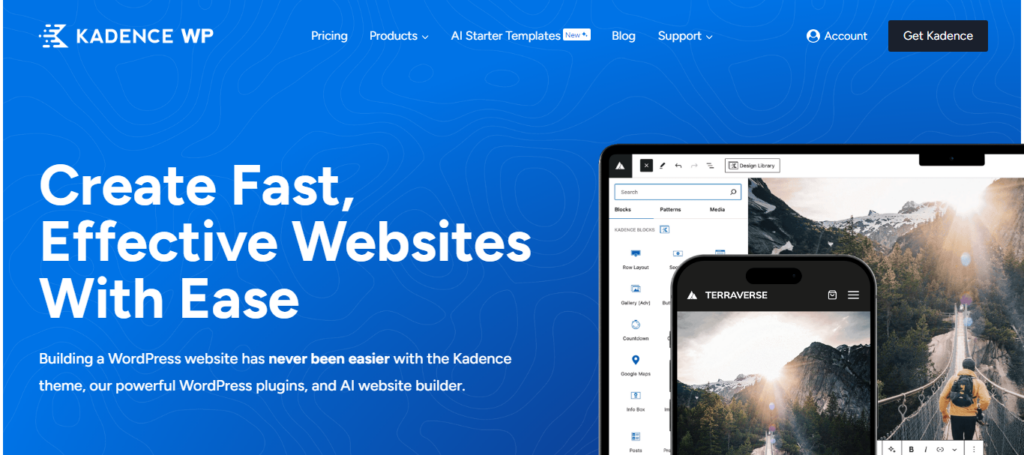
Key Features of Kadence WP:
- Lightweight & Fast: Optimized for speed, ensuring quick load times and a better user experience.
- Drag-and-Drop Header/Footer Builder: Allows easy customization of headers and footers using a visual editor.
- Global Color and Typography Controls: Manage site-wide styles effortlessly for consistent branding.
- Responsive Design: Built with mobile-friendliness in mind, ensuring your site looks great on all devices.
- Seamless Integration with Page Builders: Works perfectly with Gutenberg, Elementor, and Kadence Blocks.
- Pre-built Starter Templates: Choose from a variety of professional templates to kickstart your website design.
- Custom Hooks and Elements: Advanced customization options for developers who want to go beyond the default settings.
- SEO-Friendly: Built with SEO best practices in mind to help your site rank higher on search engines.
This combination of flexibility and ease of use makes Kadence WP a popular choice for building dynamic, responsive WordPress websites.
Figma to Kadence WP: DIY vs Professional
Turning your Figma design into a functional WordPress website using Kadence can be an exciting step. However, choosing between a DIY approach and hiring a professional can significantly impact the final outcome. Let’s break down both options to help you make an informed decision.
DIY Approach: Freedom with Limitations
Going the DIY route offers creative control and cost savings. With Kadence’s intuitive blocks and theme builder, you can replicate your Figma design with minimal coding. However, it requires time, a learning curve, and a good grasp of responsive design, SEO basics, and performance optimization.
Professional Help: Precision, Speed, and Results
Hiring a professional ensures your Figma to Kadence conversion is seamless, pixel-perfect, and optimized for performance. Experts handle technical intricacies, custom coding, and advanced styling, saving you hours and avoiding costly errors. More importantly, a professional touch ensures your site is built for scalability, accessibility, and conversions from day one.
Why Going Pro Pays Off
While DIY might seem appealing initially, it often leads to compromise in quality, security, and performance. A professional not only translates your design accurately but also enhances it with UX/UI best practices. In the long run, this results in a more polished, trustworthy, and high-performing website.
Ultimately, if your website is central to your business or brand, investing in professional help is a smart, future-proof decision.
From Pixels to Pages: Figma Designs Meet Kadence WP Magic!
With Kadence WP, we’ll turn your Figma mockups into a fully functional, high-performance WordPress website. No hassle, no stress; just pure design magic.
Guide to Convert Figma to WordPres Using Kadence WP
Before diving into WordPress, ensure your Figma design is complete and optimized. Figma offers several features that help streamline the design process, including:
- Grid Systems: Use grids to ensure your design is well-structured and responsive across devices.
- Components: Reusable components like buttons, forms, and icons help maintain page consistency.
- Responsive Layouts: Design for multiple breakpoints (desktop, tablet, and mobile) to ensure your site is responsive.
Next, export all assets, such as images, icons, and logos. Figma allows you to export these elements in different formats (JPEG, PNG, SVG).
Step 1: Setting Up WordPress and Kadence WP
After completing your design in Figma, the next step is to set up WordPress.
- Install WordPress: Many hosting providers offer one-click WordPress installations. Choose a reliable host that provides good performance and security.
- Install Kadence WP Theme: After installing WordPress, navigate to the “Themes” section and search for “Kadence WP.” Install and activate it as your main theme. Kadence WP is known for its fast-loading and highly customizable features, making it ideal for building websites based on Figma designs.
Step 2: Kadence WP Customization
Kadence WP allows you to customize your website without needing extensive coding skills. Once the theme is activated, you’ll want to:
- Choose a Starter Template: Kadence offers a wide selection of pre-designed starter templates. To save time, choose a template that closely aligns with your Figma design.
- Adjust Global Settings: Customize site-wide settings such as colors, fonts, and typography to match the brand identity established in your Figma design. Kadence WP’s global settings make maintaining consistent styling across the website easy.
- Configure Header and Footer: The header and footer can be customized using the built-in drag-and-drop builder. Use your Figma designs to layout navigation menus, logos, and other essential elements.
Step 3: Implementing Figma Designs in Kadence WP
Now that your WordPress site is set up and the Kadence WP theme is customized, it’s time to bring your Figma design to life.
- Page Builders Integration: Kadence WP works well with page builders like Elementor, Gutenberg, and Kadence Blocks. You can use these tools to replicate your Figma layout with precision. For example, Kadence Blocks provide a range of customizable blocks such as image galleries, call-to-action buttons, and testimonials that can easily mimic your Figma design elements.
- Add Custom CSS: If there are any design features from Figma that Kadence or your page builder cannot directly replicate, you can add custom CSS. Kadence WP allows inserting additional CSS code for more advanced customization.
- Import Images and Media: Using the exported assets from Figma, import your images, icons, and other media into the WordPress media library. Ensure that the images are optimized for web use, as large images can slow down your site.
Find out: Best Figma to WordPress Agencies
Step 4: Testing Responsiveness and Performance
After implementing your design, it is essential to test your site’s responsiveness across various devices. Kadence WP is built to be mobile-friendly, but testing ensures everything looks and functions as expected.
Use tools like Google Chrome’s developer tools or an online service like BrowserStack to view your website on different screen sizes. Additionally, check the site’s performance using speed testing tools like Pingdom. To improve site speed, optimize images, leverage caching plugins, and minimize JavaScript/CSS.
Know more: How to Prepare a Figma File for WordPress Developers
Step 5: SEO and Accessibility Considerations
Before launching your site, ensure that it is optimized for search engines and accessible to all users.
- SEO: Kadence WP is SEO-friendly by default, but make sure to install an SEO plugin like AIOSEO. This plugin will help you optimize meta tags, alt texts, and URL structures.
- Accessibility: Kadence WP also supports accessibility features like keyboard navigation and screen reader compatibility. To reach a broader audience, verify that your website complies with accessibility guidelines (WCAG).
Step 6: Launching Your Website
You’re ready to go live after thoroughly testing and optimizing your site.
- Domain and Hosting: Connect your domain name to your WordPress hosting provider and make sure everything is properly configured.
- Final Checks: Before launching, double-check all links, images, and forms to ensure there are no broken elements. It’s also a good idea to have someone else review your site to catch any errors you may have missed.
Once everything is set, hit the publish button and launch your new website built from Figma to WordPress using Kadence WP!
Key Steps: How to Make Your Figma to WordPress Site Fully Responsive
Bonus: Common Mistakes to Avoid During Figma to Kadence WP Conversion
Converting a Figma design to a Kadence-powered WordPress website requires precision and planning. While Kadence offers a flexible and user-friendly framework, several common mistakes can hinder the final output, impacting user experience, performance, and even SEO. Below are key areas where errors often occur, and how to avoid them for a smooth, efficient conversion.
Ignoring Mobile Responsiveness
It’s easy to design for desktop and overlook mobile optimization. However, a responsive layout is critical. A common mistake is not checking how the Kadence blocks adjust on different screen sizes. So, always test across devices to ensure consistency in spacing, font sizes, and element alignment.
Not Structuring Content Properly
Kadence relies heavily on block-based editing. Poorly structured content like missing heading tags or improper block nesting can harm both accessibility and SEO. As such, use semantic HTML elements within Kadence blocks to maintain a clean, structured content hierarchy.
Overcomplicating the Design
While Figma allows for highly customized visuals, Kadence has its limitations without custom CSS or additional plugins. Trying to replicate every tiny detail can bloat the site or slow down development. Therefore, focus on functionality and adapt design elements where necessary to maintain performance.
Read: Best UI/UX Design Trends
Skipping Global Styles Setup
Another common oversight is not setting global typography, colors, and spacing before building pages. This leads to inconsistencies and more work later. Kadence’s global settings allow you to manage design elements site-wide. Configure these first to maintain a cohesive brand appearance.
Poor Image Optimization
Designs often include high-resolution images from Figma, but uploading them as-is can slow down the site. Always compress and resize images before uploading. Kadence works well with image optimization plugins, so use them to maintain speed without sacrificing visual quality.
Failing to Use Reusable Blocks and Templates
Rebuilding similar sections manually across multiple pages can be time-consuming and error-prone. Kadence offers reusable blocks and templates to maintain consistency and speed up development. Neglecting this feature results in inefficient workflows and harder maintenance.
Not Testing Interactivity and Animations
Elements like sticky headers, accordions, or modals designed in Figma may require additional configuration or plugins in WordPress. Many users overlook testing these dynamic features. Hence, make sure interactive elements work as expected and do not conflict with other plugins.
Overlooking Performance and SEO Settings
Rushing through launch without configuring essential SEO and performance settings like meta tags, lazy loading, or schema markup is a common misstep. Leverage Kadence’s compatibility with SEO plugins and caching tools to ensure your site is fast and discoverable.
Lack of Cross-Browser Testing
Just because your site looks great in Chrome doesn’t mean it performs well in Safari or Firefox. Not conducting cross-browser testing can lead to inconsistent user experiences. Always check your site on multiple browsers and screen sizes.
Not Hiring a Professional When Needed
Finally, trying to manage complex conversions without the necessary technical knowledge can lead to flawed implementations. DIY might seem budget-friendly, but errors can cost more in the long run. Hiring a professional ensures your Figma design is accurately translated into a high-performance, conversion-focused Kadence site.
Top Tips: How to Convert Figma to Canva
In Summary
Converting Figma to WordPress might seem complex at first, but Kadence WP simplifies the process with its user-friendly customization options, fast performance, and compatibility with popular page builders. By following the steps outlined in this article, you can easily transform your Figma designs into a responsive WordPress site.
Whether you’re a beginner or a seasoned web designer, the combination of Figma’s intuitive design tools and Kadence WP’s robust features makes website development both efficient and enjoyable.
FAQs on Figma to Kadence WP
Can I use Kadence WP with any page builder?
Yes, Kadence WP is compatible with popular page builders like Elementor, Gutenberg, and Kadence Blocks.
Do I need coding skills to build a website with Kadence WP?
No, Kadence WP provides a user-friendly interface with drag-and-drop customization, allowing users to build websites without coding.
How do I optimize my Figma assets for the web?
When exporting assets from Figma, use formats like PNG for images and SVG for icons. Also, make sure to compress images to reduce file sizes and maintain web performance.
Can Kadence WP help with SEO?
Yes, Kadence WP is SEO-friendly. However, installing an SEO plugin like All in One SEO will further enhance your site’s search engine optimization.
Is Kadence WP responsive by default?
Yes, Kadence WP is built to be responsive, ensuring your site looks great on all devices, from desktops to mobile phones.