


Figma is a powerful design tool, but it can feel confusing at first. One major reason is the way it handles structure and organization. Designers often struggle to decide between groups vs frames vs sections, when and what to use.
Although these elements may seem similar, they serve very different purposes. When used correctly, they can dramatically improve your design workflow, responsiveness, and collaboration.
In this practical guide, you will learn the real differences between groups, frames, and sections in Figma. More importantly, you will understand when to use each one and why it matters.
An Overview of Figma Elements
Figma provides three core structural elements: groups, frames, and sections. Each plays a specific role in organizing design files.
At a high level, these elements help designers structure layouts, manage layers, and guide collaboration. However, they are not interchangeable.
Frames are the foundation of most Figma designs. Groups are lightweight containers for organizing objects. Sections sit at the top level and help teams navigate large files.
Understanding how these elements work together is critical for efficiency. It also helps prevent common layout issues, especially in responsive and component-based designs.
Additionally, Figma supports quick creation through keyboard shortcuts. For example, pressing F creates a frame, while A enables auto layout. These shortcuts speed up daily design tasks.
Summary Table: Groups vs Frames vs Sections in Figma
Here’s a quick table that offers you an overview of all these three Figma elements.
| Features | Groups | Frames | Sections |
|---|---|---|---|
| Primary Purpose | Basic organization of elements | Layout and structure | Canvas-level organization |
| Acts as a Container | Yes (limited) | Yes (full container) | Yes (visual only) |
| Supports Auto Layout | No (converts to frame) | Yes | No |
| Supports Constraints | No | Yes | No |
| Supports Layout Grids | No | Yes | No |
| Overflow / Clip Content | No | Yes | No |
| Responsive Design Support | Poor | Excellent | Not applicable |
| Can Be Nested | Yes | Yes | No (top-level only) |
| Affects Layout Behavior | No | Yes | No |
| Best Use Case | Temporary grouping | Screens, components, layouts | Organizing large files |
Now, let’s look at the Figma elements in detail.
What Are Groups in Figma?
Groups in Figma are a fundamental organizational feature that allows you to combine multiple design elements into a single layer. They help designers manage related objects more efficiently without altering the behavior of those objects individually. Groups are easy to create and are often used during the early stages of design or for quick visual organization.
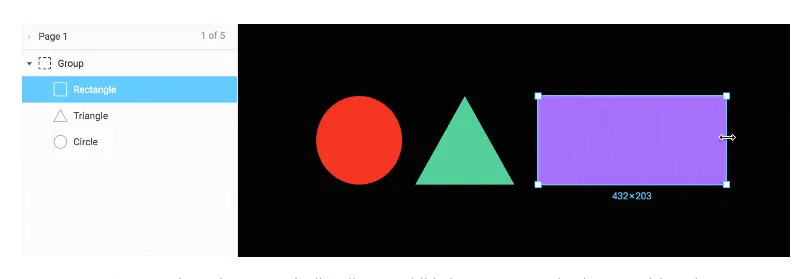
Although groups simplify layer management, they are not intended to control layout behavior. Understanding what groups can and cannot do helps avoid common design and responsiveness issues.
Key Features
Groups allow multiple elements to be treated as one unit on the canvas. You can move, duplicate, lock, or hide all grouped objects at the same time. Groups are created quickly using a keyboard shortcut, which makes them convenient for fast iteration.
They also preserve the original properties of individual elements. Text remains text, shapes remain shapes, and styling is unaffected. This makes groups lightweight and flexible for simple tasks.
Best Use For
Groups are best used for temporary or simple organization. For example, you can group an icon and a label before placing them inside a frame. They are also useful when aligning or repositioning multiple elements together.
In addition, groups work well inside frames where layout behavior is already controlled. In such cases, groups help keep the layers panel clean and readable.
Limitations
Groups do not support auto layout, constraints, layout grids, or overflow control. Because of this, they do not respond well when resized. This makes them unsuitable for responsive or scalable layouts. For long-term structure or layout logic, frames are a better choice.
Read: How to Use AI-Powered Figma Make to Turn Designs into Prototypes and Web Apps
What Are Frames in Figma?
Frames are the most powerful and essential structural element in Figma. They act as true containers that define boundaries and control how design elements behave inside them. Frames are the foundation for building screens, components, and responsive layouts in modern Figma workflows.
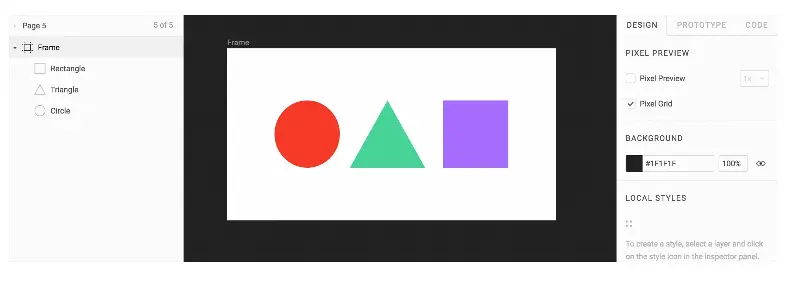
Unlike basic grouping, frames actively manage layout, spacing, and resizing behavior. Because of this, they are central to scalable UI and UX design.
Key Features
Frames support advanced layout capabilities that groups do not. They allow the use of auto layout, which automatically adjusts spacing and alignment based on content. Frames also support constraints, enabling elements to respond intelligently when the frame is resized.
Additionally, frames can utilize layout grids for consistent alignment and spacing. Designers can also control overflow using the Clip Content option. Frames can be nested and resized independently, without scaling their child elements.
Best Use For
Frames are best used for screens, sections of a layout, UI components, cards, modals, and containers. They are ideal for responsive designs that must adapt across different screen sizes.
Frames are also essential for components and variants, as well as for creating realistic interactive prototypes. Any element that requires structure, responsiveness, or layout logic should be built using frames.
Limitations
Frames can add complexity if overused or poorly structured. Beginners may find them harder to manage compared to simple groups. Additionally, excessive nesting of frames can make the layer hierarchy more difficult to read. However, these issues are usually the result of misuse rather than limitations of frames themselves.
What Are Sections in Figma?
Sections in Figma are high-level organizational elements designed to structure the canvas and improve file readability. Unlike frames or groups, sections do not control layout or design behavior. Instead, they help designers visually group related frames and flows, especially in large or complex files.
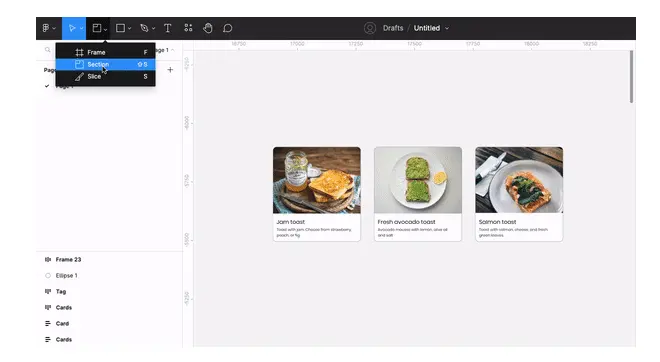
Sections are particularly useful in collaborative environments where multiple designers and stakeholders need to navigate the same file efficiently.
Key Features
Sections exist at the top level of the Figma canvas and sit above frames and groups in the layer hierarchy. They can contain multiple frames and objects without affecting their layout behavior.
Sections are easy to create using the toolbar or by converting selected elements. Designers can rename sections, adjust their size, and apply background colors to visually differentiate areas of the canvas. Sections also improve navigation by making it easier to locate specific parts of a design.
In prototyping mode, sections help guide viewers through intended design flows.
Best Use For
Sections are best used for organizing large design files. They work well for separating pages, user flows, feature explorations, or design iterations. They are also valuable for collaboration. Sections help teammates, developers, and stakeholders quickly understand the structure of a file and find relevant designs without confusion. Sections are ideal when clarity and navigation are more important than layout control.
Limitations
Sections do not support auto layout, constraints, layout grids, or overflow control. They do not influence how elements resize or behave. Because of this, sections should never be used as layout containers. Frames should always handle structure and responsiveness.
Other Advanced Figma Features
Beyond groups, frames, and sections, Figma offers several advanced features that help designers build responsive, scalable, and interactive interfaces. These tools are especially valuable when working on complex layouts, design systems, and production-ready prototypes.
When used correctly, advanced Figma features reduce manual work and improve design consistency across projects.
Auto Layout
Auto layout allows elements within a frame to automatically adjust based on content and spacing rules. Designers can define padding, alignment, and spacing between items. As content changes, the layout updates instantly. This makes auto layout ideal for buttons, cards, lists, and reusable components.
Constraints
Constraints control how elements behave when a frame is resized. Designers can pin elements to edges, center them, or scale them proportionally. This is essential for responsive designs that must adapt to different screen sizes without breaking alignment.
Overflow Content Control
Overflow control lets designers manage content that extends beyond a frame’s boundaries. By enabling or disabling “Clip Content,” designers can create scrollable areas or hide excess elements. This feature is especially useful for realistic prototypes and dynamic UI patterns.
Properties Panel and Layout Customization
The properties panel provides centralized control over frame settings, layout grids, constraints, and styling. Designers can fine-tune layouts and create custom structures efficiently.
Together, these advanced features make Figma a powerful tool for creating modern, responsive, and interactive designs with confidence.
Best Practices for Using Figma Elements
Using the right Figma element at the right time significantly improves design speed, consistency, and scalability. When frames, groups, and sections are applied correctly, layouts become easier to manage, and collaboration becomes smoother. Following best practices also helps avoid common structural and responsiveness issues.
Below are practical guidelines to use Figma elements more effectively in real-world projects.
Use Frames for Layout and Structure
Frames should be your default choice for anything that requires layout logic. This includes screens, UI components, cards, modals, and responsive containers. Frames support auto layout, constraints, layout grids, and overflow control. These features make them essential for building scalable and responsive designs.
Use Groups Only for Simple Organization
Groups are best suited for quick and simple organization. Use them to temporarily combine related elements, such as icons and labels. Avoid using groups for layout control, resizing behavior, or responsiveness, as they lack advanced layout features.
Use Sections to Organize Large Files
Sections help structure the canvas and guide collaborators through complex files. They are ideal for organizing pages, user flows, feature explorations, and design iterations. Sections improve clarity without affecting layout behavior.
Leverage the Properties Panel
The properties panel allows precise control over frame settings, constraints, and layout grids. Small adjustments here can prevent layout issues and reduce rework later in the design process.
Learn and Use Keyboard Shortcuts
Keyboard shortcuts like F for frames and A for auto layout speed up daily workflows. Over time, they significantly improve efficiency and consistency.
When these best practices are followed, Figma becomes more predictable, maintainable, and scalable for both individuals and teams.
To Sum Up
Groups, frames, and sections each serve a distinct purpose in Figma. While they may look similar, their behavior is very different.
Frames control layout, responsiveness, and advanced features. Groups offer quick and simple organization. Sections improve navigation and collaboration.
When you understand these differences, your designs become cleaner, more scalable, and easier to maintain. Ultimately, using the right element at the right time is what separates good Figma files from great ones.
FAQs About Figma Elements
What are the three main structural elements in Figma?
Figma has three features that designers rely on: groups, frames, and sections. Each layer type serves a different purpose, especially when compared to other design tools.
How does the frame tool work in Figma?
The frame tool lets you create frames by using click and drag on the canvas. You can also insert a new frame from the top right corner and adjust it later.
Why are frames considered powerful?
Frames have unique properties and real superpowers, such as auto layout and constraints. Unlike groups, frames control layout logic and are ideal for complex designs.
Can frames hold multiple layers?
Yes, frames can contain multiple elements and multiple objects. Designers often use frames to combine multiple elements or combine multiple objects into a structured layout.
How do frames affect visibility and boundaries?
A frame defines bounds, and the frame’s bounds determine what stays inside. With overflow settings, content can remain visible or be clipped based on need.
How do sections differ from frames?
A section is a default top-level element used to organize prototypes and create connections between flows. It is not a top-level frame and does not affect layout behavior like a parent frame.
Why does structure matter for handoff?
Proper structure helps developer-handoff by keeping type sizes, frame sizes, and layout clear. Designers can access settings from the right sidebar, use the scale tool, or fine-tune layouts by selecting objects, double-click, drag, or keyboard command, ensuring clean organization across other sections and the top-level element.



