

Creating an engaging website goes far beyond static layouts and flat designs. Today, users expect interactive and immersive digital experiences. One powerful way to meet this demand is by combining Figma prototypes with 3D modeling and bringing them to life on WordPress.
Figma is already a favorite among UI/UX designers due to its cloud-based collaboration, design system flexibility, and responsive design features. On the other hand, 3D modeling introduces dynamic visual elements that captivate users and encourage interaction.
So, how do you bridge the gap between these tools and create something truly engaging on your WordPress site? In this article, we’ll walk you through the step-by-step process of converting Figma prototypes into interactive 3D model viewers on WordPress.
An Overview of Figma Designs and 3D Modeling
Figma is an intuitive design tool used for crafting user interfaces and prototypes. It supports real-time collaboration, making it ideal for teams working remotely. Core features like auto layout, grids, and prototyping tools make it easy to design responsive web pages.
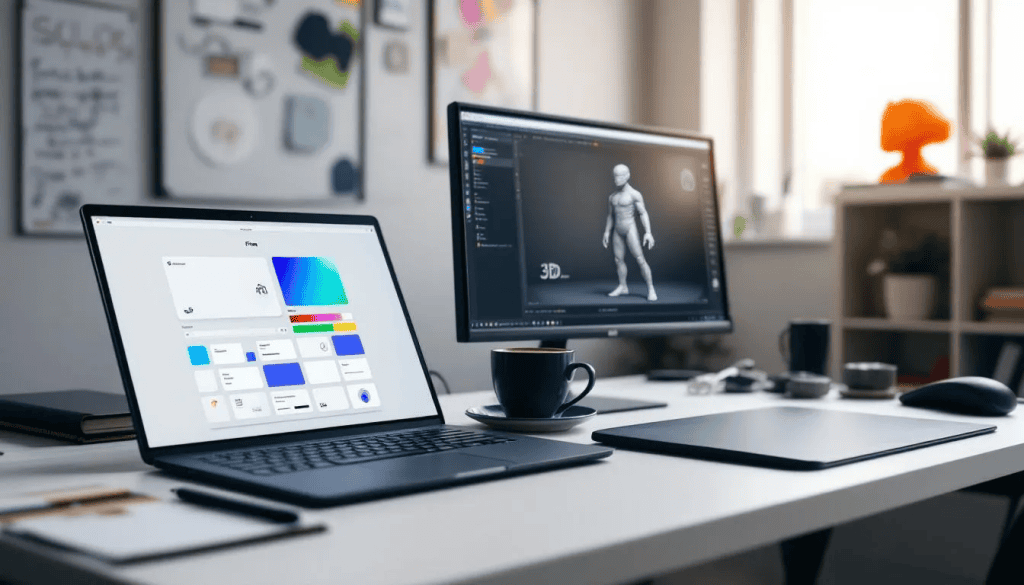
On the flip side, 3D modeling involves creating lifelike visual representations of objects using specialized software. Incorporating 3D elements into websites can boost engagement, improve product visualization, and create a modern, interactive user experience.
Combining these two, Figma and 3D models, lets you transform static mockups into interactive experiences on your WordPress site. This synergy is especially useful for portfolios, product showcases, educational platforms, and eCommerce.
Beginner-Friendly Guide for Figma Prototypes Conversion
If you’re new to web design or 3D modeling, don’t worry. Start by learning the basics of Figma and WordPress. Both have extensive communities and documentation to support beginners. Some tips to begin:
- Choose user-friendly plugins and tools (like Elementor and Spline).
- Follow step-by-step tutorials.
- Join design forums (e.g., Reddit, Designer Hangout, or Figma Community).
- Begin with simple projects to build confidence.
As you progress, you’ll be ready to handle more complex animations and interactions using tools like the Web Animations API or advanced 3D engines like Three.js.
Know more: Best Websites for Finding Figma to WordPress Freelancers
Transform Figma Prototypes into Interactive 3D Model Viewers on WordPress Site!
Let’s take your designs to the next level and captivate your audience. Contact us today!
Steps to Convert Figma Prototypes into 3D Model Viewers
Here’s all you need to know about how to convert Figma prototypes into 3D models for WordPress.
Step 1: Designing with Figma
Start by building your user interface in Figma. This stage lays the foundation for your WordPress site.
- Use an auto layout to create responsive designs.
- Organize your components using grids and frames.
- Stick to a design system to maintain consistency.
- Collaborate with your team in real-time using Figma’s shared files feature.
- Think mobile-first: ensure your design is responsive from the start.
Good Figma design equals fewer headaches when implementing in WordPress.
Step 2: Preparing Figma Files
Before importing your design into WordPress, prepare your Figma files properly.
- Organize layers and name them clearly.
- Export assets in web-optimized formats (SVG files, PNG, or WebP).
- Use component-based design for reusability.
- Create a style guide for colors, typography, and spacing.
- Compress images and icons to reduce file sizes.
This prep work speeds up development and ensures a smoother integration with WordPress.
Know the Difference: JPEG vs JPG in Figma to WordPress Workflow
Step 3: Converting Figma to WordPress
Now, it’s time to bring your Figma design into WordPress.
- Use page builders like Elementor Pro, SeedProd, or Beaver Builder for visual editing.
- Consider tools like Anima or Figma-to-HTML plugins to export code snippets.
- Choose a lightweight, responsive WordPress theme (e.g., Astra or GeneratePress).
- Customize with CSS and JavaScript to match your original design.
- For complex designs, hire WordPress developers or use conversion services like figtowp.
Don’t forget to check mobile responsiveness throughout the process.
Learn more: WordPress Website Redesigns Made Easy Using Figma
Step 4: Creating 3D Models
Here’s where things get exciting! You’ll now add 3D elements to your WordPress site.
- Use tools like Spline, Blender, or TinkerCAD to design 3D models.
- Export models in formats like .glTF or .OBJ for web use.
- Optimize polygon count and texture resolution to avoid slow loading.
- Maintain brand consistency in shapes, colors, and animations.
- Test on different devices to ensure your models render correctly.
These 3D models will eventually be embedded into WordPress as part of your interactive experience.
Step 5: Implementing Web Animations API
To make your models and designs interactive, use the Web Animations API.
- Write JavaScript code to animate elements based on user actions.
- Combine it with CSS transitions for smoother effects.
- Use animation libraries like GSAP for added flexibility.
- Add animations to buttons, text, 3D viewers, and more.
- Keep animations lightweight to avoid performance issues.
The Web Animations API is perfect for adding scroll effects, hover states, and micro-interactions.
Step 6: Optimization and Performance
Even the best design falls flat if the site is slow or unresponsive.
- Use lazy loading for images and 3D models.
- Minify CSS and JavaScript files.
- Choose a fast hosting provider and enable caching.
- Use tools like Smush or ShortPixel for media optimization.
- Avoid excessive plugins that slow down the site.
A smooth, fast-loading experience keeps users engaged and improves SEO.
Step 7: Testing and Debugging
Before going live, test everything thoroughly.
- Check cross-browser compatibility (Chrome, Firefox, Safari, Edge).
- Use tools like Chrome DevTools, Lighthouse, or GTmetrix.
- Validate responsiveness on mobile and tablet devices.
- Use accessibility testing tools like Axe DevTools.
- Debug JavaScript and fix layout bugs early.
Testing ensures your WordPress site looks and works great for everyone.
Common Mistakes to Avoid During Figma Prototypes to 3D Model Viewers Conversion
Avoiding a few key mistakes can save you hours of rework and help you deliver a professional, high-performing WordPress site. Some of the mistakes are:
- Not Compressing Images or 3D Assets: Large images and 3D files can drastically slow down your site. Always compress media using tools like TinyPNG, ImageOptim, or Blender’s export settings for 3D. This reduces load times and improves performance without sacrificing quality.
- Skipping Mobile Responsiveness: Over half of web traffic comes from mobile devices. If your design doesn’t adapt to different screen sizes, you’ll lose users and hurt your SEO. Use Figma’s responsive layout tools and test across various devices.
- Ignoring Accessibility: Accessibility ensures your site is usable by everyone, including people with disabilities. Skipping this can limit your audience and even violate legal standards. So, use proper alt text, maintain contrast ratios, and support keyboard navigation.
- Not Testing in Multiple Browsers and Devices: A design that looks great in Chrome might break in Safari or Edge. Test your site on all major browsers and screen sizes to ensure consistent performance and appearance.
- Using Too Many Plugins or Poor Hosting: Relying on excessive plugins can lead to slow loading times and compatibility issues. Likewise, poor hosting results in downtime and sluggish performance. Stick to essential plugins and choose reputable hosting providers like Bluehost, WP Engine, or Kinsta.
- Forgetting to Backup Your Site Before Major Changes: Before you install new plugins, update your theme, or make major changes, always create a full site backup with a plugin like BlogVault. This acts as a safety net in case anything goes wrong, saving you from potential data loss.
A little extra diligence in these areas can make a huge difference in your site’s performance, user experience, and long-term success.
Best Practices for Figma to WordPress Conversion
If you want to use modern tools and add interactivity to your design, then follow these tips for a streamlined workflow for Figma to WordPress conversion:
Stick to a Clear Design System for Consistency
A design system ensures visual and functional consistency across your entire website. Define and reuse styles for typography, buttons, colors, and components in Figma. This not only saves time but also maintains a cohesive user experience during WordPress development. You can also use Brandy to create a design system for your brand.
Optimize Every Element for Performance and Responsiveness
Every image, animation, and layout should be optimized for fast load times and smooth performance. Use responsive grids in Figma and test layout breakpoints in WordPress. Compress assets, avoid bloated code, and make sure your design adapts well to all screen sizes.
Choose the Right Plugins and Tools Based on Your Project Needs
Not every project requires the same tools. For simple sites, use lightweight page builders. For interactive 3D viewers, choose plugins or libraries that support WebGL or Three.js. Selecting the right tools prevents unnecessary complexity and improves maintainability.
Use Version Control to Track Changes
Version control allows you to track and reverse changes if something breaks. Use tools like Git for custom code or staging environments for WordPress to test updates before going live. This helps minimize risk and catch bugs early.
Keep User Experience at the Center of All Design and Development Decisions
Always design with the end user in mind. Prioritize usability, accessibility, and clarity. Whether it’s a button placement or a 3D animation, ask yourself: does this improve the user’s experience? If not, simplify or remove it.
Adopting these best practices ensures your website is not only beautiful but also scalable and user-friendly.
Learn: How to Convert Figma to WordPress with Custom Animations & Microinteractions
Future of 3D Modeling and Figma
The future looks bright for immersive and interactive web design, and Figma is poised to play a central role.
Figma May Soon Integrate More 3D Features
As demand grows for 3D content in web and app design, it’s likely that Figma will enhance its 3D capabilities. This could include built-in 3D components or deeper integration with tools like Spline, Blender, or Three.js via plugins.
AR/VR Compatibility Will Bring New Dimensions to UI/UX Design
Augmented and virtual reality are rapidly shaping the next generation of digital experiences. Combining Figma’s prototyping power with AR/VR frameworks could lead to immersive wireframes and simulations. This is perfect for industries like gaming, healthcare, and real estate.
Expect More No-Code Tools for Adding 3D Interactions
No-code platforms are evolving fast, and soon, web designers may be able to add interactive elements to WordPress sites without writing a single line of code. Tools like Webflow, Spline, and Framer are already paving the way.
3D Modeling Will Play a Big Role in eCommerce, Education, and Virtual Collaboration
Interactive 3D product viewers will become standard in eCommerce, giving users a hands-on experience before purchase. 3D models can simplify complex ideas in education and remote work and enable engaging virtual collaboration.
Staying Updated with Design Trends and Tools
With the digital design landscape evolving quickly, continuous learning is key. Follow industry blogs, attend webinars, and experiment with new WordPress plugins and frameworks to stay competitive.
In short, the combination of Figma, 3D modeling, and WordPress is just getting started. As tools become more powerful and user-friendly, the possibilities for creating stunning, interactive websites are limitless.
Read: How to Convert Designs from Figma to WordPress for E-commerce Sites
In Summary
Turning a static Figma prototype into an interactive 3D experience on WordPress might seem complex, but it’s completely doable with the right tools and approach.
By following the steps outlined in this guide, from designing in Figma to optimizing your WordPress site with animations and 3D elements, you’ll be able to build stunning, engaging websites that stand out.
Whether you’re a beginner or a seasoned designer, the key is to start simple, test often, and continuously improve.
FAQs About Figma Prototypes and 3D Models
What tools do I need to convert Figma to WordPress?
To convert Figma to WordPress, use tools like Elementor Pro, Figma to HTML plugins, or services like figtowp. For animations, try GSAP or the Web Animations API.
How do I ensure mobile responsiveness?
To ensure mobile responsiveness, use Figma’s auto layout and media queries in WordPress. Also, always test on real devices.
How can I optimize site speed and performance?
To optimize website speed and performance, compress images, use lazy loading, and minimize JavaScript. Plus, choose lightweight themes and good hosting.
What’s the best way to add 3D models to WordPress?
The best way to add 3D models to WordPress is to use Spline, Blender, or Lottie to create 3D assets. Next, embed them with iframe, WebGL, or a plugin.
Can you embed the Figma prototype in WordPress?
Yes, you can embed a Figma prototype in WordPress using an iframe. Just copy the embed code from Figma’s “Share” option and paste it into a Custom HTML block in WordPress. This is useful for showcasing live mockups or UX case studies.
Is Figma better than Elementor?
Figma and Elementor serve different purposes.
- Figma is a design tool for UI/UX prototyping and collaboration.
- Elementor is a WordPress page builder for actual website development.
So, use Figma for designing and Elementor for building a WordPress website.



