If you’re a designer or developer, you’ve probably used Figma to design modern, responsive websites. It’s intuitive, flexible, and widely popular. However, after designing a beautiful interface in Figma, the next step is turning that static design into a fully functional WordPress website. This is where many people feel stuck. Luckily, with Bootstrap and a structured approach, you can easily convert Figma to WordPress.
In this article, we’ll walk you through step-by-step instructions on how to convert your Figma design into a responsive WordPress website using the Bootstrap framework. Whether you’re doing it for a client or your own project, this guide will help you streamline the process.
Why Use Bootstrap with WordPress?
Before we dive into the process, let’s understand why Bootstrap is a solid choice when building WordPress themes:

- Responsive by default: Bootstrap makes it easy to build responsive layouts.
- Faster development: It has pre-built components like navbars, cards, and modals.
- Clean grid system: Perfect for converting layered Figma designs into structured code.
- Cross-browser compatibility: Bootstrap works well across major browsers without extra tweaks.
When combined with the power of WordPress, you get a site that’s not just beautiful but also dynamic and easy to manage.
Learn: How to Use Figma Components in WordPress Theme Development
Seamless Figma to WordPress Conversion Using Bootstrap
Our team specializes in turning static UI designs into fully functional, custom WordPress themes using the Bootstrap framework.
Steps to Convert Figma to WordPress Using Bootstrap Framework
Converting a Figma design to a WordPress website using the Bootstrap framework involves both design precision and clean development practices. This process ensures your site is responsive, user-friendly, and easy to manage.
Below are the essential steps to help you turn your static Figma layout into a dynamic WordPress theme.
Step 1: Prepare Your Figma Design
Everything starts with a clean and well-structured design in Figma. Here’s how to prepare it:
- Organize Layers and Components: Before exporting, ensure your layers and groups are properly named and organized. This will make it easier to identify components when you start coding.
- Export Assets: Export all necessary images, icons, and illustrations from Figma. Use .png, .svg, or .jpg formats depending on the requirement. Use 2x resolution for retina displays. Also, optimize images using tools like TinyPNG.
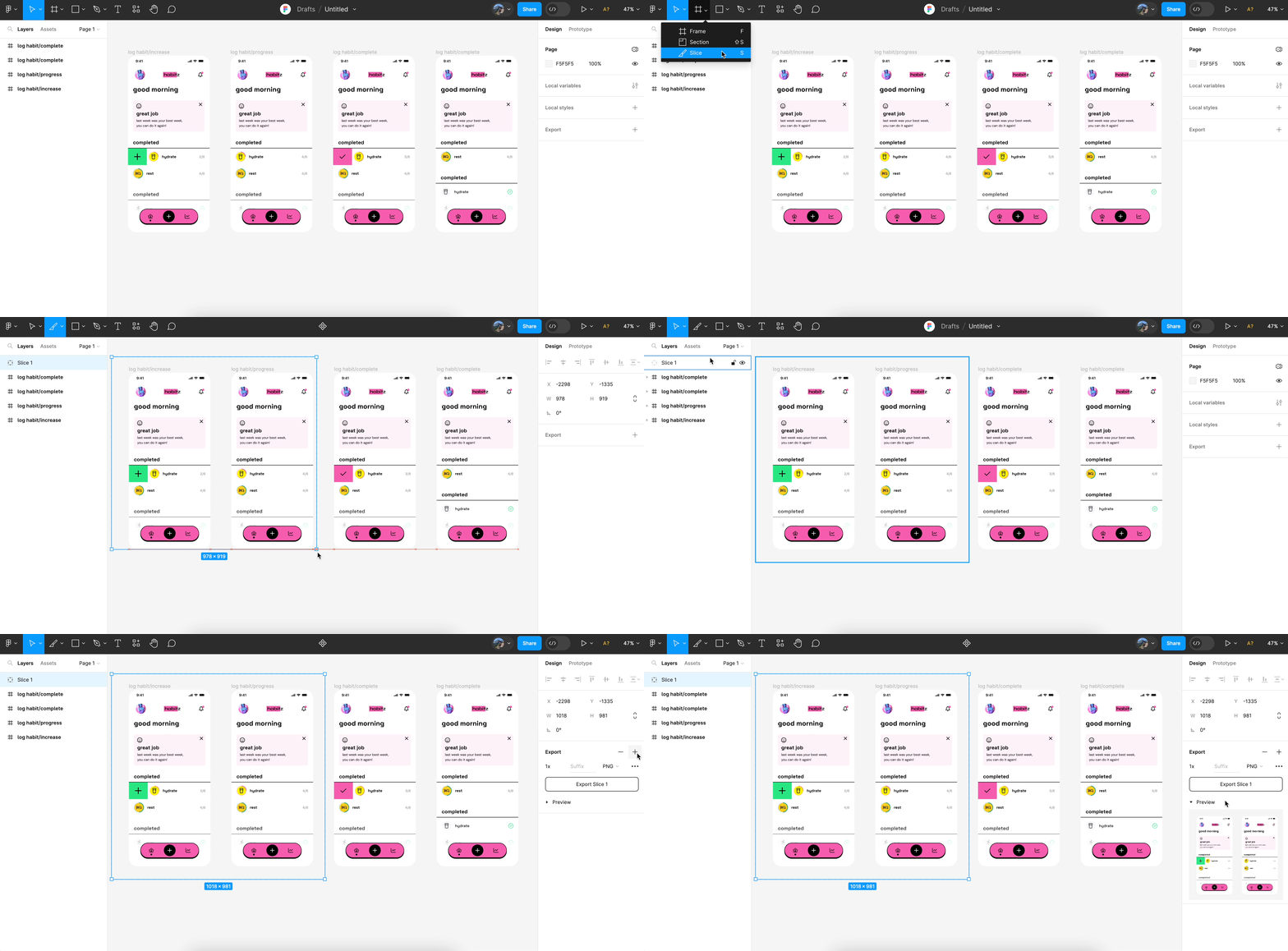
- Note Fonts and Colors: Document the fonts, color palette, and spacing used in the design. These will be added to your CSS later on.
Step 2: Set Up Your Development Environment
You’ll need a local development setup to test your WordPress site before going live. Some recommended tools are:
- LocalWP (formerly Local by Flywheel) for setting up WordPress locally.
- VS Code for code editing.
- BrowserSync or Live Server for live previewing changes.
- Node.js and npm (optional) for installing packages or compiling SCSS.
Once you’ve installed these tools, install a local WordPress site using LocalWP.
Step 3: Install Bootstrap
Now, let’s integrate Bootstrap into your WordPress theme.
Option 1: Use CDN (Quick Method)
You can simply add the Bootstrap CSS and JS links in your header.php and footer.php files.
<!-- Add in header.php -->

<link href="https://cdn.jsdelivr.net/npm/bootstrap@5.3.0/dist/css/bootstrap.min.css" rel="stylesheet">

<!-- Add in footer.php before </body> -->

<script src="https://cdn.jsdelivr.net/npm/bootstrap@5.3.0/dist/js/bootstrap.bundle.min.js"></script>
Option 2: Use a Custom Bootstrap Build
For more control, download Bootstrap from the official site, customize it, and enqueue it using functions.php.
function enqueue_custom_scripts() {

    wp_enqueue_style('bootstrap-css', get_template_directory_uri() . '/css/bootstrap.min.css');

    wp_enqueue_script('bootstrap-js', get_template_directory_uri() . '/js/bootstrap.bundle.min.js', array('jquery'), null, true);

}

add_action('wp_enqueue_scripts', 'enqueue_custom_scripts');
Step 4: Create a Custom WordPress Theme
You’ll need to convert your HTML (based on Figma + Bootstrap) into a WordPress theme.
Folder Structure: Inside wp-content/themes/, create a new folder. Name it after your project, for example, figma-bootstrap. Add the following files:
figma-bootstrap/

├── style.css

├── index.php

├── header.php

├── footer.php

├── functions.php

├── screenshot.png
Add Theme Info in style.css
/*

Theme Name: Figma to Bootstrap

Author: Your Name

Description: Custom theme built using Bootstrap 5 and Figma design.

Version: 1.0

*/
Split Your HTML Layout: Take your HTML file (coded from Figma) and break it down into reusable WordPress parts:
- Header (header.php) includes doctype, meta tags, navbars, etc.
- Footer (footer.php) includes closing tags and footer scripts.
- Content placed inside index.php.
Use WordPress functions where needed:
<!DOCTYPE html>

<html <?php language_attributes(); ?>>

<head>

  <meta charset="<?php bloginfo('charset'); ?>">

  <title><?php bloginfo('name'); ?></title>

  <?php wp_head(); ?>

</head>

<body <?php body_class(); ?>>

  <?php get_header(); ?>

  <!-- Main Content -->

  <?php get_footer(); ?>

</body>

</html>
Step 5: Convert HTML to WordPress PHP Code
This is where your static Bootstrap layout turns dynamic.
Convert Menus: Replace static nav links with WordPress navigation functions:
<?php

wp_nav_menu(array(

  'theme_location' => 'main-menu',

  'container_class' => 'collapse navbar-collapse',

  'menu_class' => 'navbar-nav ms-auto',

));

?>

Register this menu in functions.php:

register_nav_menus(array(

  'main-menu' => __('Main Menu')

));
Convert Static Content: Instead of hardcoding blog posts or text, use WordPress loops:
<?php if (have_posts()) : while (have_posts()) : the_post(); ?>

  <div class="post mb-4">

    <h2><?php the_title(); ?></h2>

    <p><?php the_excerpt(); ?></p>

    <a href="<?php the_permalink(); ?>" class="btn btn-primary">Read More</a>

  </div>

<?php endwhile; endif; ?>
Step 6: Style Your Theme
Bootstrap provides a base layer of styling. But to match your Figma design, you’ll need custom CSS.
Add a Custom CSS File: Create a style.css or custom.css file and enqueue it:
wp_enqueue_style('custom-style', get_template_directory_uri() . '/css/custom.css');Customize Bootstrap Components: Override Bootstrap styles using your Figma color scheme, font choices, and spacing. Add classes like .btn-primary or .bg-light according to your design.
Step 7: Test Everything
Now that your WordPress theme is up and running, it’s crucial to thoroughly test your website before going live. A well-tested site ensures a smooth user experience and better performance across devices.
Test Responsiveness
Use developer tools or online tools like Responsinator to preview your site on various screen sizes, mobile, tablet, and desktop. Make sure all sections, images, and typography scale correctly and remain visually consistent.
Check for Broken Links and Layout Issues
Navigate through every page and interaction on your site. Ensure that menus, buttons, and internal links work as intended. Also, look out for any layout shifts or misalignments that may occur due to dynamic content.
Validate HTML and CSS
Use tools like the W3C Validator to scan for any markup or CSS errors. Clean code improves SEO, accessibility, and cross-browser compatibility.
Install an SEO Plugin
Use an SEO plugin like Yoast SEO or AIOSEO to optimize on-page elements such as meta titles, descriptions, and schema markup. These tools also offer readability analysis and suggestions to improve your content.
Run Performance and Accessibility Tests
Use Google Lighthouse in Chrome DevTools to test your site’s performance, accessibility, SEO, and best practices. This will give you a score and actionable tips for improving your website’s overall quality.
Taking the time to test thoroughly ensures your final product is not only visually accurate to the Figma design but also performs well and delivers a great user experience.
Check out: How to Convert Figma to Elementor
Step 8: Deploy Your Site
Once you’re satisfied with your local setup and everything is functioning as expected, it’s time to deploy your WordPress site to a live server. This step makes your website accessible to the public.
Transfer Files Using FTP
Use an FTP client like FileZilla to upload your WordPress theme files (and any other custom assets) from your local environment to your web server. Connect using your hosting credentials and navigate to the /wp-content/themes/ directory to place your theme folder.
Migrate the Database
Use a reliable plugin like WP Migrate or BlogVault to export and import your local database. These tools help avoid data loss and maintain plugin and theme settings during the move.
Use Hosting Control Panels
If your host provides cPanel, Plesk, or a custom dashboard, you can use the file manager and phpMyAdmin tools to upload files and import your database manually. This is especially useful if you prefer not to use third-party tools.
Update URLs and Permalinks
After migrating, update your site URL settings in WordPress (Settings ⟶ General) and re-save your permalinks (Settings ⟶ Permalinks) to ensure everything loads correctly.
Take a Full Backup
Before launching, create a complete backup of both your files and database. This acts as a safety net in case anything goes wrong during deployment or shortly after going live.
Deploying carefully ensures your site maintains its integrity, speed, and functionality when it moves from development to production.
Know more: How to Create Figma to Elementor WordPress Template
In Summary
Converting a Figma design into a WordPress website using Bootstrap might initially seem complex, but breaking it down step-by-step makes it manageable. The key is to stay organized, follow a process, and test often.
With Bootstrap handling the responsiveness and WordPress offering dynamic content capabilities, you get the best of both worlds. So, if you’re looking to build a custom theme that mirrors your Figma design pixel-perfectly, this method is tried and true. Once you do it once, it becomes easier and faster the next time.
Figma to WordPress Using Bootstrap FAQs
Can I use Figma plugins to export a design directly to WordPress?
No, you cannot export a Figma design directly to WordPress using plugins. While some plugins can generate basic HTML or CSS, they do not support dynamic WordPress features like custom post types, theme functions, or database integration. Manual conversion gives you more flexibility and cleaner results.
Is it necessary to use Bootstrap when building a WordPress theme?
No, using Bootstrap is not mandatory. You can build WordPress themes from scratch or with other CSS frameworks. However, Bootstrap offers a responsive grid system and pre-built UI components that can significantly speed up development and ensure mobile compatibility.
Can I use a page builder like Elementor instead of coding the theme manually?
Yes, you can use page builders like Elementor if you prefer a visual, drag-and-drop interface. These tools are user-friendly and ideal for non-developers. However, manual conversion using Bootstrap is the better approach if you want full control over your site’s structure, performance, and codebase.
How long does it typically take to convert a Figma design into a WordPress website?
The time required to convert a Figma design to WordPress varies depending on the design’s complexity. A simple one-page site may take just a few hours, while a full-featured multi-page website with custom templates and dynamic content could take several days or even weeks