


Are you just getting started with Figma design and wondering how to upload or import design files? In this article, you’ll learn how to upload files to Figma, manage your file system, and export your designs smoothly.
Figma is known for its cloud-based design interface that allows designers, developers, and stakeholders to work together in real time. One of its most convenient features is the ability to upload and import files in different formats directly into your workspace.
Whether you’re switching from another tool, collaborating with a team, or organizing your design assets, this guide will walk you through the process step-by-step.
Figma Features for Upload, Import, and Export
Before you begin uploading files to Figma, it’s helpful to understand the features Figma offers related to file handling:
- Drag-and-Drop Upload: Easily drag files from your desktop into Figma’s interface.
- Import Button: Use the “Import File” option to upload local files.
- Cross-Format Support: Figma supports .fig, .png, .jpg, .svg, .pdf, and other common formats.
- Team-Based File Access: Import files into team projects for collaborative editing.
- Export Options: Export selected frames or layers in various formats for sharing or development.
Now, let’s walk through the uploading process.
Find Out: Is Figma Free for Your Design Needs
How to Upload Files to Figma: Quick Process
Uploading files to Figma is simple and intuitive. Here’s how you can do it:
- Log In to Your Figma Account: Open Figma in your web browser or desktop app and log in using your credentials.
- Access the Import Option: Once you’re on the dashboard, look for the “Import File” button at the top-right corner of the screen. Alternatively, you can go to your drafts or a specific team project and start from there.

- Choose or Drag Your File: Click “Import File” and browse your computer for a .fig, .svg, .pdf, or image file. You can also drag the file from your desktop and drop it directly into the Figma canvas or the file browser.
- Wait for the Upload to Complete: Figma will begin uploading and converting your file. Depending on your internet speed and file size, the process usually takes a few seconds.
- Select the Correct Location: If you’re importing into a specific team or project, make sure you have the right access level. Uploading into a shared project allows everyone in your team to view and collaborate on the file.
Once you’ve completed it, your file will appear in your selected location, either in Drafts or under your team project.
Know about: Figma for Students
File Management in Figma
Figma provides a robust file management system that makes organizing and locating your design assets easy. If you uploaded a file into your personal space, you’ll find it in Drafts. If you uploaded it into a team project, navigate to that specific project space.
Using the File Browser: The file browser, located in the top left corner, is your control panel for managing files. It lets you:
- View your drafts and recent files
- Navigate between teams and projects
- Rename, duplicate, or move files
Importing Additional Files: You can import additional files by:
- Dragging and dropping them into the browser
- Clicking the “Import” button again and selecting files
Be sure to import into the correct project so your teammates have appropriate access.
Collaborating With Your Team: If you’re part of a design or development team, file permissions matter. Team files are accessible by members with the correct permissions, making collaboration smoother. To ensure your uploads are visible to your team:
- Choose the correct team workspace during import
- Adjust sharing permissions if needed
Learn about: How to Give Someone Edit Access on Figma
Best Practices for Uploading and Managing Files in Figma
To get the most out of Figma and maintain a smooth design workflow, it’s essential to stay organized and intentional with how you manage your files. Here are a few best practices to follow:
Organize Your Files
Start by creating separate projects for each client, campaign, or product. This structure not only keeps your workspace clean but also makes it easier to locate specific files quickly. Using folders within projects can further streamline navigation.
Use Consistent Naming Conventions
Develop a clear and consistent naming system for your files, frames, and components. For example, use names like “Homepage_V1” or “ClientName_LandingPage_2025.” Consistency helps your team understand file contents at a glance and makes searching much faster.
Take Advantage of Libraries
Leverage Figma’s shared libraries to store reusable components, design tokens, and styles. This is especially useful for teams working on multiple projects, as it promotes design consistency and eliminates redundant work.
Use Version History
Figma automatically tracks your design history, so take advantage of this by labeling major updates and milestones. If you ever need to revert to a previous version, simply open the version history panel and restore with one click. No need to worry about losing work.
Limit File Size
Try to optimize your files by compressing large images before uploading and flattening unnecessary layers. Overloaded files can slow down performance and make collaboration harder, especially in large design systems.
Detailed Guide: How to Make Reaction Text in Figma
Steps to Import Files to Figma: Simple Process
While similar to the upload files in Figma, these steps provides rge import process in detail so you can confidently start working on your designs in Figma.
Open Figma and Log In
To begin, visit figma.com website or open the desktop application. Enter your login credentials to access your dashboard. If you don’t have an account yet, you can quickly sign up for free. Logging in gives you access to your Drafts, team projects, and shared files.
Go to Your Drafts or Desired Team Project
Next, navigate to the area where you want to import your file. Choose either your personal Drafts or a team project. If you’re working collaboratively, it’s best to import files directly into the relevant team project so others can easily access them.
Click the “Import File” Button at the Top Right
Once inside your chosen workspace, locate the “Import File” button in the top-right corner. Clicking this will open a window for selecting a file from your computer.

Select the File or Drag-and-Drop
Now, either click to browse for the file you want to upload, such as .fig, .svg, .png, or .pdf, or simply drag the file from your desktop into the browser. Figma supports multiple formats, making it easy to migrate assets from other tools.
Wait for the Upload to Complete
After selecting the file, Figma will automatically begin the upload process. Depending on the file size and your internet connection, this could take a few seconds to a couple of minutes. During this time, Figma will convert and prepare your file for use in the design environment.
Organize or Rename the File as Needed
Once the file appears in your Drafts or team project, it’s a good idea to rename it for clarity. Click the file name to edit it, write the name, and drag it into the appropriate folder or project. Organizing your files from the start helps maintain a clean workspace.
Steps to Export Files from Figma: A Straightforward Process
Exporting your designs from Figma is a straightforward task. Whether you’re handing off assets to developers or preparing visuals for presentation, follow these simple steps:
Open the File You Want to Export
Log in to your Figma account and open the design file that contains the content you wish to export. Make sure all the frames, elements, or components you plan to export are finalized and properly named for clarity.
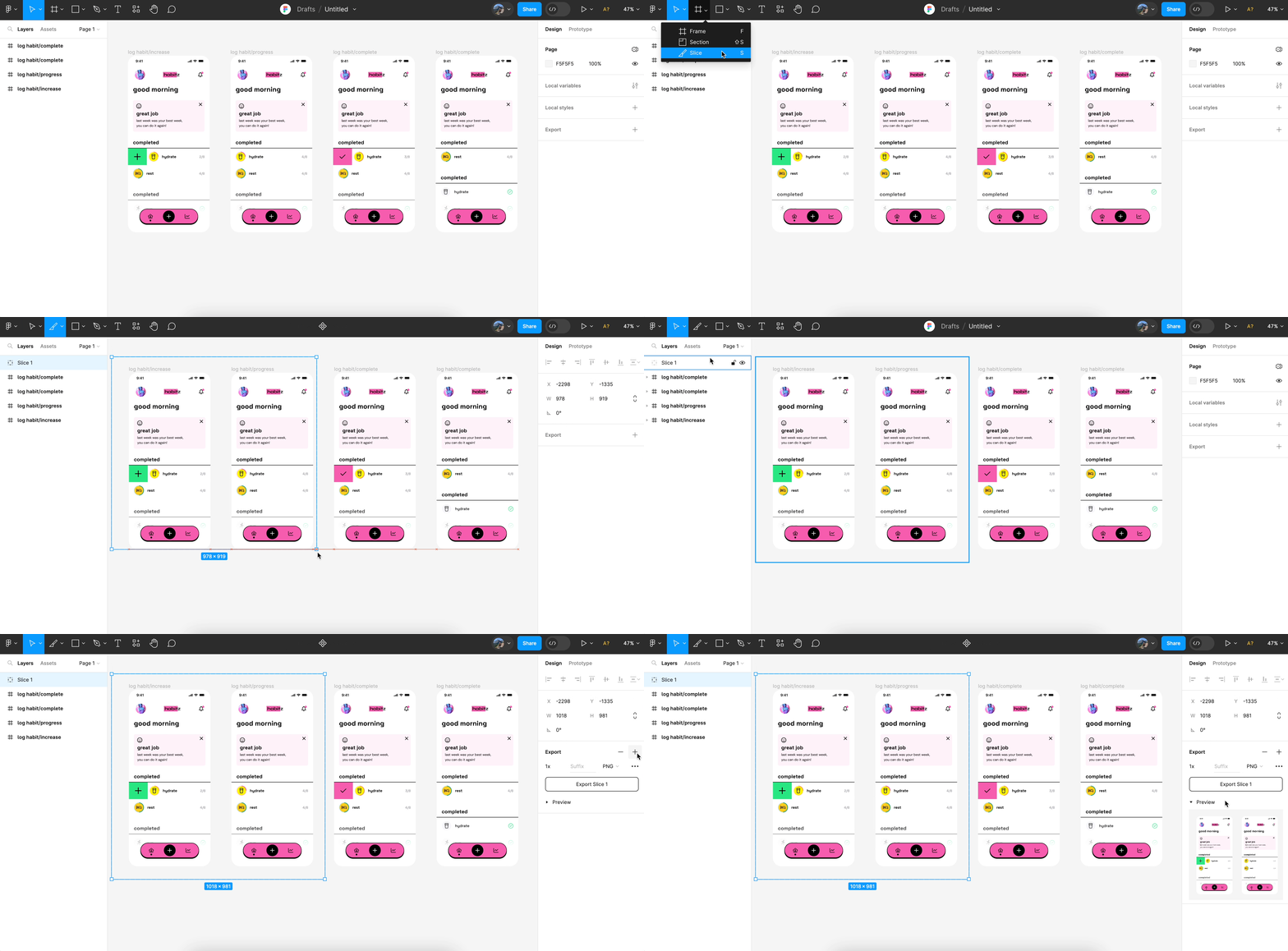
Select the Frame, Component, or Layer
Next, click to select the specific frame, component, or layer you want to export. You can also hold down Shift to select multiple items at once. Being precise here ensures that only the desired elements are exported.
Navigate to the Export Section
Now, look at the right-hand sidebar. Scroll down until you find the “Export” section. This panel lets you define how your file will be exported, whether as an image, vector, or PDF.
Choose the Desired Format
Then, select the file format you need. Figma supports popular formats like PNG, JPG, SVG, and PDF. You can also choose resolution settings or add multiple export sizes depending on your needs.
Click the “Export” Button
Once your settings are in place, simply click the “Export” button. The file will download to your device immediately. If you’ve selected multiple elements, they will export as individual files.
Bonus: Use Plugins for Advanced Export Settings
Figma offers plugins like TinyImage Compressor or Figma to Code to further customize exports, automate naming, or reduce file sizes. These tools can significantly improve your workflow.
With your files now exported, you’re ready to share, present, or implement them wherever needed.
Beginner’s Guide: How to Use Figma
Summary
Uploading files to Figma is a seamless experience once you know where to look and what to do. From individual drafts to team projects, Figma allows you to work on designs collaboratively and efficiently. With the ability to import various formats and export your work in different styles, Figma simplifies design workflows for beginners and professionals alike.
Whether you’re transferring files from another design tool or starting from scratch, this guide should help you handle file uploads, imports, and exports without any hassle.
Ready to take your design projects to the next level? Start uploading your assets to Figma today and explore the full range of features it offers.
Upload Files in Figma FAQs
How do I upload a file to Figma?
To upload a file to Figma, log in to Figma, go to your Drafts or a team project, click “Import File” in the top-right corner, then choose or drag-and-drop your file to upload.
How do you attach files in Figma?
You can’t attach files like email attachments. However, you can embed images, drag files into the canvas, or use comments to share external links of originally published pages/posts.
How do I import a PDF file into Figma?
To import a PDF file into Figma, click “Import File” and select the PDF from your computer. Figma will convert each page of the PDF into individual frames in your Fig file.
How do I add files to my Figma library?
To add files and assets to your Figma library, create a Figma file with components and publish it as a library. Then, enable the library from your team settings so others can use it.
Can I upload Sketch files to Figma?
Yes, you can upload Sketch files to Figma. Figma supports importing .sketch files. Just drag the file into your Figma dashboard or use the “Import” option.



