


Figma interactive components empower designers to create prototypes with advanced animations, hover effects, and button states, offering users a realistic preview of web interactions.
A well-defined design system is crucial for managing these interactive components, streamlining design processes, and enhancing collaboration. Integrating these dynamic features into WordPress enhances user engagement, allowing for a more interactive and responsive site experience.
In this guide, we’ll explore how to embed Figma interactive components into your WordPress website, ensuring design fidelity and performance optimization.
Why Use Figma Interactive Components in WordPress?

Figma is one of the best prototyping tools for UI/UX designers thanks to its rich suite of features that include interactive components that enable designers to build rich, interactive experiences within prototypes.
Incorporating multiple states in interactive components enhances creativity and realism in web design by allowing for various visual changes, such as background colors, to illustrate different interactions. Embedding these features into WordPress ensures:
- Enhanced User Engagement: Dynamic elements like button hover states and modals captivate visitors.
- Design Consistency: Maintaining design fidelity from Figma ensures a polished, professional look.
- Efficient Workflow: Designers can export fully realized interactions directly into WordPress, reducing manual coding.
Whether building a marketing website, eCommerce store, or portfolio, Figma’s interactivity brings static designs to life, enhancing user experience.
Learn How to: How to Make Your Figma to WordPress Site Fully Responsive
Working With Figma Interactive Components
To effectively integrate Figma interactive components, it’s crucial to understand how Figma organizes interactivity:
Prototype Panel
The Prototype Panel in Figma allows designers to link frames and define triggers such as clicks, hovers, or key presses. It also controls transitions like slides, fades, or instant changes.
Key Functionality:
- Create navigation flows.
- Set up hover states for buttons or images.
- Define scroll interactions and modals.
A component instance allows multiple copies of a component to inherit interactions and animations defined in its variants, simplifying prototyping by reducing the complexity and number of screens required to demonstrate various interactions.
Interaction Details Panel
This panel offers granular control over interaction settings, including animation duration, easing effects, and delays.
Customization Options:
- Fine-tune animation speeds.
- Choose transition types (e.g., dissolve, smart animate).
- Adjust looping for repeated interactions.
These features make Figma ideal for creating sophisticated web interactions ready for WordPress integration.
Transform Your Posts: Implement Figma Interactivity in WordPress
Don’t let your posts remain static when you can infuse them with the dynamic interactivity of Figma components. Contact our expert team to make your content stand out.
Guide for Integrating Figma Interactive Components in WordPress
Exporting Figma interactive components into WordPress is a technical process that may be best handled by one of these professional Figma-to-WordPress conversion agencies. But if you feel up to trying it yourself, here are the steps to follow:
Step 1: Exporting Assets from Figma
To integrate interactive components, first export your Figma assets:
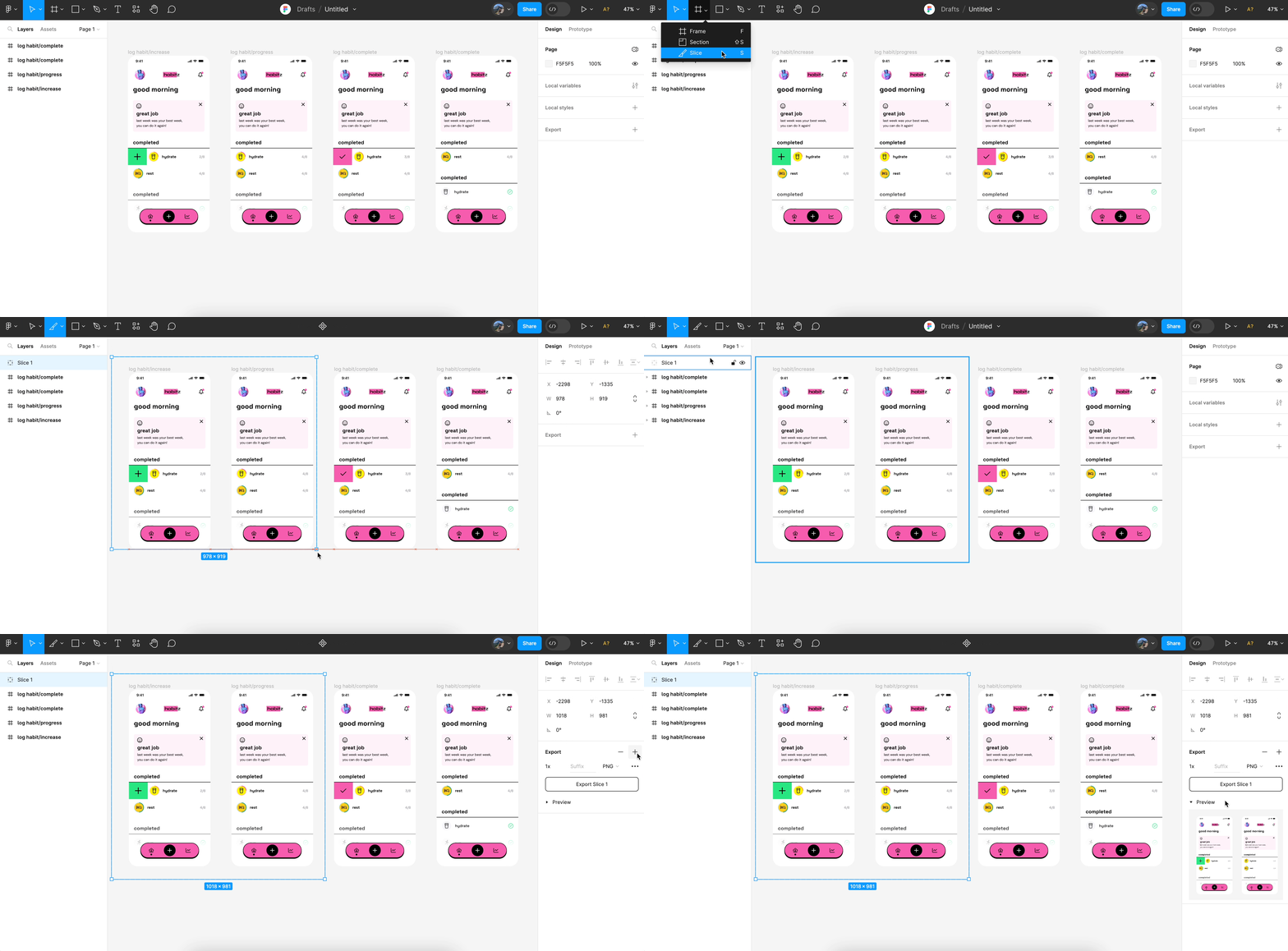
- Export Interactive Elements: Use SVGs, PNGs, or optimized GIFs for animations.
- Extract CSS Code: Copy CSS for elements directly from Figma to maintain design fidelity in WordPress.
Regular components can be customized and combined to enhance prototypes, allowing for the creation of nested interactive components that improve modularity and integration into various design elements.
Learn: Hiring a Professional Figma to WordPress Conversion Agency
Step 2: Embedding with Custom Code
Use HTML, CSS, and JavaScript to recreate the Figma interactions in WordPress:
- Navigate to the WordPress Block Editor or a page builder like Elementor.
- Add a Custom HTML Block and paste the exported code.
- Use Custom CSS to refine animations and interactivity directly in the WordPress Customizer or via a child theme.
The same process for naming single variants within a group enhances organization and clarity in prototypes, ensuring consistency and ease of management.
Step 3: Utilizing WordPress Plugins for Figma Integration
Several plugins simplify the process of embedding Figma prototypes:
- EmbedPress: Allows embedding Figma prototypes directly via URL.
- WPCodeBox: Helps manage custom scripts for interactive components.
- Code Embed: Insert interactive elements directly within posts or pages.
These tools ensure a smooth integration of interactive elements without excessive manual coding.
Discover: Best White-Label Figma to WordPress Conversion for Agencies
Best Practices for Smooth Integration
Creating a seamless experience when integrating Figma interactive components into WordPress requires attention to performance, responsiveness, security, and thorough testing. Without these, you may easily fall into some common Figma to WordPress conversion pitfalls. Here’s a deeper dive into best practices to ensure the integration is both effective and efficient:
Optimize for Performance
A slow website can deter users, no matter how interactive the design is. Performance optimization ensures that your WordPress site remains fast and responsive:
- Use Lightweight Assets: Export images and icons in compressed formats (e.g., SVG, WebP, or optimized PNG). Avoid using uncompressed video or large GIF files; consider using MP4 or optimized GIF alternatives for animations.
- Minify CSS and JavaScript: Use tools like WP Rocket or Autoptimize to combine and minify CSS and JS files. Minification reduces file size by removing unnecessary spaces, comments, and characters, speeding up load times.
- Enable Lazy Loading: Implement lazy loading for images, videos, and animations to ensure they load only when they appear in the viewport. Also, use WordPress’s built-in lazy loading or plugins like Lazy Load by WP Rocket to defer offscreen assets.
- Leverage Browser Caching and CDN: Utilize a content delivery network (CDN) like Cloudflare to distribute assets globally, reducing server load. Configure browser caching to store static assets locally for returning visitors, ensuring faster subsequent loads.
Related: Best Practices to Consider When Migrating to Figma Design System
Ensure Responsiveness
Responsive design ensures a consistent user experience across all devices, whether users are on desktops, tablets, or smartphones.
- Test Across Multiple Devices and Browsers: Test interactive components using tools like BrowserStack to simulate different screen sizes and browsers. Ensure animations, hover effects, and interactions behave consistently across devices.
- Use Media Queries for Adaptation: Implement media queries in your custom CSS to adjust font sizes, button dimensions, and layout spacing for different screen resolutions. For example, use
@media rulesto disable complex animations on smaller devices to enhance performance and usability.
- Consider Touchscreen Interactions: Ensure hover states have alternatives for touchscreen devices where hovering isn’t possible. Implement larger touch targets (buttons and links) to enhance usability on mobile devices.
Maintain Security
Embedding interactive components via custom code introduces potential security risks. Prioritizing security ensures your WordPress site remains protected.
- Use Security Plugins: Install and configure security plugins like SolidWP to monitor for malicious activity and code injections. Regularly scan for vulnerabilities, especially if custom JavaScript or third-party code is used.
- Sanitize and Validate Custom Code: Always validate and sanitize any user inputs within interactive components to prevent cross-site scripting (XSS) or injection attacks. Use WordPress functions like
wp_kses()andesc_html()to sanitize outputs safely.
- Keep WordPress Updated: Ensure the WordPress core, themes, and plugins are regularly updated to patch known security vulnerabilities. Disable unnecessary features like file editing in the dashboard by adding
define ('DISALLOW_FILE_EDIT', true);to the wp-config.php file.
Test Thoroughly
Testing is crucial to ensure the interactivity performs smoothly and as intended across various environments.
- Check All Interactions: Verify that hover states, click events, modals, and transitions work as expected. Pay attention to subtle differences in animation timing and easing effects, as these nuances can impact the user experience.
- Use Browser Developer Tools: Utilize Chrome DevTools, Firefox Developer Tools, or Safari Web Inspector to debug issues with CSS, JavaScript, or network performance. Monitor the console for errors or warnings and resolve them before deployment.
- Simulate Slow Network Conditions: Use browser throttling options to simulate slower network speeds, ensuring the site remains usable under less-than-ideal conditions. Optimize interactions and animations to degrade gracefully if assets are delayed or fail to load.
- Collaborate with User Testing: Conduct usability testing by inviting real users to interact with the site and provide feedback on animations, responsiveness, and overall experience. Subtle differences in animation timing may be noticeable to keen observers, making user feedback invaluable for refinement.
Final Thoughts
Integrating Figma interactive components into WordPress elevates your website’s design and functionality. By leveraging Figma’s Prototype Panel and Interaction Details Panel, along with custom code or integration plugins, you can create a visually engaging and dynamic WordPress site. Prioritize performance optimization, responsiveness, and security to ensure a seamless user experience.
FAQs About Figma Interactive Components
How do I export interactive components from Figma for WordPress?
You can export them by generating an embed code or exporting prototype frames and then adding them to WordPress using supported plugins or custom HTML.
Can WordPress display Figma’s interactive elements natively?
WordPress cannot render them natively, but it can display them through embeds, plugins, or converted code.
Which plugins help embed Figma designs in WordPress?
Plugins like “EmbedPress” or “iFrame Embedder” allow you to insert Figma prototypes without coding.
Do interactive components require custom code?
Some advanced interactions may require custom CSS or JavaScript once imported into WordPress.
Will the interactions remain fully functional after embedding?
Yes. Most prototype interactions remain functional as long as the embed link stays active.
Can I use Figma components in a page builder like Elementor?
Yes, you can embed Figma components (prototypes) inside Elementor using HTML or iframe widgets.
How can I keep embedded Figma content updated?
Updates in Figma automatically sync to the embedded prototype, ensuring your WordPress site stays current.


