


Designing a website in Figma is exciting. But what happens when your design is ready, and you need a developer to build it on WordPress? That’s where learning how to prepare a Figma file that WordPress developers will appreciate becomes important.
Preparing your Figma file properly can save time, reduce confusion, and lead to a better-finished product. Whether you’re a designer, a project manager, or working with a developer for the first time, this guide will walk you through everything you need to know.
Why Preparing Your Figma File Matters?
Before we jump into the steps, let’s understand why this process matters. WordPress developers aren’t mind readers. They don’t always know your intentions with spacing, hover effects, or how the site should behave across screen sizes.
A messy Figma file can lead to miscommunication, delays, or worse, a final product that doesn’t match the design. So, a clean, well-organized Figma file is important because it will lead to the following:
- Fewer revision cycles
- Accurate implementation
- Faster development time
- Better client satisfaction
Now, let’s break down how to do it the right way.
Figma Files Made WordPress-Ready, No Sweat!
We can help bring your vision to life with pixel-perfect accuracy, ensuring it is responsive and optimized for performance.
Steps to Prepare a Figma File for WordPress Developers
From organizing layers to defining styles and interactions, every detail matters. Below are the essential steps to prepare your Figma file for a seamless WordPress build.
Step 1: Organize Your Figma File Structure
In Figma, you can create multiple pages, so use them wisely. Name them based on their purpose:
- Homepage
- About
- Blog Listing
- Blog Post
- Contact
- Components
- Style Guide
This helps developers quickly find the layouts they need.
Next, use Frames for each section. Frames are essential in Figma. Each screen or page design should be inside a Frame. Don’t leave loose elements hanging outside. Also, keep your layers tidy. Group related elements and name your layers consistently. For example:
- Button / Primary
- Header / Navigation
- Card / Blog Post
Step 2: Create a Style Guide or Design System
A style guide is a must-have. WordPress developers often need to refer to font sizes, colors, and spacing rules. Instead of guessing, give them a clear style guide. Include:
- Typography hierarchy (H1, H2, H3, body text)
- Color palette (with hex codes)
- Button styles (normal, hover, active)
- Input fields and form styles
- Links and hover effects
Additionally, use Figma Styles. Figma lets you create shared text styles, color styles, and effect styles. Use these instead of manually formatting each element. This helps developers spot consistency and reusability. If your primary button has a specific style, define it once and apply it everywhere.
Check out: Brand Asset Management Software for Figma to WordPress Transformations
Step 3: Use Components and Variants
Think of Figma components like WordPress blocks. Create reusable components and use them for:
- Buttons
- Cards
- Headers
- Icons
- Forms
- Navigation items
This shows developers which UI elements repeat across the site.
Further, define variants for interactions. Don’t just show one button state. Add Variants to demonstrate hover, active, and disabled states. This makes it easier for developers to implement interactivity. Similarly, create menu states like open and closed versions of the mobile navigation.
Related: How to Use Figma Components in WordPress Theme Development
Step 4: Add Responsive Layout Hints
WordPress sites need to look good on all screen sizes. So, your Figma file should account for that.

Design for Mobile, Tablet, and Desktop: Create frames for common breakpoints: Desktop (1440px width), Tablet (768px), and Mobile (375px). You don’t have to design every page three times, but you should show at least a few key layouts, such as the homepage, a blog post, and a contact form, across devices.
Use Auto Layout: Figma’s Auto Layout is great for simulating responsiveness. It helps developers understand how spacing should behave when content grows or shrinks. Use Auto Layout for things like button padding, form fields, and navigation bars.
Know more: How to Make Your Figma to WordPress Site Fully Responsive
Step 5: Label Interactions and Animations
Designing a hover effect or transition? Don’t assume developers will know.
Use Prototyping Tools: Figma has built-in prototyping features. Link buttons to their target pages, show modal interactions, or simulate scrolling effects. This gives developers a clear idea of user flow.
.Add Notes or Descriptions: Use sticky notes or text labels in Figma to explain: button behaviors, animation speeds, scroll behavior, and conditional elements (like logged-in states). The more information you give, the better the developer can replicate your design.
Expert Guide: How to Integrate Figma Interactive Components into WordPress
Step 6: Prepare Assets for Export
If you use icons, illustrations, or custom graphics, make sure they’re export-ready.
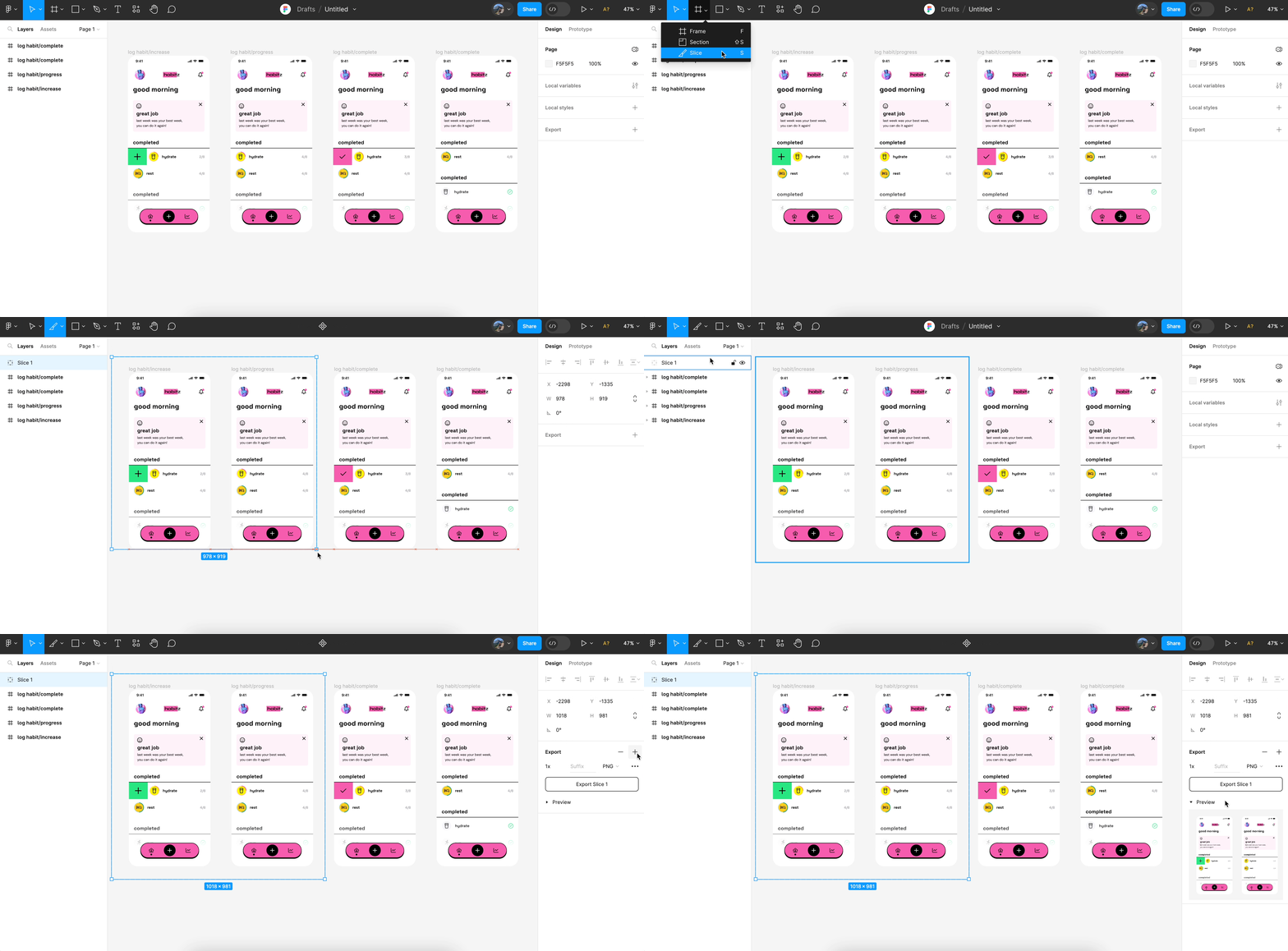
- Use SVG for icons (they scale well)
- Use PNG or JPG for images
- Avoid embedding large images that slow the site
In Figma, mark elements for export and name them clearly, like icon-check.svg or hero-bg.jpg.
Also, organize media assets in folders. Provide a zip folder with assets if needed. This makes it easy for developers to access exactly what they need.
Ultimate Image Format Showdown: AVIF vs WebP
Step 7: Provide Fonts and Licensing Info
If you’re using custom fonts not available via Google Fonts, share the font files or license links. Without them, developers may need to substitute fonts, which can break the design. Also, ensure you have the right to use all fonts and assets. Let the developer know if anything requires attribution or purchase.
Step 8: Include Content or Placeholder Guidelines
Don’t rely on Lorem Ipsum unless it’s strictly temporary. Placeholder text can confuse developers, especially if they don’t know what the final content will look like. Instead, provide real or near-final content wherever possible such as actual headings, paragraphs, button labels, image captions, and alt text.
Be specific when using dynamic content like blog posts, testimonials, or portfolio items. Indicate how many items should appear by default, whether there’s pagination or a “load more” button, and what to display if the content is missing (e.g., “No posts available” message or a fallback image).
Clear content guidelines ensure that your design is translated faithfully and functions properly within WordPress’s content management system.
Step 9: Provide a Developer Handoff Document
To tie everything together, create a simple PDF or Google Doc that includes:
- Project overview
- Link to the Figma file
- Color and typography styles
- Notes on responsiveness
- List of components
- File download links (assets, fonts)
- CMS structure guidelines (like custom post types or ACF fields)
This extra step saves time and reduces back-and-forth emails.
What You Need to Know: Figma Design to Development Handoff
Step 10: Use Plugins to Speed Up the Handoff
Figma’s plugin ecosystem offers powerful tools that can significantly streamline the design-to-development handoff. These plugins not only save time but also improve accuracy and consistency across your file.
- Measure helps developers by displaying spacing, padding, and dimensions directly within the design.
- Zeplin, when used through its plugin, allows you to export your designs into a developer-friendly workspace with style guides, assets, and code snippets.
- Design Lint scans your file to find and fix inconsistent styles, missing components, or unaligned elements. This ensures your file is clean and uniform.
- Content Reel lets you insert real names, email addresses, avatars, and more, making your mockups look realistic and easier for developers to interpret.
Using these plugins during preparation ensures your Figma file is polished, detailed, and ready for efficient WordPress development.
Final Checklist Before Sharing the File
Here’s a quick rundown before you hand over the file:
- Are all pages and frames clearly named?
- Is the style guide complete?
- Are components and variants used properly?
- Have you included responsive layouts?
- Are animations/interactions labeled?
- Have all assets been marked for export?
- Are fonts provided or documented?
- Is a handoff document included?
If yes, you’re good to go!
Conclusion
Preparing a Figma file for WordPress developers isn’t just about organizing layers. It’s about clear communication, attention to detail, and thinking ahead to how the design will be implemented. By following the steps above, you’ll create a file that’s not just pretty but also practical, efficient, and developer-friendly. The better your handoff, the better the final website. And that leads to happy clients, smoother projects, and faster launches.



