

Isn’t it amazing how technology allows us to visually design a website even before touching a line of code? Enter Figma and Elementor page builder—they’re transforming the web design space. Together, these tools enable a seamless workflow from design to implementation. So you’ve crafted your dream website in Figma and brought it to life with Elementor, but now you need to hide certain sections of your site. In this guide, we will explore how to show and hide Elementor section in your Figma-modeled WordPress sites.
We’ll cover everything from understanding Elementor widgets and creating a Read More button to showing and hiding entire sections. We’ll also discuss troubleshooting tips and best practices to ensure your website is as smooth as silk. By the end of this article, you’ll have all the knowledge you need to control element visibility like a pro.
1. Elementor and Figma: A Dynamic Duo
Elementor and Figma may seem like separate entities, but together they can enhance your web design process significantly.
As a well-loved page builder for WordPress, Elementor offers a drag-and-drop interface. Whether you’re looking to add images, buttons, or headings, Elementor’s widgets have you covered. Notably, many features are available for free, which makes it accessible to a wide range of users.
Figma is a design tool that allows you to create and prototype digital products, such as WordPress websites. Its collaborative features and design flexibility make it an excellent choice for web designers.

Understanding how to use Elementor and Figma together can streamline your workflow and transform your design concepts into stunning WordPress websites.
Pixel to Page Magic: Figma Dreams Meet Elementor Reality!
Transform your Figma designs effortlessly into a stunning Elementor-based WordPress website.
2. Mastering Elementor Widgets and Sections
When you’re building a website with Elementor, understanding how sections and widgets function can significantly improve your design and site functionality. Elementor sections serve as flexible containers (flexbox containers) that organize and display your site’s content.
Understanding Elementor Sections
Sections in Elementor are fundamental building blocks of your page layout. These sections are designed to hold various widgets and serve as the framework for structuring your content.
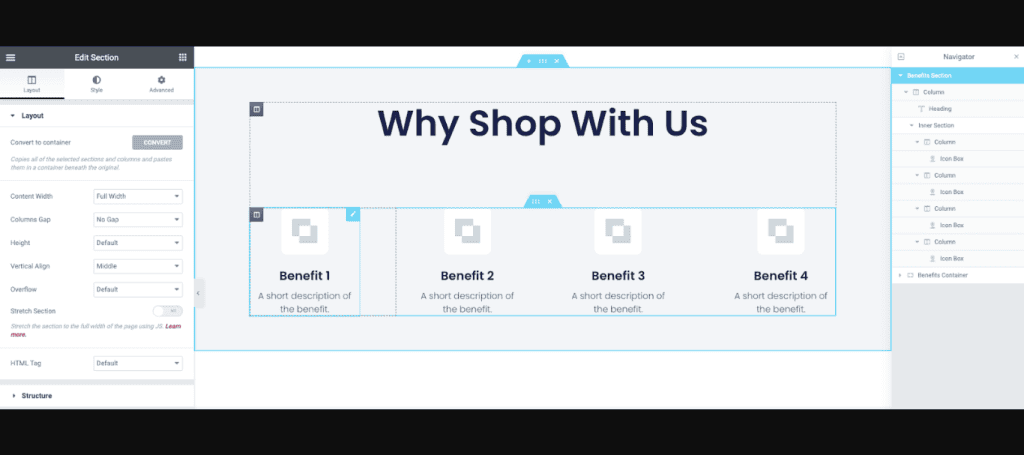
- Layout Customization: Each section can be customized with backgrounds, borders, margins, and padding to fit the aesthetic of your site. You can also divide sections into columns, allowing you to create intricate layouts that serve your design needs.
- Responsive Design: Elementor allows sections to be responsive, meaning they can adjust their layout based on the viewer’s screen size. This flexibility is crucial for providing optimal viewing experiences across desktops, tablets, and mobile devices.
Read about: How to Create Figma to Elementor WordPress Template
Widgets: The Building Blocks
Widgets within Elementor are the content elements you place inside sections. Ranging from text blocks, images, and buttons to other widgets like sliders and galleries, widgets provide the dynamic content that brings your pages to life.
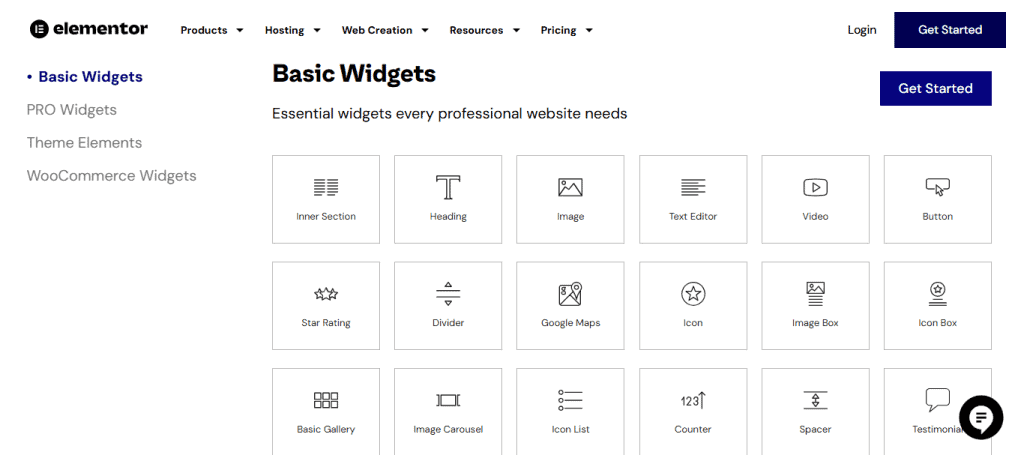
- Dynamic Flexibility: Widgets can enhance your site by adding interactive and diverse content types. However, it is important to use only the necessary widgets to avoid overwhelming your design. The Elementor library includes many options, enabling you to tailor each section precisely to your needs.
- Customization and Styling: Each widget has various settings for customization, including content changes, style adjustments, and advanced settings. You can adjust fonts, colors, icons, and interactions to align perfectly with your brand’s identity.
Practical Guide: Simplifying Figma to Elementor Conversion in Simple Steps
Why Hiding Unused Widgets is Essential
While Elementor editor provides a wide array of widgets, not every widget is necessary for your site. Efficiently managing widgets is vital for a refined design and seamless performance.
- Aesthetic Clarity: Cluttered pages can detract from user experience. By hiding or disabling unused widgets, you maintain clean, professional-looking designs. It’s essential for ensuring that each element on your page has a clear purpose and contributes positively to the overall user experience.
- Performance Optimization: Widgets that aren’t used, but remain active, can bog down your site’s performance. Hiding or disabling them can enhance load times and streamline your site’s functionality, ensuring a quicker, more efficient user experience.
- SEO Benefits: Web performance is a ranking factor for search engines. By optimizing widget usage, you can positively impact your site’s SEO performance.
Effective Elementor Widget Management
To manage your widgets, follow these best practices:
- Audit Regularly: Periodically review your site to identify any widgets that are no longer serving a purpose. Keeping your site lean helps maintain efficiency.
- Leverage Conditional Visibility: Elementor Pro provides options for conditional visibility, which allows widgets to be hidden based on dynamic conditions like user roles or device type.
- Utilize Global Widgets: For recurring elements, use global widgets, which enable you to manage multiple instances across your site from a single place.
- Prune and Optimize: Always be ready to prune unnecessary elements and optimize existing ones, maintaining a focus on user needs and site efficiency.
3. Crafting a Read More Button in Elementor
Introducing the Read More button—a clickable element that reveals additional content upon user interaction.
- Why It’s Useful: This button is incredibly useful for sites with lengthy content. By hiding portions of the text initially, the Read More button keeps your layout clean and user-friendly until a user chooses to view more detail.
- Examples of Use: Consider hiding everything beyond the first three paragraphs of a blog post or concealing additional product specifications on an ecommerce site. The possibilities are endless!
4. Techniques for Showing and Hiding Elementor Sections
Controlling the visibility of sections in Elementor is a powerful way to manage content presentation and improve user interaction on your website. By strategically showing and hiding sections, you can guide user focus and create a dynamic browsing experience.
Utilizing the Unfold Widget
The Unfold widget is a versatile tool that allows for the gradual revelation of content. By using this widget, you can initially present users with a portion of the content, inviting them to explore further if they are interested.
- Configurable Unfold Length: You can set the amount of content that is visible by default. This helps to keep the layout clean and concise, especially on pages with extensive information.
- Interactive Experience: The expanding functionality encourages users to interact with your content, increasing engagement and dwell time on your site.
Using Custom CSS for Visibility
For those with a bit of coding knowledge, custom CSS can provide precise control over which sections are displayed at any given time. This approach enables tailored content visibility based on various triggers or conditions.
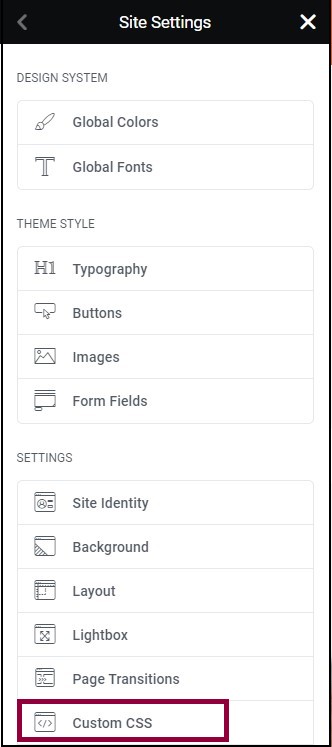
- CSS Classes and IDs: Assign CSS classes or IDs to sections and use CSS properties such as
display: none; orvisibility: hidden; to control their appearance.
- JavaScript Interactivity: Combine CSS with JavaScript files for dynamic interactions. For example, you can toggle section visibility based on user actions like button clicks.
Responsive Visibility Settings
Elementor offers native responsive visibility settings, allowing you to show or hide sections based on the device being used. This capability is essential for optimizing mobile and desktop experiences.
- Device-Based Display: Customize which sections are visible on desktops, tablets, and smartphones. This ensures that users see only the most relevant content for their device.
- Seamless Transition: As users switch between devices, the visibility settings maintain a consistent and optimized viewing experience.
Related: The Role of Figma in Building Mobile-Responsive WordPress Websites
Leveraging Visibility Conditions
Visibility conditions enable you to set rules for when sections should be shown or hidden. This feature is particularly useful for delivering personalized content experiences.
- Contextual Relevance: Display sections based on user login status, location, or specific user behaviors. This personalization makes the site more relevant and engaging.
- Enhanced User Journey: By showing content only when it aligns with user needs or behaviors, you create a more focused and beneficial user journey.
Mastering these techniques transforms your Elementor-built site into a highly interactive and user-centric experience, promoting engagement and improving the overall effectiveness of your web design.
A Beginner’s Guide: How to Convert Figma Designs to WordPress Using Elementor
5. Hide Elementor Section: Additional Tips and Best Practices
Enhancing your Elementor website requires not only creative design but also strategic optimization and timely troubleshooting. Here are some additional tips and best practices to ensure your site runs smoothly and efficiently.
Customizing Content for Optimization
Optimizing your content in Elementor is crucial for both performance and user engagement. Thoughtful customization can significantly impact how users interact with your site.
- Efficient Use of Widgets: Carefully choose and configure widgets to ensure they serve a purpose. This prevents unnecessary load times, making your site faster and more responsive.
- Styling Consistency: Maintain consistency in fonts, colors, and spacing throughout your site. Consistent styling not only enhances visual appeal but also reinforces your brand identity.
- SEO Optimization: Use Elementor’s SEO features, like structured data widgets, to improve search engine visibility. Ensure every piece of content is optimized for search relevance.
Also read: How to Maximize SEO Performance in Figma to WordPress Conversions
Troubleshooting
Even with careful planning, you may encounter issues while working with Elementor. Addressing these swiftly can prevent disruptions to your site’s functionality.
- Common Issues: Frequently, problems arise from plugin conflicts or outdated WordPress themes. Ensure all your WordPress plugins and themes are up to date to minimize issues.
- Debugging Techniques: Use Elementor’s Safe Mode to troubleshoot without affecting site performance. Safe Mode allows you to isolate Elementor’s functionality and identify the source of conflicts.
- Responsive Checkups: Regularly test your site on multiple devices and browsers. Differences in rendering can cause unexpected behavior, and proactive checking helps catch these discrepancies early.
Conclusion and Next Steps
Understanding how to manage element visibility in Elementor is a game changer for delivering personalized content on your WordPress site. With Elementor’s intuitive interfaces and robust visibility settings, you can craft pages that offer dynamic engagement tailored to user behavior and preferences. By experimenting with visibility conditions, you can optimize user experience and powerfully achieve your website objectives.
Now that you’re equipped with these tools and insights, it’s time to unleash your creativity and elevate your website’s design and functionality!
Hide Elementor Section FAQs
Is Elementor free to use?
Yes, Elementor offers a free version with essential features for building WordPress pages. It includes a drag-and-drop editor, basic widgets, and design capabilities. For more advanced functionalities like additional widgets, templates, and customization options, Elementor Pro, the paid version, is available.
How do I hide an Elementor section?
To hide content or hide an Elementor section, edit the section, go to the Advanced tab, and set custom CSS with a visibility toggle or adjust the display properties.
How to show and hide Elementor in a Figma-based WordPress website?
To simulate showing and hiding Elementor sections in a Figma-based WordPress website, use Figma’s interactive components. Set up prototyping links between frames to create toggle actions. This allows you to mimic the behavior of showing and hiding sections, providing a visual flow for your design that can inform the development process on WordPress.
How to use code snippets to hide the Elementor template section?
To hide an Elementor template section, first identify the section’s CSS ID or class. Use custom CSS like #your-section-id { display: none; } in Elementor’s Custom CSS or your theme’s additional CSS. For dynamic control, use JavaScript: document.getElementById('your-section-id').style.display = 'none'; Customize as needed for specific conditions or triggers.
How to make a section transparent in Elementor?
Set the section’s background opacity to a lower value through the Style tab to make it transparent, creating a see-through effect.
Which is better for hiding the Elementor section: Plus addons or Custom CSS?
Using Custom CSS is generally better for hiding Elementor sections if you are comfortable with code, as it provides precise control and doesn’t require additional plugins. Conversely, Plus Addons offers a user-friendly, code-free solution with more features. Ultimately, the best choice depends on your comfort level with coding and the complexity of your needs.



