Having a multilingual website is a game-changer in today’s global market. It allows businesses to connect with a broader audience, increase engagement, and boost sales internationally. One of the most efficient ways to achieve this is by converting your Figma designs into a multilingual WordPress site. This process can be daunting, especially for those unfamiliar with web development and design. However, it can be seamless and rewarding with the right approach and tools. This article explores how to transform Figma designs into multilingual WordPress sites, ensuring a responsive and attractive user experience for diverse audiences.
Transforming Figma Designs into Multilingual WordPress Sites
Figma is popular among designers due to its collaborative features, ease of use, and cloud-based platform. On the other hand, WordPress stands as a leading content management system (CMS). Combining Figma with WordPress leverages the strengths of both platforms to create visually stunning and functional websites. Here are five quick steps to transform Figma to WordPress to create multilingual sites.
Step 1: Preparing Your Design in Figma
Before you begin, ensure your Figma design is finalized, responsive, and optimized for web use. Here are some key considerations:
- Design Responsively: Ensure your design adapts seamlessly to different devices. Use Figma’s breakpoints to design for various screen sizes.
- Optimize Images: Export images at appropriate resolutions. Use formats like PNG or JPEG for images and SVG for scalable graphics.
- Organize Layers: Properly name and group layers for easy identification when you transfer designs into WordPress.
Step 2: Exporting Assets from Figma
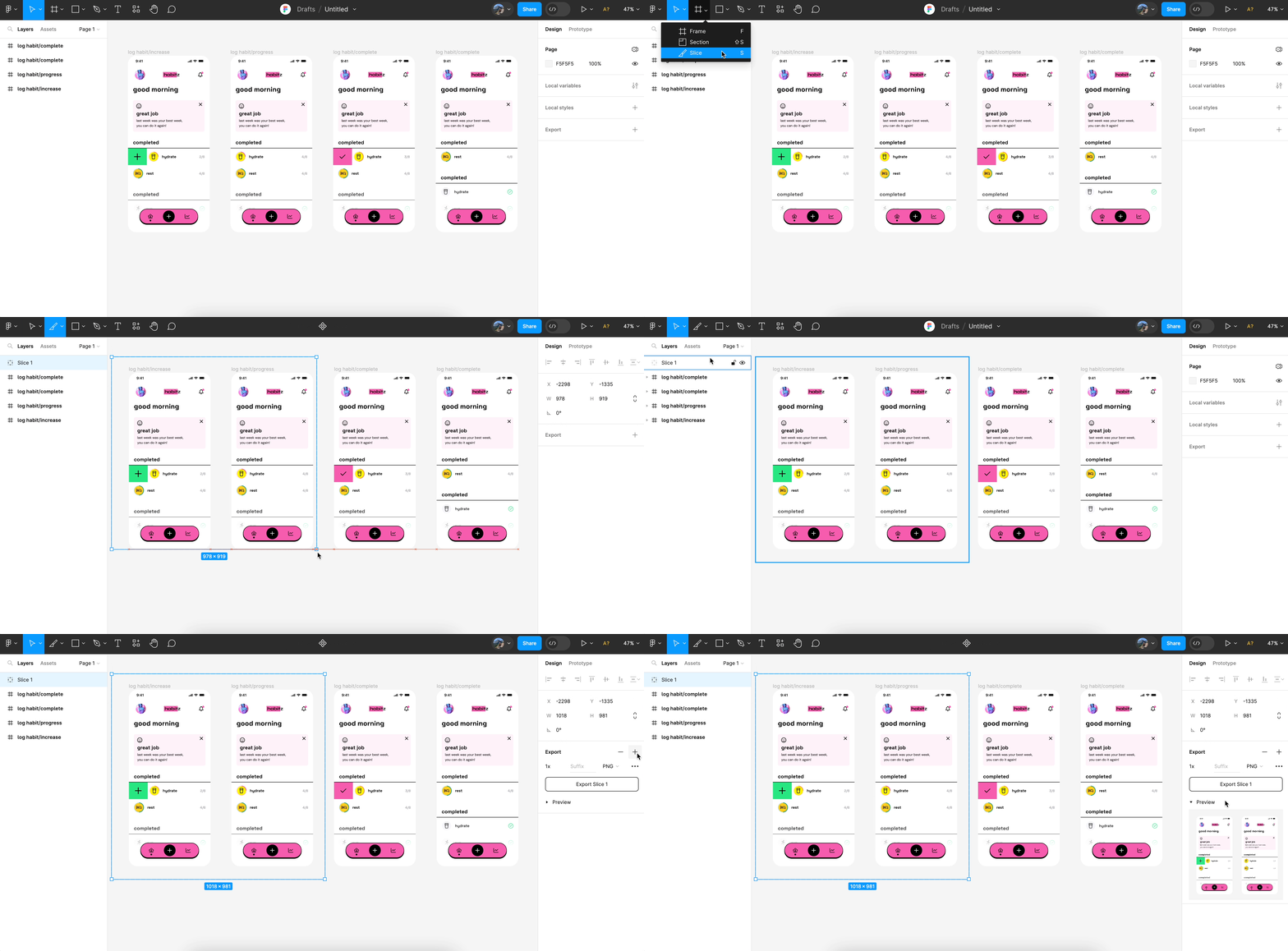
After preparing your designs, the next step is to export the necessary assets from Figma. This could include:
- Images (PNG, JPEG, SVG)
- Fonts
- CSS styles
To maintain quality and performance on your WordPress site, export at resolutions that suit your web design. You can use Figma’s export settings to adjust these parameters.
Read: How to Integrate Figma Interactive Components into WordPress
Step 3: Setting Up a WordPress Site
To transform your Figma design into a WordPress site, setting up WordPress is essential. Follow these steps:
Choose a Hosting Provider
Choosing the right hosting provider ensures your WordPress site runs smoothly and efficiently. Consider the following factors when selecting a host:

- Reliability and Uptime: Opt for WordPress web hosting providers that offer at least 99.9% uptime to minimize downtime, which can negatively affect user experience and SEO.
- Performance: Look for web hosts with solid performance metrics, including fast load times and robust infrastructure. Features like SSD storage, CDN capabilities, and server location can impact site speed.
- Customer Support: Excellent customer support is vital for resolving issues quickly. Ensure that the hosting provider offers 24/7 support through various channels such as chat, phone, and email.
- Scalability: As your site grows, your hosting needs may change. Choose a web hosting company that can scale resources according to increasing traffic or future demands.
- Security Features: Opt for web hosts that provide robust security features like SSL certificates, firewalls, and regular backups to protect your site from threats.
Some popular WordPress hosting providers include Pressable, DreamHost, and Hostinger. Each of these offers unique plans tailored to different needs, from small blogs to large enterprise websites.
Install WordPress
Once you’ve selected a hosting provider, the next step is to install WordPress. Most hosting services make this process straightforward with one-click installers. Here’s how you can typically proceed:
- Access Your Hosting Account: Log into your hosting account and navigate to the control panel, which might be cPanel, Plesk, or a custom user interface.
- Locate the WordPress Installer: Search for the WordPress installer within the control panel. It’s usually located under sections like “Website” or “Applications”.
- Initiate the Installation: Click on the WordPress installer icon and follow the prompts. You may need to specify the domain you want to use and fill in details like your site title, username, and password.
- Complete Setup: Once the installation is complete, you’ll receive a confirmation with your WordPress dashboard URL. Use this link to access the WordPress admin area where you can begin customizing your site.
Select a WordPress Theme
Choosing the right theme is critical as it dictates your site’s aesthetic and functionality framework. While you may want a theme that mirrors your Figma design precisely, here are some considerations when selecting a theme:

Responsive Design: Ensure the theme is responsive, meaning it adjusts seamlessly on different devices like mobiles, tablets, and desktops. This is crucial for user experience and SEO.
- Customization Options: Look for themes with flexible customization options to mimic your Figma design. This includes customizable headers, footers, color schemes, and typography.
- Performance: A lightweight theme can significantly enhance site speed. So, avoid themes packed with unnecessary features that you don’t need, as they can slow down your website.
- Compatibility with Plugins: Ensure the theme is compatible with popular WordPress plugins, especially if you plan to use them to build pages or add functionalities like multilingual support.
- Ratings and Reviews: Consider user reviews and ratings, which can provide insight into the theme’s reliability and the developer’s support quality.
- Updates and Support: Choose a theme that is regularly updated to ensure compatibility with the latest WordPress version and to receive new features and security updates.
For example, if your Figma design focuses on showcasing high-quality visual content, you might choose a theme like Astra or GeneratePress. These themes are renowned for their simplicity, speed, and ease of customization.
Know more: How to Design Landing Pages in Figma and Launch Them on WordPress
Step 4: Implementing Your Figma Design in WordPress
Now comes the vital part of integrating your Figma design into WordPress:
- Install a Page Builder: Plugins like Elementor or WPBakery can facilitate the process of designing pages without coding. They allow you to replicate the Figma design down to the finest detail.
- Custom CSS: Implement custom CSS to ensure that styles and themes from Figma are consistent in WordPress. This can be done through the WordPress Customizer or theme settings.
- Responsive Design Testing: Use tools to test your site’s responsiveness on different devices and make necessary adjustments.
Step 5: Adding Multilingual Capabilities
Multilingual plugins are crucial tools that facilitate the translation and localization of WordPress sites. Here are some of the most popular options:
- WPML (WordPress Multilingual Plugin): WPML is a powerful plugin that supports over 40 languages. It allows you to add language variants, perform translations on various site elements, and manage translations efficiently from your WordPress dashboard.
- Polylang: Polylang is a free plugin with a pro version available, known for its user-friendliness and flexibility. It allows you to create a multilingual site where you can translate posts, pages, widgets, and even custom post types. Polylang also supports customizable language switchers.
Configure Language Settings
Once you’ve installed a multilingual plugin, the next step is setting up the languages for your site:
- Add and Manage Languages: Navigate to the plugin’s language settings where you can add new languages. You’ll need to select from available language packs and set the default language for your site.
- Language Switchers: Add language switchers to your site to allow users to easily switch between languages. These can be placed in visible areas such as the header, footer, or menu. Some plugins offer widget-based switchers, while others allow customization of the switcher’s appearance.
- URL Structure: Decide on the URL structure for different languages. You can configure URLs using subdirectories (e.g., yoursite.com/en/), subdomains (e.g., en.yoursite.com), or domain mapping for different languages (e.g., yoursite.co.uk for English).
Manual and Automatic Translations
The translation process can be approached manually or automatically, depending on your needs and resources:
- Manual Translation: For precise and culturally relevant translations, manual translation is recommended. This involves translating each piece of content (posts, pages, products, etc.) by yourself or using professional translation services. Most plugins provide an easy interface to handle translations, showing original content alongside editable fields for the target language.
- Automatic Translation: To expedite the translation process, you can enable automatic translations using machine translation services. TranslatePress, for instance, integrates with Google Translate, allowing you to auto-translate content. However, it’s important to review automated translations for accuracy and natural phrasing, as machine translations often lack contextual nuance.
Turn Figma Designs to Stunning Multilingual WordPress Sites
We specialize in seamless design integration and multilingual optimization to ensure your website reaches audiences across the globe.
Special Considerations for Multilingual Sites
When adding multilingual capabilities, keep these additional factors in mind:
- SEO Optimization: Ensure that each language version of your site is optimized for search engines. Use hreflang tags to indicate language and regional targeting to search engines, preventing duplicate content issues and ensuring the correct versions are served to users.
- Localized Content: Beyond straightforward translations, consider localizing content to fit the cultural context of the target audience. This may involve adapting images, examples, and cultural references.
- Consistency: Ensure that site navigation and design remain consistent across all language versions. This helps maintain a cohesive user experience and reinforces your brand identity globally.
- Monitoring and Updates: Regularly monitor site performance and user feedback to identify potential issues in translation accuracy or user experience. Update translations and language settings as necessary to maintain optimal site functionality.
Also read: Advanced Tips for Improving Website Speed After Figma to WordPress Conversion
Conclusion
Turning a Figma design into a multilingual WordPress site is a rewarding endeavor that can significantly boost your reach and engagement in the global market. By carefully preparing your design, exporting assets, and leveraging WordPress plugins for both design and multilingual capabilities, you can create a seamless, responsive, and user-friendly experience for visitors worldwide.
Also, pay special attention to SEO best practices to ensure your site ranks well across different languages. The effort invested in creating a multilingual platform will undoubtedly pay dividends in increased traffic and user satisfaction.
FAQs
Why should I use Figma for designing my website?
Figma offers a range of collaborative features, allowing multiple team members to design simultaneously. It is excellent for web design due to its intuitive interface, prototyping tools, and cloud-based functionality, which facilitates easy access from anywhere.
Can I convert my Figma designs to WordPress without coding?
Yes, with the use of page builders like Elementor or WPBakery, you can replicate your Figma designs in WordPress without extensive coding knowledge.
What is the best plugin for creating a multilingual WordPress site?
WPML, Polylang, and TranslatePress are among the most popular plugins for creating multilingual WordPress sites. They offer comprehensive tools to manage translations efficiently.
How can I ensure a consistent user experience across languages on my site?
Ensure consistency by maintaining the same design elements and content quality across all language versions. Regular testing can help identify and rectify any disparities.