


Figma has become a household name for product teams, designers, and developers. Its real-time collaboration features and cloud-based interface have transformed how modern teams design. However, for growing organizations, managing scale, security, and structure is just as important as creating beautiful user interfaces. This is where Figma Enterprise comes in with Workspaces at the core of it all. In this complete guide, we’ll explore what Workspaces in Figma Enterprise are, how they work, and why they matter. If you’re managing a design system at scale or trying to optimize workflows across departments, this guide is for you.
What Are Workspaces in Figma Enterprise?
Workspaces in Figma Enterprise are specific areas within an organization’s Figma account. They help segment projects, files, and users based on team function, department, product line, or any organizational need.
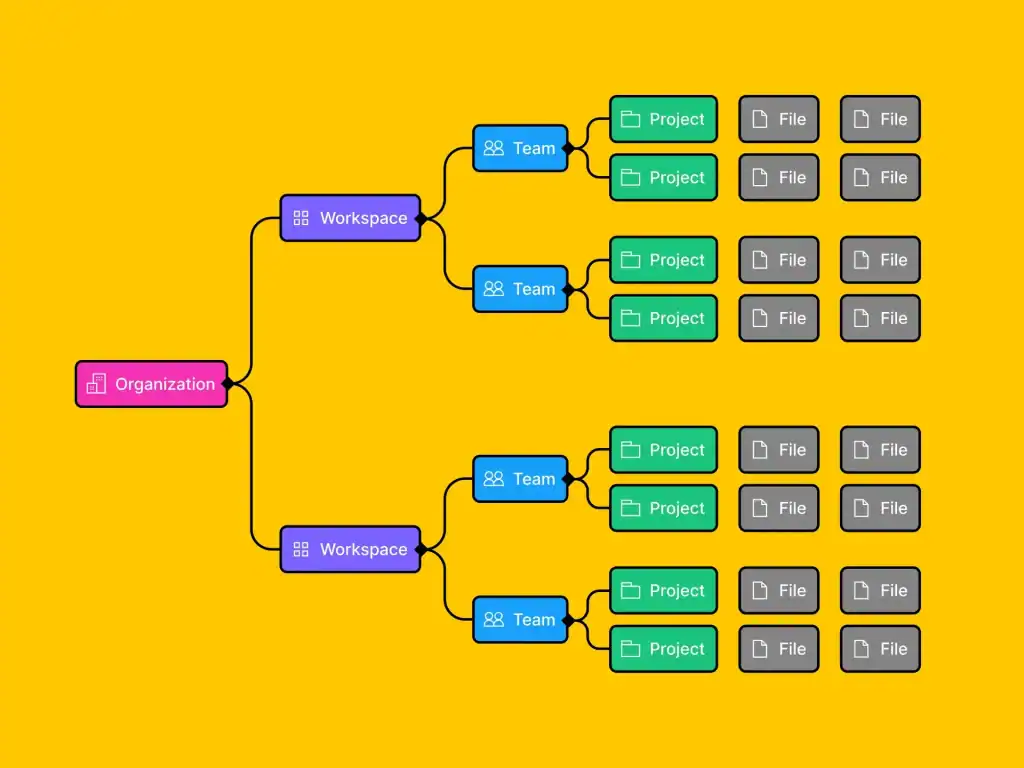
Think of Workspaces as customizable containers that give teams autonomy while ensuring governance and visibility at the organizational level. Key characteristics of Figma workspaces are:
- Isolated Environment: Each workspace functions independently with its own files, permissions, and members.
- Scalable Structure: Enterprises can create as many workspaces as needed to match their company’s structure.
- Centralized Admin Controls: Organization admins can manage access, roles, and settings across all workspaces.
Read about: Top Enterprise WordPress Agencies: Your Guide to the Best
Why Workspaces Matter for Enterprise Teams?
As companies grow, so does the complexity of their design ecosystem. More teams, more products, and more contributors often lead to chaos if there’s no proper structure in place. Without a centralized system, organizations may face:
- Disorganized file structures: When files are scattered across various teams without naming conventions or folder hierarchies, it becomes difficult to find assets quickly.
- Confusing access permissions: Without a clear permissions model, team members may accidentally gain access to sensitive files or worse, get locked out of resources they need.
- Security and compliance risks: Enterprises must manage who can access, edit, and share design data. Lacking role-based access control increases the risk of breaches or non-compliance.
- Reduced design consistency: Without a shared system, teams may use different versions of components, leading to inconsistent user interfaces and experiences.
This is where Workspaces in Figma Enterprise step in as a solution. By creating isolated, role-specific environments, workspaces help organizations:
- Streamline collaboration: Teams can work independently without stepping on each other’s toes. Communication and file sharing happen in a controlled, focused space.
- Standardize design systems: With scoped libraries and permissions, teams have access to the right components, reducing the chance of inconsistent designs.
- Enable secure file management: Admins can define who can view, edit, or manage content across every workspace. This keeps data safe while enabling seamless design workflows.
- Support cross-functional teams: The workspaces are flexible enough to accommodate product teams, marketing departments, contractors, and stakeholders, each with tailored access.
In short, Workspaces in Figma Enterprise bring clarity, control, and collaboration to even the most complex design ecosystems. They help teams stay organized, aligned, and secure, no matter how fast your company grows.
Who Should Use Figma Enterprise Workspaces?
Workspaces are ideal for:
- Large Design Teams working on multiple products
- Enterprises with strict compliance or security needs
- Cross-functional teams that need clean collaboration spaces
- DesignOps leads who manage large design systems
- Agencies working with multiple clients in one organization
If your design operation is growing in size or complexity, it’s time to consider Workspaces.
A Beginner’s Guide: How to Use Figma
How to Set Up a Workspace in Figma Enterprise?
Setting up a workspace is straightforward. Here’s a quick step-by-step guide:
- Admin Access: Only Organization Admins in Figma Enterprise can create or manage workspaces.
- Navigate to Admin Settings: Click on your organization name in the left panel. Go to Admin Settings and click on the Workspaces tab.
- Create a New Workspace: Click “+ Create Workspace.” Name the workspace (e.g., “Mobile Team” or “Marketing Design”) and add a description if needed.
- Invite Members: You can invite users directly by email or by assigning groups from your SCIM integration or SSO directory.
- Select and Set Permissions: Who can view files, edit designs, invite others, and access libraries.
That’s it. Your workspace is ready to use.
Which Tool is Right for Your Team: Figma vs FigJam
Core Features of Workspaces in Figma Enterprise
Let’s take a closer look at the features that make Workspaces in Figma Enterprise functional and truly scalable for large organizations. These capabilities are built to meet the needs of enterprise teams managing complex design systems and workflows.
Granular User Management
In each workspace, you can assign individual users or groups with specific roles based on their function. The roles include:
- Viewer: Can view files and leave comments, ideal for stakeholders or clients.
- Editor: Can design, prototype, and collaborate within assigned files.
- Admin: Can manage users, permissions, and workspace settings.
This separation of roles ensures that access is given based on responsibility, minimizing errors and improving security. Additionally, it prevents cross-workspace interference, allowing each team to work autonomously.
Example: Your Engineering team may need editor access to inspect design specs, while your Legal team only needs viewer access for branding reviews.
Scoped Libraries
Workspaces can contain their own private design libraries, including components, typography styles, and design tokens. This allows different teams, such as Product Design, Marketing, or Web Development, to create and maintain relevant libraries for their use cases.
You also have the flexibility to share specific libraries across workspaces if certain assets are universal.
Benefit: A Product team working on a mobile app doesn’t have to sift through assets meant for a website or ad campaign. This leads to a more focused and efficient design experience.
Workspace-Specific Projects
Within each workspace, you can organize files into distinct projects. These projects are sandboxed, meaning they’re only visible and editable within that specific workspace. This isolation helps:
- Prevent file duplication and confusion across teams.
- Speed up onboarding by giving new members access to only what they need.
- Improve file searchability with better categorization.
Example: Your Product workspace could have projects like “User Dashboard” or “Onboarding Flow,” while your Marketing workspace holds projects like “Q3 Campaigns” and “Brand Refresh.”
Access Controls and Visibility Settings
Admins have full control over who can view, join, or manage each workspace. These settings let you:
- Make workspaces private or public within the organization
- Limit the ability to invite new users to prevent unauthorized access
- Choose whether files are discoverable via search or only visible through direct sharing
This is essential for companies working on confidential designs, regulatory-bound products, or managing external vendors.
Example: You can lock a workspace for confidential R&D projects, while a marketing workspace can be open for collaboration.
Activity Logs and Audit Trails
Enterprise-grade oversight is crucial for organizations that prioritize security, compliance, and accountability. Figma Enterprise provides comprehensive activity logs, allowing admins to:
- Track who accessed which file
- Monitor changes and interactions
- Review timelines for file edits, shares, and permissions
These logs are invaluable for internal audits, data governance policies, and legal compliance, especially in regulated industries like healthcare, finance, or education.
Tip: Pair audit logs with SSO (Single Sign-On) and SCIM (System for Cross-domain Identity Management) for complete identity and access management.
Together, these core features make Workspaces in Figma Enterprise a powerful solution for organizing teams, maintaining brand consistency, and confidently scaling design operations.
Workspaces vs Teams in Figma: What’s the Difference?
Many users confuse Workspaces with Teams, especially if they’ve used Figma’s Starter or Professional plans. Here’s a breakdown on how they differ:
| Aspect | Workspaces in Figma Enterprise | Teams in Figma (Starter/Professional/Organization Plans) |
| Purpose | Workspaces are designed to organize and manage large-scale, enterprise-level design operations with advanced access control and file separation. | Teams are built to help smaller groups collaborate and share design files within a limited environment. |
| Structure | Each workspace acts as an isolated environment where files, projects, libraries, and permissions are scoped specifically to that workspace. | A team shares a common set of projects and files, often with shared access to all members in that team. |
| User Access | Admins can assign different users to each workspace, with customized roles and permissions per workspace. | All members of a team generally have the same level of access unless manually customized in individual files. |
| Permissions | Permissions can be controlled at multiple levels, including who can view, edit, or manage files, projects, and libraries across workspaces. | Permissions are simpler and usually applied per file or project, with limited granularity. |
| Design Libraries | Workspaces support scoped libraries and shared access to global libraries across multiple workspaces, making them ideal for managing design systems. | Teams can publish libraries, but access and visibility are more restricted compared to workspace-level management. |
| File Organization | Files and projects are organized independently within each workspace, reducing clutter and enhancing team-specific workflows. | Files and projects are grouped under a team and are visible to all members unless otherwise set. |
| Audit Logs & Compliance | Workspaces include advanced features like audit logs, version history, and compliance tools essential for enterprise governance. | Teams have basic file history and sharing logs but lack enterprise-grade auditing capabilities. |
| Use Case | Workspaces are ideal for large organizations with multiple departments, products, or external collaborators who need controlled collaboration. | Teams are better suited for startups, small businesses, or individual product groups working closely together. |
| Admin Control | Admins have greater visibility and control over user roles, file sharing, and data access across multiple workspaces. | Team admins can manage members and permissions, but controls are limited compared to the workspace model. |
| Scalability | Workspaces are built for scalability across dozens or even hundreds of teams, making them suitable for complex organizational hierarchies. | Teams offer a simpler setup that becomes harder to manage as the organization grows. |
Best Practices for Using Workspaces
To get the most out of Workspaces in Figma Enterprise, it’s important to set them up intentionally and manage them strategically. Below are proven best practices that can help your organization stay organized, secure, and efficient as it scales.
Mirror Your Org Chart
Structure your workspaces to reflect your organization’s operations. This alignment ensures that team-specific projects, permissions, and libraries stay relevant and easy to manage.
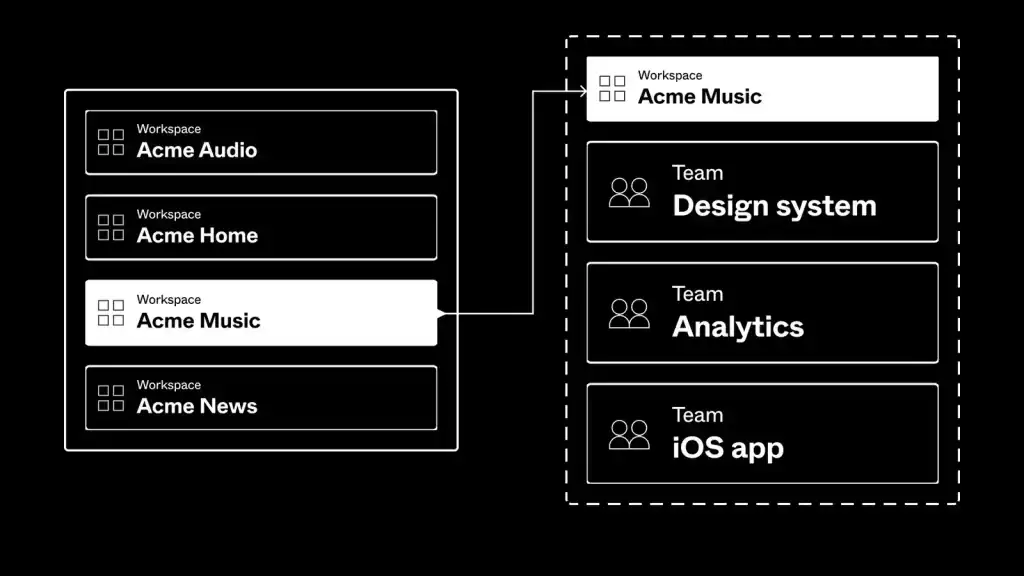
Recommended workspace breakdowns are:
- Product Design for cross-functional product squads working on app or web features
- Marketing for brand, campaign, and content-related design initiatives
- Design Ops for housing design systems, templates, documentation, and process guidelines
- External Contractors for vendors, freelancers, or partners working under limited access
Why it works: Matching your workspace structure to your real org hierarchy reduces confusion and allows you to apply the right controls where they matter most.
Limit Cross-Workspace Access
While granting users access to multiple workspaces “just in case ” may be tempting,” doing so can create unnecessary complexity. Limiting access helps reduce:
- File clutter
- Accidental edits or duplication
- Security risks
- User overwhelm
Give each user access only to the workspaces they need to do their job. For cross-team collaboration, consider granting viewer access or creating a shared project in a neutral workspace.
Pro tip: Set clear guidelines for workspace membership and use SCIM or your identity provider to automate access provisioning based on roles or departments.
Use Naming Conventions
Consistent naming of files and projects is a small but powerful habit that improves searchability, clarity, and onboarding across teams. Examples of clear naming include:
- [Mobile] Onboarding Flow
- [Marketing] Q4 Campaign
- [DesignOps] Button Components
This naming pattern allows users to instantly understand the context of each file, which is especially useful when working across workspaces or referencing shared libraries.
Suggestion: Establish a short internal naming guide and keep it pinned in your “Design Ops” workspace or handbook for easy access.
Centralized Core Libraries
Design systems work best from one place and consumed across teams. Instead of duplicating components across workspaces, create a dedicated workspace (often managed by your DesignOps or Systems Team) to host:
- Shared UI components
- Color palettes and typography
- Iconography and illustrations
- Brand tokens
Then, configure library permissions to allow other workspaces to use (but not edit) those assets. This ensures brand consistency and design integrity across all products and platforms.
Benefit: Changes to a component in the Design System library automatically update wherever it’s used, keeping design work efficient and scalable.
Find Out: Is Figma Free for Your Design Needs
Final Thoughts
Workspaces in Figma Enterprise are more than just folders; they’re an essential framework for modern, scalable design collaboration. Whether you’re managing global teams or developing multiple products, Workspaces bring the structure, control, and visibility you need to succeed. They let you focus on design, not admin chaos. So if your team is growing and you want to maintain design quality, speed, and security, Workspaces are worth the investment.



