
Designers know that color choices can make or break a project. When working in Figma, the background color of your canvas or frame isn’t just a backdrop; it sets the tone for your entire design. Choosing the best page colors while designing in Figma helps you improve readability, highlight hierarchy, and guide user emotions.
In this guide, you’ll learn how to pick the right colors, set them up in Figma, and apply them consistently across your Figma design system. We’ll also cover accessibility, plugins, and real-world examples to help you create polished designs.
1. Why Page Color Matters in Figma Designs?
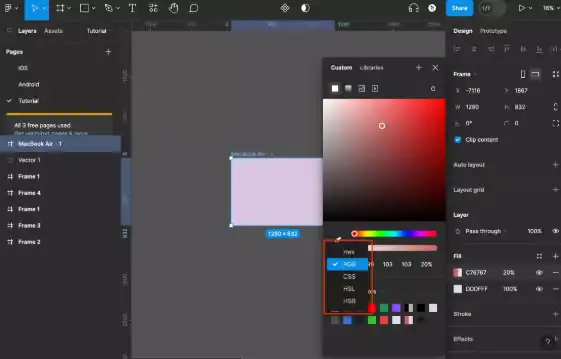
When designing in Figma, the page color plays a central role in shaping usability, mood, and accessibility. The right color can guide focus, communicate emotion, and ensure content is easy to read for all users. Let’s break it down.
Visual Hierarchy and User Focus
Page color directly influences where users look first. A neutral background like light gray (#F5F5F5) creates balance and keeps attention on UI components such as cards, buttons, and charts. In contrast, a bold or dark background can emphasize branding or highlight specific sections.
For example, think of a dashboard with a dark gray (#2C2C2C) background. The white cards placed on top instantly pop, making data easier to read and improving overall hierarchy.
Emotional Impact Through Color Psychology
Colors don’t just look good; they make people feel a certain way. For instance:
- Blue (#007BFF) conveys trust, making it ideal for healthcare or financial platforms.
- Green (#28A745) symbolizes growth, wellness, and positivity.
- Black (#000000) signals power, elegance, and luxury.
Therefore, your choice of page background should align with the emotions you want your design to evoke.
Accessibility and Readability Considerations
Not all users perceive colors equally, which makes contrast vital. High-contrast combinations improve readability for everyone, including people with visual impairments.
For example, white text (#FFFFFF) on a light gray background (#F5F5F5) fails WCAG accessibility standards. However, pairing the same text with navy blue (#001F3F) passes the test.
Fortunately, plugins like Contrast and Stark in Figma make it easy to test and adjust your color choices. By prioritizing accessibility, you ensure your designs are inclusive and user-friendly.
2. Choosing the Right Background Tone for Figma Designs
Selecting the right background tone in Figma helps shape how your design is perceived and how it communicates your message. The background sets the stage for all other elements. Depending on the project, you may lean toward neutral, vibrant, or dark tones. Below are five approaches to consider.

Neutral Tones for Balance and Clarity
Neutral backgrounds like light gray (#F5F5F5), off-white (#FAFAFA), or beige (#FDF6EC) creates a calm and balanced environment. They don’t distract from your primary UI components, which makes them ideal for wireframes, enterprise applications, and corporate websites. Neutral tone also allows elements like text and buttons to take center stage without competing for attention.
Enhancing Focus in Enterprise and Productivity Apps
Neutrals work particularly well for data-heavy dashboards and productivity tools. When dealing with complex interfaces, a subtle background keeps users focused on content instead of the design itself.
For example, a project management tool using a soft beige background will feel clean, professional, and easy to navigate.
Vibrant Brand-aligned Tones for Creativity
On the other hand, vibrant colors can inject energy and personality into your design. Nucleus-UI suggests that for youth-centric brands, entertainment platforms, or marketing campaigns, bold backgrounds make a lasting impression.
Think of a music festival website with vibrant purple (#7B2CBF) or a creative portfolio with bright teal (#00CFCF). In these cases, the background itself becomes part of the storytelling.
Building Emotional Connections with Bold Choices
Because colors carry strong psychological associations, vibrant tones also help brands connect emotionally with their audience. For example, a children’s learning app might use playful yellow backgrounds (#FFD93D) to create a cheerful, welcoming feel. This kind of intentional use of color makes designs more memorable.
Dark Backgrounds for Elegance and Sophistication
Finally, dark backgrounds like charcoal (#1A1A1A) or jet black (#000000) exude luxury, focus, and depth. Portfolios, high-end fashion websites, and tech product sites often use these tones to boost brand perception. When paired with accents like gold (#FFD700) or white (#FFFFFF), the result feels premium.
3. Steps to Structuring Your Color Palette in Figma
A well-structured color palette ensures consistency, clarity, and usability across your Figma projects. Instead of choosing colors at random, you can build a logical system that balances neutrals, brand colors, and functional feedback tones. This method not only improves design quality but also streamlines collaboration with your team.
Step 1: Neutral Grays as Foundational Elements
The best place to start is by building a grayscale foundation. Neutral grays create balance and provide a versatile backdrop for brighter colors. Common values include:
- Light Gray: #F5F5F5
- Medium Gray: #B0B0B0
- Dark Gray: #2C2C2C
By layering brand colors on top of these neutrals, you maintain clarity while giving your designs flexibility.
Step 2: Brand (Primary) Colors for Key UI Components
Once the grayscale is in place, it’s time to define your primary brand color. This should reflect your brand identity and highlight interactive elements. For example:
- A finance app may use navy (#003366) for trust and professionalism.
- An eco brand may prefer green (#28A745) to signal growth and sustainability.
Apply these tones to buttons, links, and key highlights so users instantly recognize your brand across interfaces.
Step 3: Accent and Feedback Colors for States
No design system is complete without feedback colors. These guide user actions and signal system states. Essential shades include:
- Success: Green (#28A745)
- Error: Red (#DC3545)
- Warning: Orange (#FFC107)
To keep things consistent, it’s recommended to name these colors semantically (e.g., Success/Light or Error/Dark) instead of generic names like “Green” or “Red.” This makes collaboration easier and ensures developers, designers, and stakeholders stay aligned.
4. Ensuring Accessibility and Contrast in Figma Design
Accessibility is a key factor in design success. A visually appealing layout loses its value if users struggle to read or interact with it. By testing contrast, simulating visual impairments, and experimenting with light and dark modes, you can make sure your designs are inclusive and effective for everyone.

Using Figma Plugins and Tools for Accessibility Checks
Accessibility testing should be integrated into your design workflow. Plugins like Contrast help you measure whether text and background combinations meet WCAG AA and AAA standards. Meanwhile, Stark goes further by offering simulations for various types of color blindness. These tools ensure your work is not only attractive but also usable for people with different visual abilities.
Adjusting Color Contrast for Readability
Small tweaks in color can make a big difference. For example, white text (#FFFFFF) on pastel yellow (#FFFACD) fails contrast guidelines, making it hard to read. By shifting the yellow to a deeper tone like mustard (#FFC107), the same text passes accessibility tests. This step helps you preserve brand aesthetics while improving usability.
Light Vs Dark Preview Testing
Another way to strengthen accessibility is by testing your design in both light and dark environments. It is recommended to create two separate frames in Figma: one for light mode and another for dark mode. This lets you evaluate which version enhances clarity and user comfort.
A/B Testing to Identify User Preferences
Beyond contrast alone, A/B testing frames can reveal which background tone resonates more with your audience. For instance, a SaaS landing page might feel cleaner and more professional in light mode, while a designer’s portfolio could stand out better in dark mode. Testing ensures your design decisions align with real user expectations.
5. Workflow Enhancements for Best Page Colors Using Plugins
Designing with the right colors is easier when you have the right tools. Figma’s ecosystem offers a wide range of plugins and libraries that can help you generate palettes, manage tokens, and maintain consistency across projects. By incorporating these tools into your workflow, you can save time and achieve professional results.
Palette Creation Tools
Instead of manually experimenting with HEX codes, plugins like ColorWell and TokensStudio simplify palette creation.
- ColorWell generates multiple shades of a single color, ranging from light tints to deep tones. This is particularly helpful when you want variations of your brand’s primary color.
- On the other hand, TokensStudio lets you apply these colors as design tokens, making it easy to reuse and even export them to code for development.
Libraries and Reusable File Templates
For collaborative projects, maintaining a unified color system is essential. Setting up a shared Figma library ensures that everyone on your team uses the same palette styles, avoiding inconsistencies.
In addition, reusable file templates from community kits like Frames X or Untitled UI provide a ready-to-use foundation. These kits save time, reduce repetitive work, and help teams stay aligned on design standards.
6. Common Mistakes to Avoid While Picking the Best Page Colors
While many web designers focus on creativity, some common mistakes can weaken a design’s impact. Knowing what to avoid helps you create cleaner, more effective layouts.
Overusing Vibrant Backgrounds
Bright and bold colors may look exciting, but when overused, they can distract users. For example, using neon pink (#FF00FF) as a background can overpower your content, making text difficult to read. Instead, reserve vibrant tones for accents or call-to-action buttons.
Ignoring Accessibility Standards
Another common mistake is skipping accessibility checks. Light text on light backgrounds, such as white (#FFFFFF) on pale yellow (#FFFACD), often fails WCAG contrast requirements. This reduces readability for users with visual impairments. Always test combinations using Figma plugins like Stark or Contrast.
Relying Only on Brand Colors
While brand colors are important, relying solely on them for page backgrounds can cause imbalance. For example, using a strong corporate blue (#003366) as the primary background everywhere may make the UI feel heavy. Pairing it with neutral grays ensures harmony.
Forgetting Cultural and Emotional Impact
Colors carry meaning, and ignoring cultural or emotional associations can backfire. Red (#DC3545), for instance, can symbolize love in one context and danger in another. Always consider your target audience and cultural nuances before finalizing page colors.
Skipping Testing in Light and Dark Modes
Designers often forget to test their palettes in both light and dark settings. A background that looks elegant in light mode may fail in dark mode. Using Figma’s variables makes switching between modes seamless and ensures consistency.
To Sum Up
Choosing the best page colors in Figma is more than picking something that “looks nice.” It’s about designing with intention. Neutrals provide balance, bold colors add energy, and dark tones create elegance. With color styles, variables, and plugins, you can build systems that scale across projects.
Quick Reference Summary
- Use neutral tones like light gray (#F5F5F5) for enterprise apps and wireframes.
- Vibrant brand colors like teal (#00CFCF) or purple (#7B2CBF) for youth or marketing projects.
- Use dark tones like charcoal (#1A1A1A) for luxury products or portfolios.
- Always check contrast accessibility before finalizing.
- Build color styles and variables in Figma for consistency.
If you’re moving from Figma to a live WordPress website, services like figtowp make it easy to convert your designs into a responsive WordPress site without losing your color system. This way, the palettes you carefully created in Figma translate perfectly to your website.
So, start experimenting today: build your palette, test it for accessibility, and apply it across your designs. With the right colors, your Figma projects won’t just look better but also feel right for your users.
FAQs About the Best Figma Page Colors
What hex codes work best for default Figma backgrounds?
Light gray (#F5F5F5), off-white (#FAFAFA), and dark gray (#2C2C2C) are reliable defaults because they keep focus on UI components.
How many shades should a grayscale include?
A good grayscale includes at least 7 to 10 shades, ranging from very light (#FFFFFF) to very dark (#000000). This gives flexibility for text, dividers, and backgrounds.
Can I set a default canvas background in Figma?
Yes. You can right-click the canvas, select “Background Color,” and apply a default tone like light gray or beige. This makes your workspace more consistent.
What plugins help with color accessibility?
Plugins like Stark and Contrast are excellent for checking WCAG standards. They simulate visual impairments and ensure your colors are inclusive.
Should I use brand colors for backgrounds?
Not always. Brand colors work well for highlights and CTAs, but neutral tones are often better for backgrounds to avoid visual overload.