In this guide, we will take you through the steps of converting Figma to WordPress using Brizy Builder. Figma allows designers to create beautiful prototypes, while WordPress, combined with the Brizy Builder, can help developers build websites without the need for coding. Here, we will cover everything from why this approach is beneficial to how you can execute each step. By the end, you’ll better understand how to turn your static Figma designs into a responsive and dynamic WordPress site.
An Overview of Brizy Builder
Brizy Builder is a WordPress page builder plugin that allows users to design websites with a drag-and-drop interface. It simplifies the process of creating web pages, making it accessible even to non-developers. With Brizy, you don’t need to know how to code. It offers various pre-made templates and blocks that can be easily customized to suit your needs.
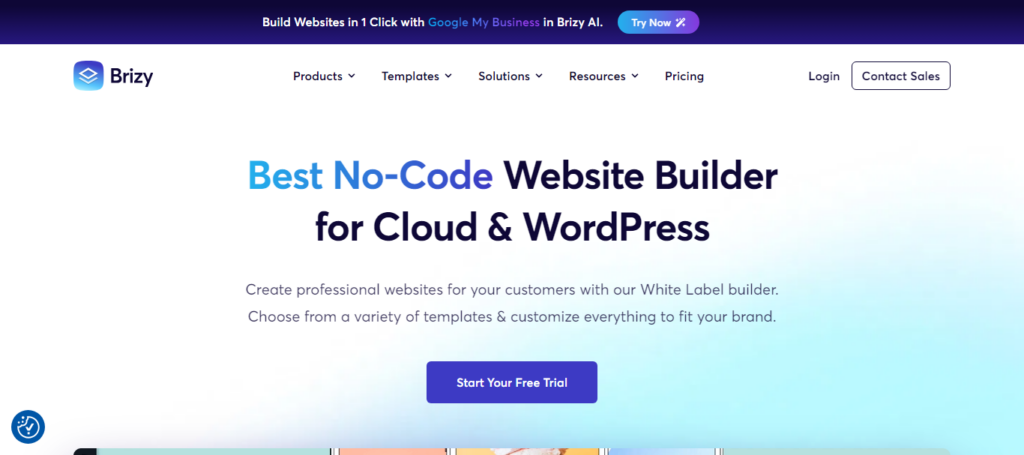
Some features of Brizy Builder include:
- Intuitive Drag-and-Drop Interface: No coding is required; you can simply drag elements into place.
- Pre-made Templates: Access a library of ready-to-use designs and blocks.
- Mobile Responsiveness: Ensure your design looks great on any device.
Why Convert Figma to WordPress?
You might wonder why you need to convert your Figma designs to WordPress. The simple answer is that Figma is a design tool, while WordPress is a content management system. You need both to create a fully functional website.
Here’s why converting from Figma to WordPress makes sense:
Functionality: Figma is great for design but lacks the functionality needed for running a website. WordPress offers features like content management, SEO tools, and eCommerce integration.
Dynamic Content: WordPress allows you to add dynamic content like blogs, forms, and galleries. Figma designs are static, meaning they don’t allow user interaction until implemented in a CMS.
User-Friendly: Using Brizy Builder, you can take your Figma design and easily implement it on WordPress, making the process faster and more user-friendly.
Learn: Best Page Builders for Figma to WordPress Conversion
Hiring a Professional for Figma to Brizy Builder Conversion: Why Choose Us
Turning Figma designs into fully responsive, conversion-optimized websites requires more than just drag-and-drop skills. It demands precision, attention to design integrity, and a deep understanding of web development tools. That’s where we come in, offering expert services that ensure your project is not only pixel-perfect but also easy to customize and scale.
Expertise in Pixel-Perfect & Fully Responsive Designs
We specialize in delivering pixel-perfect conversion with fully responsive layouts. Whether you’re working with basic layouts or complex designs, we ensure your site looks and functions flawlessly across all devices, retaining your original vision down to the last detail.
Seamless Design Integrity from Figma to Brizy
Maintaining design integrity during the conversion process is our top priority. We convert Figma designs without compromise, ensuring that every font, color, and interaction behaves just as intended in Brizy Builder. This helps you deliver a visually consistent experience that aligns with your brand identity.
User-Friendly Interface with Easy Customization
Brizy Builder is known for its user-friendly interface, and we build with that in mind. Our team ensures your final build supports easy customization, so your internal teams can make updates without technical headaches. If needed, we also integrate popular plugins to enhance functionality.
Versatility with Top Builders like Divi & Oxygen
Need more flexibility? We’re equally adept at working with other platforms like Divi Builder and Oxygen Builder. Whether your project demands dynamic content, animation, or advanced layout logic, we tailor our process to fit your goals, ensuring scalable and sustainable web development results.
Turn Your Figma Concepts into Dynamic WordPress Sites Using Brizy Builder!
Contact us today for a free consultation, and let’s start building a beautiful, user-friendly website that captures your brand’s essence.
Figma to WordPress Conversion: Key Considerations
Before diving into WordPress, ensure that your Figma design is optimized for the web. This includes:
Organizing Layers: Ensure that your design layers are well-organized and labeled correctly. This makes it easier to export individual elements like images, icons, and buttons.
Check for Responsiveness: Design for multiple screen sizes. Figma allows you to create different frames for desktop, tablet, and mobile views.
Export Assets: Export images, icons, and graphics from Figma in web-friendly formats like PNG, SVG, or JPG. To export assets:
- Select the element. Click on ‘Export’ in the sidebar
- Choose format (PNG, SVG, JPG)
- Click ‘Export [Asset Name]’ to download”
Before saving the files locally, you can also choose the desired file format and resolution.
Check out: How to Convert Figma to Sketch and Implement the Design in WordPress
Step-by-Step Guide to Convert Figma to WordPress using Brizy Builder
Begin by installing WordPress on your domain. Most web hosts offer one-click WordPress installation, making this process easy. Next:
- Log in to your WordPress dashboard.
- Go to Plugins ⟶ Add New.
- Search for “Brizy Builder” and click on Install Now.
- Activate the plugin.
Now, Brizy Builder is ready to be used on your WordPress site.
Step 1: Create a New Page Using Brizy Builder
After installing Brizy, create a new page by going to the WordPress dashboard:
- Go to Pages ⟶ Add New.
- Give your page a title.
- Click on the “Edit with Brizy” button.
This will open the Brizy Builder interface, where you can create your page using the drag-and-drop editor.
Step 2: Recreate the Design Layout in Brizy
With Brizy, you’ll want to replicate your Figma design as closely as possible. To do this:
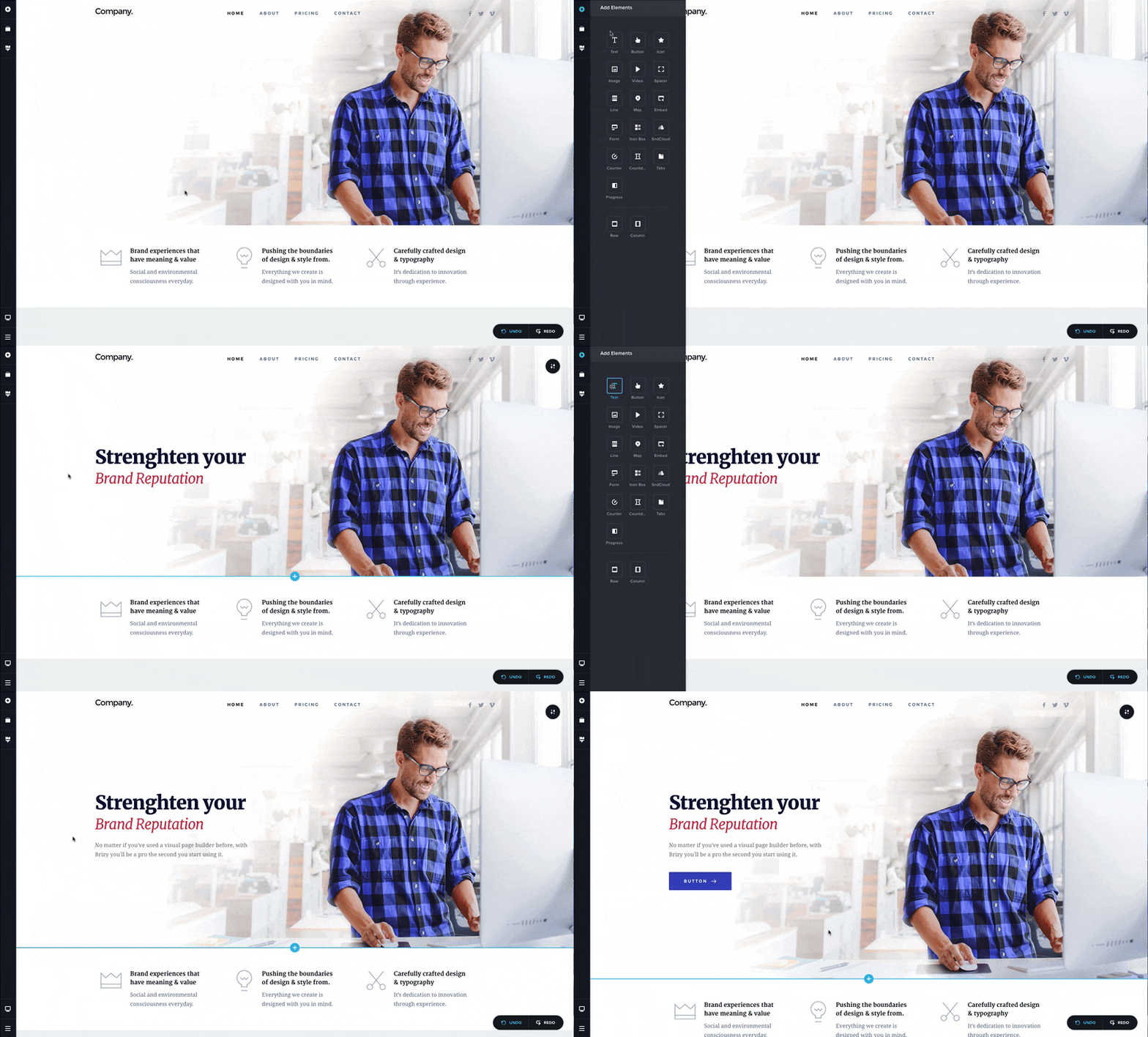
Use Brizy’s Pre-made Blocks: Brizy provides various pre-made blocks like headers, footers, and sections that can be customized. Choose blocks that closely match your Figma layout.
Drag and Drop Elements: Add elements like images, text boxes, buttons, and videos by dragging them from the left-side panel onto your page.
Customize Styles: You can adjust colors, fonts, padding, and other design elements to match the exact styles in your Figma design. You can also use your Figma color codes and typography settings directly in Brizy’s Global Styling panel to ensure consistent branding.
While recreating the design, ensure that you also make it responsive by using Brizy’s mobile and tablet editing views.
Step 3: Upload Your Figma Assets
Now that your layout is in place, it’s time to bring your design to life by uploading the visual assets exported from Figma. These can include images, icons, illustrations, and other media that are part of your original design.
Brizy makes this process seamless. Simply drag an “Image” element from the Brizy sidebar into your layout, then upload your asset directly. You can also use these files as background images for sections, columns, or blocks. This is perfect for achieving more complex designs or layered effects.
After uploading, make sure to adjust the size, position, and responsiveness of each asset to match the original design in Figma. This step is crucial for maintaining pixel-perfect conversion and ensuring your site remains fully responsive across all devices.
Step 4: Add Interactivity and Dynamic Content
One of the key advantages of using WordPress with Brizy is the ability to add dynamic content. You can easily add:
- Forms: Use the form builder to add contact or subscription forms.
- Blog Sections: If your design includes a blog, Brizy can pull posts dynamically from WordPress.
- Sliders and Galleries: Add image sliders or photo galleries to create interactive elements within your design.
Find out: How to Create Wireframes in Figma
Step 5: Optimize for SEO and Performance
Once the design is implemented, focus on making your site search-engine friendly. Here are some tips:
- SEO Plugins: Use SEO plugins like AIOSEO to optimize your content for search engines.
- Optimize Images: Compress your images to ensure faster loading times without losing quality.
- Mobile Optimization: Ensure that your website looks and functions well on mobile devices by testing it on different screen sizes within Brizy.
Also, use tools like Google PageSpeed Insights and GTmetrix to analyze site performance and get actionable recommendations.
Also read: Top Enterprise WordPress Agencies
Step 6: Preview and Publish
After assembling your layout and uploading all assets, the final step is to ensure your website is flawless before going live. This stage focuses on reviewing every detail for performance, design consistency, and responsiveness. Once you’re confident everything is perfect, it’s time to publish your site with just a click.
Preview Across All Devices: Begin by using Brizy’s built-in preview tool to view your website on desktop, tablet, and mobile. This ensures your layout remains fully responsive and aligns with your Figma design across all screen sizes.
Check for Pixel-Perfect Accuracy: Carefully compare each section against your original Figma file. Look for inconsistencies in spacing, fonts, and alignment to maintain a pixel-perfect conversion and preserve design integrity.
Test Interactions and Functionality: Don’t overlook functional elements. Test buttons, links, forms, and animations, especially if you’ve used popular plugins or added custom scripts. Everything should work smoothly before launch.
Hit Publish with Confidence: Once satisfied, click the “Publish” button in Brizy. Your website is now live and ready to make an impact, complete with a user-friendly interface, easy customization, and a professional finish that reflects your original design vision.
Figma to Brizy Builder Conversion: Common Mistakes to Avoid
While Brizy Builder offers a user-friendly interface and streamlined development process, converting Figma designs without careful planning can lead to costly errors. To ensure a smooth, pixel-perfect conversion and maintain your project’s design integrity, it’s essential to avoid common pitfalls. Here are the top mistakes to watch out for.
Overlooking Responsive Design from the Start
First and foremost, ignoring responsive design during the initial conversion can break the user experience across devices. A fully responsive layout must be planned at every stage, not added as an afterthought.
Ignoring Design Integrity in the Details
Failing to replicate small design elements like spacing, typography, or hover effects can damage the overall design integrity. Every pixel matters when transitioning from static designs to live sites.
Overcomplicating with Unnecessary Elements or Plugins
Many try to over-engineer solutions by adding too many popular plugins or custom blocks. This can lead to bloated code and slower load times, defeating the simplicity Brizy Builder is known for.
Not Considering Future Customization Needs
Finally, if your layout isn’t built with easy customization in mind, even small edits can become time-consuming. Ensuring clean, modular structures helps teams adapt and scale the site as needed, especially in collaborative or agency settings.
Conclusion
Converting a Figma design into a WordPress website using Brizy Builder is an efficient and accessible process. You don’t need to be a developer or a web design expert to execute this. With Brizy’s drag-and-drop interface, you can easily recreate your design and add dynamic content to create a fully functional website. By following the steps outlined in this guide, you can seamlessly convert Figma to WordPress, creating a visually appealing and user-friendly website.
Need help with Figma to page builder conversion? Get in touch today!
FAQs About Figma to Brizy Page Builder
Is Brizy Builder free to use?
Yes, Brizy offers a free version with basic features. However, you may want to upgrade to Brizy Pro for more advanced features like third-party integrations.
Do I need coding skills to use Brizy Builder?
No, Brizy Builder is designed to be user-friendly and doesn’t require any coding knowledge. You can create professional websites using its drag-and-drop interface.
Can I import Figma files directly into WordPress?
There is no direct import function from Figma to WordPress. However, you can export assets from Figma and then manually recreate the design in WordPress using a builder like Brizy.
How can I ensure my WordPress site is mobile-friendly?
Brizy Builder offers mobile and tablet views within its editor. You can customize the design for different screen sizes to ensure your website is responsive.
What’s the difference between Figma and Brizy?
Figma is a design tool used to create visual designs and prototypes, while Brizy Builder is a WordPress plugin that helps you build functional websites from those designs.
Can I edit my site after publishing it in Brizy?
Yes, you can easily change your site using the Brizy Builder editor even after it’s published. All changes are made in real time.