


Designing an engaging website often starts with the right tools, and that’s where Figma and Gutenberg come into play. Figma, a versatile cloud-based design platform, allows for intuitive design creation and seamless real-time collaboration for UI and prototypes. Meanwhile, Gutenberg, the WordPress block editor, transforms web building with its innovative block-based approach. By integrating these two, designers and developers can effortlessly convert Figma designs into unique Gutenberg blocks.
This process not only bridges creativity with functionality but also simplifies website creation, making it accessible even without extensive coding expertise. So, let’s explore this transformative journey step-by-step.
What is Figma and Its Role in Design?
Figma is a comprehensive cloud-based design and prototyping tool essential for modern UI design, wireframes, prototypes, and design systems. It’s designed to streamline the WordPress website design process and enhance collaboration among team members.
- UI Design, Wireframes, and Prototypes: Figma excels at creating intricate UI designs, detailed wireframes, and interactive prototypes, all from a single platform. This versatility makes it an invaluable asset for designers seeking efficiency and quality.
- Real-Time Collaboration and Prototyping: One of Figma’s standout features is its capability to allow real-time collaboration, making it possible for team members to work together seamlessly. Prototyping features further enable designers to bring their ideas to life and test them effectively.
- Seamless Workflow for Designers and Developers: Figma’s powerful design tools support a smooth workflow, bridging the gap between design and development. This integrated approach reduces friction and fosters productivity by allowing easy sharing of design resources and feedback.
Know more: Benefits of Using Figma for WordPress Web Design
What is Gutenberg and Its Benefits for WordPress Themes?
Gutenberg is a transformative block editor for WordPress. Its innovative block-based system fundamentally changes how content is created. It simplifies the process of crafting engaging web pages and offers new levels of flexibility for users of all skill levels.
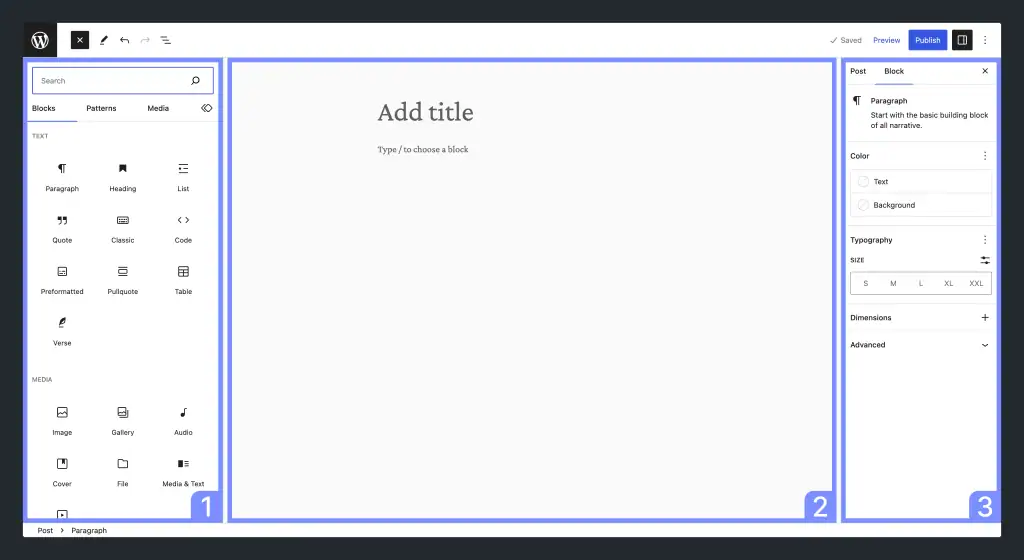
- Revolutionizing Content Creation: Gutenberg’s block-based approach revolutionizes content creation by allowing users to change content layout in an intuitive and visual way. Each block can be customized and rearranged to suit specific design needs, offering unprecedented creative freedom.
- Gutenberg Supports Custom Blocks: By supporting the creation of custom blocks, Gutenberg empowers designers and developers to build unique and compelling layouts. This is achieved without the necessity for deep coding expertise, making advanced designs accessible to a broader audience.
- Modular Web Design Approach: Gutenberg’s modular approach facilitates the development of visually stunning and highly functional WordPress websites. Users can combine various blocks to create intricate layouts, ensuring their site is both aesthetically pleasing and highly usable.
Find out: Pros and Cons of Using Page Builders in Figma to WordPress Conversion
From Concept to Code: Convert Figma Creations to Gutenberg
Whether you need minor tweaks or complete development services, our team of experts is here to assist you every step of the way.
Guide to Create Gutenberg Blocks Based on Figma Designs
Here’s a detailed guide on how to create WordPress Gutenberg blocks based on Figma designs to get you started.
Step1: Setting Up Your Figma to Gutenberg Development Environment
A well-structured setup ensures a smooth workflow when converting Figma designs into functional Gutenberg blocks. Let’s begin by preparing your tools and environment.
Before you start, make sure you have the essentials ready:
- Install Node.js and npm. This is required for managing dependencies and running build tools.
- Set up WordPress locally using LocalWP or Docker. This provides a test environment similar to a live WordPress setup.
- Export your Figma design assets (SVG or PNG) to ensure consistent naming conventions and folder organization.)
Exporting Figma Components and Assets
Start by exporting frames or components from your Figma design. Use SVG files for icons and vector graphics, since they scale without losing quality. For detailed or photographic images, use PNG or JPG.
Tip: Organize your layers in Figma with clear names like btn-primary, icon-arrow, or section-hero before export. This helps when mapping designs to code later.
Setting Up a Development Environment for Custom Gutenberg Blocks
Use modern build tools to streamline your workflow:
These tools ensure your custom block’s code is modern, clean, and compatible across browsers.
Once your local environment is running, create a new plugin to house your custom Gutenberg blocks.
Example Commands:
Create a new Gutenberg block project:
npx create-guten-block my-custom-blockNavigate into your project directory:
cd my-custom-blockStart the development server
npm startThis setup generates a boilerplate structure for your block and starts a live development server where you can test changes instantly.
Step 2: Translating Figma Design Elements into Gutenberg Block Attributes
Turning Figma designs into functional Gutenberg blocks involves identifying and mapping design elements to their WordPress counterparts. This process ensures your designs retain their intended aesthetics and functionality within the WordPress environment.
Figma Design Elements and Their Equivalents in Gutenberg
Start by identifying the core components within your Figma design that are suitable for translation into Gutenberg block attributes. This involves analyzing the design to discern elements such as text styles, buttons, images, and layout structures.
Then, map these components to Gutenberg’s block attributes, converting Figma designs into HTML and CSS that the WordPress editor can effectively render. This translation maintains design consistency across platforms, leveraging the strengths of both Figma and Gutenberg.
Creating Gutenberg Block Attributes from Figma Design Elements
Once the design elements are identified, use custom CSS classes to replicate the precise look and feel presented in your Figma design. It is crucial to maintain the integrity of visual styles like typography, spacing, and color schemes.
Next, create specific Gutenberg block attributes that correspond to these design elements, allowing for dynamic content such as text, images, and colors to be easily managed within the WordPress editor.
This approach not only effectuates a seamless transition from design to development but also enriches end-user experiences.
Know more: Guide to Converting Figma Designs to HTML Code and Building a WordPress Website
Step 3: Coding Your First Gutenberg Blocks
Creating custom Gutenberg blocks involves understanding the block architecture and coding their unique functionalities. This section focuses on guiding you through the process of building, coding, and registering your first custom Gutenberg block for WordPress.
Creating New Gutenberg Blocks from Scratch
To begin coding your first Gutenberg block, you can use the create-guten-block tool to generate a basic block structure. This tool sets up the foundational files and dependencies needed for a block.
Alternatively, you can manually create a new block by setting up the necessary files and configurations.
Once the structure is ready, write the JavaScript code necessary for your block, utilizing React along with WordPress’s block editor API. This step involves coding the visual and operational aspects of your block in the Gutenberg editor.
Writing JavaScript Code for the Block
Coding a block’s behavior is essential for its interactive functionalities. Use JavaScript to define how the block handles user input and updates its content dynamically.
This includes setting up event handlers and state management to reflect user actions within the block. After coding the block’s functionality, register it with WordPress to ensure it’s available in the block editor.
Registering the Block with WordPress
To make the custom block accessible within WordPress, use the registerBlockType function to officially register your block. During this process, you define the block’s metadata, including its name, description, icon, and category.
Proper registration ensures that your block is recognized by WordPress, allowing users to incorporate it into posts and pages seamlessly. This step completes the development cycle, readying the block for practical use.
Read: Best Websites for Finding Figma to WordPress Freelancers
Step 4: Styling and Customizing Your Gutenberg Blocks
Styling and customization are pivotal in ensuring that your Gutenberg blocks not only perform well but also enhance the visual aesthetics of your website.
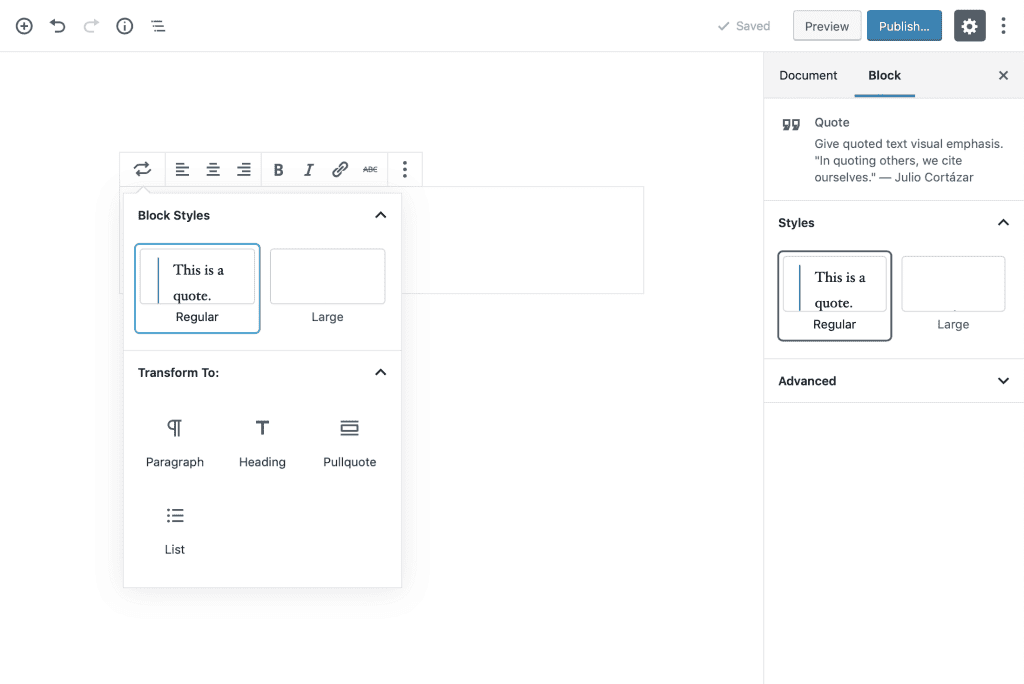
Using CSS to Style Your Block and Create Visually Stunning Designs
CSS is your primary tool for styling Gutenberg blocks to achieve visually stunning and functional designs. By applying CSS, you can define colors, typography, spacing, and other style elements that align with your overall website design.
To ensure your block is adaptable across devices, employ CSS flexbox or grid systems to create responsive layouts. These techniques allow your blocks to automatically adjust their size and position based on the user’s screen size and orientation.
Customizing Block Layout and Design
Beyond basic CSS techniques, use WordPress’s built-in styling options within the Block Editor to quickly adjust colors, typography, and other visual properties. These options provide an intuitive way to apply consistent styling without diving deep into code.
Additionally, add custom CSS classes to further refine the block’s design and layout. This will give you more precise control over specific elements and interactions.
Plus, this dual approach of using built-in options and custom styling ensures your blocks are both visually appealing and versatile.
Top Picks: Best Figma to WordPress Conversion Tools
Step 5: Advanced Features and Best Practices
Incorporating advanced features and modern web development practices into your Gutenberg blocks can significantly enhance user interaction and responsiveness.
Adding Animations and Effects to Your Block
Animations can bring your Gutenberg blocks to life, making them more engaging and interactive. Use CSS animations like transitions or keyframes to add subtle movements, such as a fade-in effect on hover.
Alternatively, you can employ JavaScript libraries like GSAP or Animate.css for more complex animations.
For example, adding a bounce effect to a button block can create a playful and inviting user experience, encouraging interaction and improving overall engagement.
Creating Responsive Designs for Your Block
Implement CSS flexbox or grid systems to ensure your Gutenberg blocks adapt seamlessly to different screen sizes. These techniques allow you to create fluid layouts that adjust automatically based on the device.
For instance, using flexbox, you can design a gallery block where images rearrange themselves vertically on mobile devices and horizontally on desktops.
Regular testing on various devices and screen sizes ensures that your block maintains optimal responsiveness and aesthetic integrity at all times.
Related: Role of Figma in Building Mobile-Responsive WordPress Websites
Best Practices for Block Design and Layout
Adhering to best practices in WordPress web development is crucial for long-term success. Utilize semantic HTML to structure your content meaningfully, enhancing accessibility and SEO.
Coupled with well-organized CSS, semantic HTML ensures your blocks are efficient and easy to maintain.
Furthermore, leverage WordPress’s built-in styling options alongside custom CSS classes to fine-tune your designs.
For example, combining default style settings for typography with custom margins and padding can result in a consistent yet distinctive look across different blocks, promoting a cohesive user interface design.
Step 6: Testing and Refining Your Gutenberg Block on the WordPress Site
Once your interactive Gutenberg block is created, thorough testing and refinement are crucial to ensuring optimal performance and user satisfaction.
Testing for Performance and Debugging Common Issues
Ensuring your custom Gutenberg block performs efficiently across devices and browsers is vital for maintaining a smooth user experience. Effective testing and debugging not only optimize performance but also improve accessibility and reliability.
Performance Testing
Use tools like Google PageSpeed Insights and Lighthouse to evaluate your block’s performance. These tools highlight issues such as render-blocking scripts, large image sizes, or excessive DOM elements, all of which can impact load times and responsiveness.
Before You Go Live: Testing Checklist
Make sure to test your Gutenberg block thoroughly across different environments:
- Validate across browsers: Chrome, Safari, and Firefox
- Run performance audits: Google PageSpeed Insights and Lighthouse
- Test responsiveness: Check layouts on mobile and tablet
- Validate accessibility: Ensure proper contrast ratios, focus states, and alt text for images
- Cross-device compatibility: Use BrowserStack to test on real devices
- Quick sandbox testing: Use Gutenberg Playground to preview blocks outside your local environment
Debugging Common Issues
Even with careful setup, you may encounter challenges such as:
- Broken styling or missing assets due to incorrect file paths after export
- Responsive layout issues when converting Figma frames to CSS grid or flexbox structures
- Compatibility errors with older WordPress versions or third-party plugins
Use browser dev tools to inspect CSS and JavaScript errors in real time. For deeper debugging, enable WP_DEBUG in your wp-config.php file to log issues directly in WordPress.
Tip: Keep your block scripts modular. This makes isolating and resolving bugs much faster.
Refining Your Block for Better User Experience
Improving the user experience requires ongoing refinement of your block’s design and layout. Gather user feedback and analyze testing data to gain insights into potential areas for enhancement.
Adjustments might include reworking the visual elements, streamlining functionality, or addressing accessibility considerations.
Step 7: Publishing and Maintaining Your WordPress Gutenberg Block
To share your Gutenberg block with the wider WordPress community, publish it in the WordPress block directory. This process involves submitting your block for review to ensure it meets WordPress’s standards and guidelines.
Once approved, your block becomes accessible to other users, enhancing their ability to create rich content.
Furthermore, verify that your block is compatible with a range of WordPress themes and plugins to offer a seamless user experience and prevent conflicts.
Here’s the end-to-end process at a glance:
Figma → Development → Testing → WordPress Directory → Maintenance
Maintaining Your Block for Compatibility with WordPress Themes and Plugins
Consistent maintenance is crucial for keeping your Gutenberg block relevant and functional. Regularly update the block to maintain compatibility with the latest WordPress themes and plugins, which may evolve over time.
This includes fixing any bugs or issues reported by users and introducing new features or functionality as necessary.
By actively maintaining your block, you ensure it meets user expectations while adapting to new technologies and design trends.
Also read: Must-Do Maintenance Tips Post Figma to WordPress Transition
Troubleshooting Common Gutenberg Block Issues
Encountering issues while developing Gutenberg blocks is completely normal. The key is knowing how to identify and resolve them efficiently. Below are some frequently encountered issues and practical solutions to help you debug faster and ensure a smoother user experience.
Issue 1: Exported SVGs or PNGs Don’t Display Correctly
The exported files may not be properly optimized for web use or might have compatibility issues with certain browsers.
Solution:
- Re-export assets from Figma using SVG for vector graphics and PNG for raster images.
- Check file compression and ensure all image paths are correct in your block’s code.
- Test rendering across multiple browsers (Chrome, Firefox, Safari) to confirm consistency.
Issue 2: Responsive Design Breaks on Mobile or Tablet
Your layout may rely on fixed dimensions or untested CSS breakpoints.
Solution:
- Use Chrome DevTools to test your block at different screen sizes and orientations.
- Review your CSS to replace fixed widths with flexible units (like %, vw, or flex).
- Implement @media queries that reflect your Figma design’s breakpoints.
Tip: Start with mobile-first styling, then scale upward to larger screens for better responsiveness.
Issue 3: CSS Styling or Layout Looks Different in WordPress Editor
Conflicts between your custom CSS and WordPress’s built-in block editor styles.
Solution:
- Inspect styles using Firefox Developer Edition or Chrome DevTools to locate conflicting rules.
- Use unique, namespaced CSS classes (e.g., .my-block__button) to avoid global overrides.
- Verify that your block’s editor styles (editor.scss) match the frontend styles for consistency.
Issue 4: Custom JavaScript Not Running in Editor
Your script may not be enqueued correctly or might depend on unavailable libraries.
Solution:
- Confirm that scripts are registered using wp_register_script() and enqueued with correct dependencies.
- Check the console for JavaScript errors in both editor and frontend modes.
- Use @wordpress/scripts to manage build dependencies cleanly.
Issue 5: Block Not Updating After Changes
Browser caching or build artifacts may prevent recent changes from appearing.
Solution:
- Run npm run build to recompile your assets.
- Clear your browser cache or use an incognito window.
- Increment your plugin version in readme.txt and block.json before testing updates.
Summary
Converting Figma designs into Gutenberg blocks allows designers and developers to create visually stunning and highly functional WordPress websites.
This process not only leverages the creative flexibility of Figma but also the modular structure of Gutenberg, enabling unique and customized web solutions. However, if navigating the technical intricacies of this conversion seems daunting, consider hiring experts.
Professional WordPress agencies and developers can ensure a seamless transition while optimizing performance and maintaining compatibility across various WordPress themes and plugins. Hiring WordPress experts can also save time and enhance the quality of your final product.
FAQs About Figma to Gutenberg Conversion
What is the process of creating Gutenberg blocks from Figma designs?
The process involves translating your Figma designs into fully functional Gutenberg blocks using powerful tools. This ensures seamless integration and design fidelity.
How does the Figma to WordPress conversion work?
Figma to WordPress conversion is done by exporting Figma assets and using manual coding to turn them into reusable components within WordPress. This requires some coding knowledge.
Can I create interactive elements with Gutenberg blocks?
Yes, Gutenberg blocks can include interactive elements that enhance user engagement. This is ideal for creating visually appealing and complex designs.
Do I need coding knowledge for Gutenberg conversion?
Basic coding knowledge is helpful but not necessary, as many customization options and tools are available to assist in the process.
How are complex layouts handled during the conversion?
Complex layouts are managed by creating block patterns and necessary adjustments in the WordPress development stage to seamlessly integrate all elements.
What customization options are available for Gutenberg blocks?
Gutenberg blocks offer extensive customization options, allowing WordPress users to create unique and fully customized digital products.
How does exporting Figma assets affect the design process?
Exporting Figma assets is crucial for maintaining design fidelity. This step includes compressing images and ensuring that all aspects of the Figma file are ready for the entire process.



