

Figma has revolutionized the design process for web designers, offering a collaborative way to create stunning designs. When it comes to converting Figma to WordPress, the challenge lies in maintaining design fidelity while ensuring the site is responsive and optimized. This is where page builders for Figma to WordPress conversion come into play, streamlining the transition from design to development.
Why Use Page Builders for Figma to WordPress Conversion?
Converting a Figma design into a WordPress site bridges the gap between creativity and functionality. WordPress powers a significant portion of the web, and its flexibility makes it ideal for businesses, bloggers, and developers. With the right WordPress website builder, you can transform static Figma designs into dynamic web pages, ensuring a seamless user experience.
Page builders simplify the process by offering drag-and-drop interfaces, pre-made templates, and advanced features that minimize the need for coding. They are particularly useful for designers and developers who want to reduce the manual effort of writing custom CSS or integrating complex layouts.
Ease of Use
Many WordPress page builders are designed with user-friendliness in mind, featuring intuitive drag-and-drop interfaces that require little to no coding knowledge. This makes them accessible to individuals with minimal web development skills, including beginners and non-technical users.
Whether you’re designing a personal blog or an entire site for a business, these builders provide a seamless editing experience. Even for complex layouts, the visual interface simplifies the process, eliminating the need to work with raw HTML or custom CSS.
Customization Options
Page builders offer a wide range of customization tools, allowing users to create unique designs that reflect their brand or personal style. With features like custom templates, theme builders, and the ability to tweak custom post types, users can go beyond the limitations of default WordPress themes.
For advanced users, integrating custom CSS provides even greater control over the look and feel of the site. Whether you’re building a WooCommerce website or a portfolio site, these tools let you adapt the design to fit your vision.
Efficiency
Drag-and-drop builders and ready-to-use templates significantly speed up the website creation process. Pre-made templates save time by providing a solid foundation for your design, while drag-and-drop interfaces make it easy to rearrange elements without diving into code. For users with multiple WordPress projects, these time-saving features are invaluable.
Additionally, page builders often include features like global widgets or reusable page templates, enabling designers to replicate styles across pages with minimal effort.
Learn About: How to Design Landing Pages in Figma and Launch Them on WordPress?
Integration with Figma
For designers transitioning from Figma to WordPress, some page builders support direct integration or rely on third-party plugins to streamline the process. This compatibility allows users to import designs, export assets, or use tools that convert Figma designs into WordPress-compatible formats.
Whether you’re working on simple WordPress pages or a full site editing project, these integrations ensure a smooth handoff between design and development teams, preserving the integrity of the original Figma designs.
SEO and Performance Optimization
Most top WordPress page builders include built-in features to enhance website performance and search engine optimization (SEO).
Tools like lazy loading, image optimization, and clean code output ensure that your site loads quickly and ranks well on search engines. These builders also support responsive design, ensuring that your site looks great on all devices, which is crucial for SEO.
Features such as structured data integration, custom meta tags, and compatibility with SEO plugins like AIOSEO make it easier to optimize web pages for targeted keywords, improving visibility and search rankings.
Responsive Design Capabilities
In today’s mobile-first world, responsive design is non-negotiable. A good page builder should enable users to create mobile-friendly layouts that look great on all devices.
Features like mobile preview, responsive editing modes, and the ability to customize breakpoints give you control over how your site adapts to different screen sizes. This is especially important for websites relying on dynamic content or complex layouts, as it ensures a seamless user experience across devices.
Let’s Build Your Dream Site with a Page Builder!
Choose your preferred page builder, and let us handle the seamless conversion for you. Get started today and create a stunning, fully responsive website!
Top WordPress Page Builders for Figma to WordPress Conversion
Choosing the right WordPress page builder is crucial for seamlessly converting Figma designs into functional WordPress sites. Each builder comes with unique features, strengths, and limitations, catering to different levels of expertise and project requirements. Here’s an expanded look at the top options:
SeedProd Builder
SeedProd Builder is a landing page-focused builder designed for users who want to create high-converting pages quickly and efficiently. It combines an intuitive drag-and-drop interface with built-in tools for lead generation, sales funnels, and email marketing integration. SeedProd also includes professionally designed templates to streamline the page creation process.
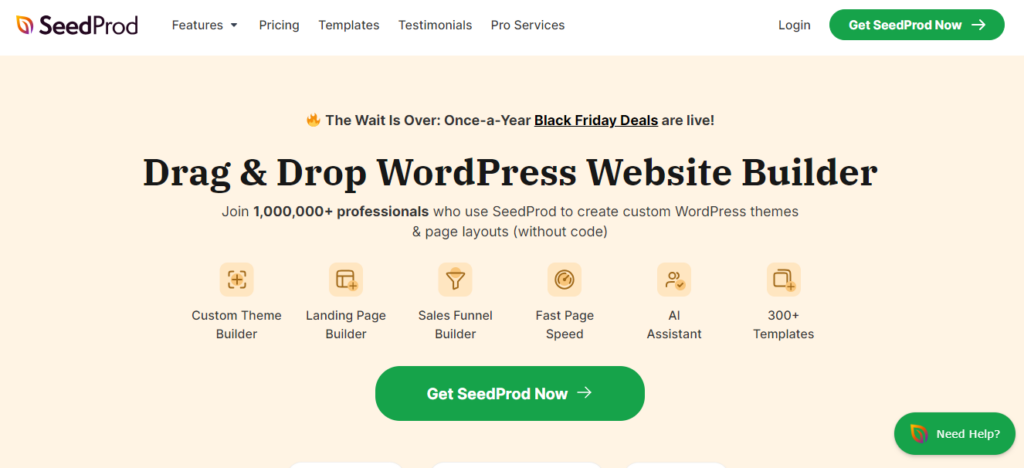
Strengths: SeedProd excels in delivering a balance of simplicity and performance for focused use cases like landing pages, coming soon pages, and sales funnels. Its built-in marketing tools and lightweight structure make it ideal for users who prioritize conversion optimization and fast-loading pages.
Pros: Figma to SeedProd conversion is easy as the SeedProd’s builder is highly user-friendly. It has a library of pre-designed templates and blocks for essential marketing features like countdown timers, opt-in forms, and call-to-action buttons. It also integrates seamlessly with email marketing services, analytics tools, and WooCommerce, making it versatile for businesses and marketers.
Cons: SeedProd’s functionality is specialized, making it less suitable for building full-scale websites. While beginner-friendly, advanced users may find its customization options more limited compared to all-purpose builders like Elementor or Divi.
Related: How to Convert Figma to SeedProd
Elementor
Elementor is one of the most popular WordPress page builders, known for its intuitive drag-and-drop interface. It includes pre-made templates, custom CSS support, and dynamic content integration, making it suitable for diverse project needs. The builder also features advanced tools like animations, custom post types, and responsive design settings.
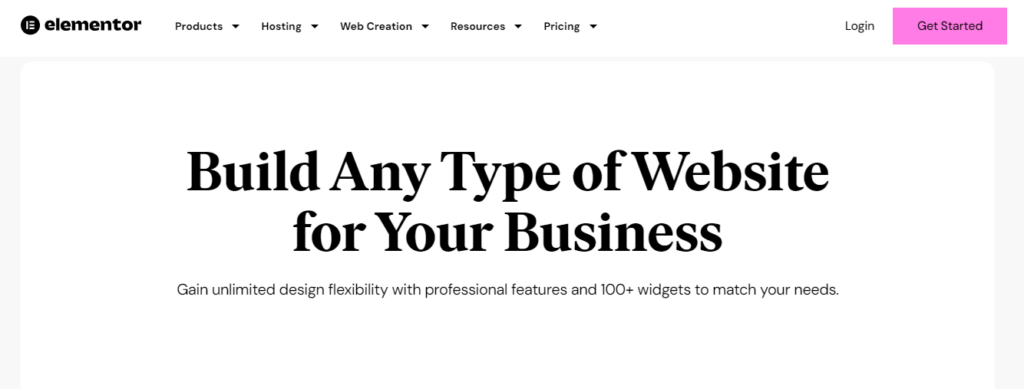
Integration: Figma to Elementor conversion works seamlessly with plugins that facilitate Figma to WordPress workflows, allowing users to import design elements efficiently. It also includes a popup builder for creating interactive elements like modals and notifications, further enhancing its flexibility.
Pros: Elementor is beginner-friendly, offering responsive design capabilities and a free version that includes essential features. It supports pre-made templates and allows customization with ease.
Cons: The free version has limited advanced features, and many premium templates and functionalities require a paid license. This may be a constraint for users working on complex or highly customized projects.
A Beginner’s Guide: How to Convert Figma Designs to WordPress Using Elementor
Divi Builder
Divi Builder is an advanced visual editor that allows users to create intricate layouts and custom templates. It comes with a theme builder, enabling users to design global elements like headers and footers. Divi excels in handling dynamic content, making it a strong choice for content-heavy websites.
Strengths: Divi is ideal for creating complex designs, offering an array of customization options and seamless integration with third-party plugins. Its design workflow is highly adaptable, catering to both novice and advanced users.
Pros: Unlimited customization possibilities for Figma to Divi conversion, responsive editing tools, and integration with plugins like WooCommerce, making it versatile for any type of WordPress site.
Cons: The builder has a steeper learning curve, which can be challenging for beginners. It is better suited for users who have experience working with WordPress or are tackling large-scale projects.
An Expert Guide: Mastering the Conversion from Figma to Divi
Avada Builder
Avada Builder is a versatile page builder designed for users who want a balance of design flexibility and ease of use. It provides an intuitive drag-and-drop interface while still offering advanced options for those who want more control. With a range of pre-built templates and design elements, Avada Builder simplifies the creation of custom layouts and designs.
Strengths: Avada excels at offering a user-friendly experience without sacrificing design possibilities. Its extensive library of templates and elements makes it suitable for users of all skill levels, while its advanced customization options cater to more experienced users. It integrates seamlessly with the Avada theme, providing a cohesive design and functionality experience.
Pros: The builder is highly adaptable, offering a blend of simplicity and depth. Its drag-and-drop functionality makes it accessible to beginners, while advanced features like conditional logic and global elements appeal to professionals looking for more robust tools.
Cons: Avada Builder’s reliance on the Avada theme may limit flexibility for users who prefer a standalone builder. Additionally, while it provides advanced customization options, it may not be as lightweight or performance-focused as some other builders.
Beginners Guide: Figma to WordPress Conversion Using Avada Builder
Brizy
Brizy focuses on simplicity, offering a streamlined drag-and-drop interface that is perfect for beginners. It comes with pre-made templates, responsive design tools, and essential customization options for building attractive websites quickly.

Strengths: The builder’s simplicity and beginner-friendly approach make it an excellent choice for users who are new to WordPress or web design. It emphasizes ease of use without overwhelming users with too many advanced features.
Pros: Brizy offers a free version with core functionalities, making it accessible for budget-conscious users. Its pre-made templates, and responsive design settings are great for quick website creation.
Cons: While user-friendly, Brizy lacks some advanced features and customization options found in other builders, limiting its use for complex projects.
Ultimate Guide: How to Convert Figma to WordPress Website Using Brizy Builder
Visual Composer
Visual Composer provides a powerful editing interface tailored for design-centric projects. It includes advanced tools for building scalable websites and supports features like custom post types, theme elements, and third-party plugin integration.
Strengths: Visual Composer is highly scalable and integrates seamlessly with premium templates, making it a great choice for larger websites or businesses. It is designed to cater to both designers and developers, with tools for creating professional, feature-rich sites.
Pros: The builder is highly flexible, offering robust tools for custom post types and layout creation. Its scalability makes it suitable for projects of varying complexity.
Cons: The free version lacks several premium features, requiring users to upgrade for advanced functionalities for. This may be a drawback for users seeking comprehensive tools at no cost.
A Definitive Guide: Figma to WordPress Conversion Using Visual Composer
Kadence Builder
Kadence Builder is a lightweight page builder integrated with the Kadence theme, designed to help users create visually appealing and fast-loading websites. It provides a range of block-based tools and templates that work seamlessly with WordPress’s Gutenberg editor, ensuring a modern and efficient design process.
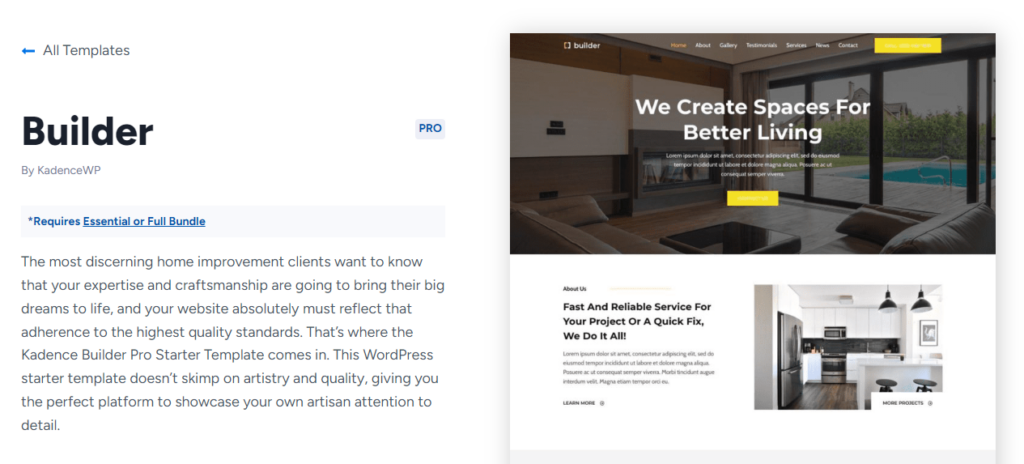
Strengths: Kadence excels in providing simplicity and performance. Its block-based approach allows users to easily build responsive layouts without compromising speed. Kadence’s deep integration with WordPress makes it ideal for users seeking a native, lightweight solution.
Pros: Kadence Builder is beginner-friendly while still offering customization options for advanced users. It includes pre-designed templates, global styling options, and a focus on performance, making it suitable for websites that prioritize speed and SEO.
Cons: Kadence’s functionality is tied to its ecosystem, which may limit compatibility with other themes or plugins. While it’s beginner-friendly, it lacks some advanced design flexibility compared to standalone builders.
Learn More: Mastering Figma to Kadence WP
Zion Builder
Zion Builder is a modern, performance-oriented page builder that focuses on providing a highly customizable, drag-and-drop design experience. It enables users to create pixel-perfect designs with advanced tools for CSS, animations, and responsive design adjustments.
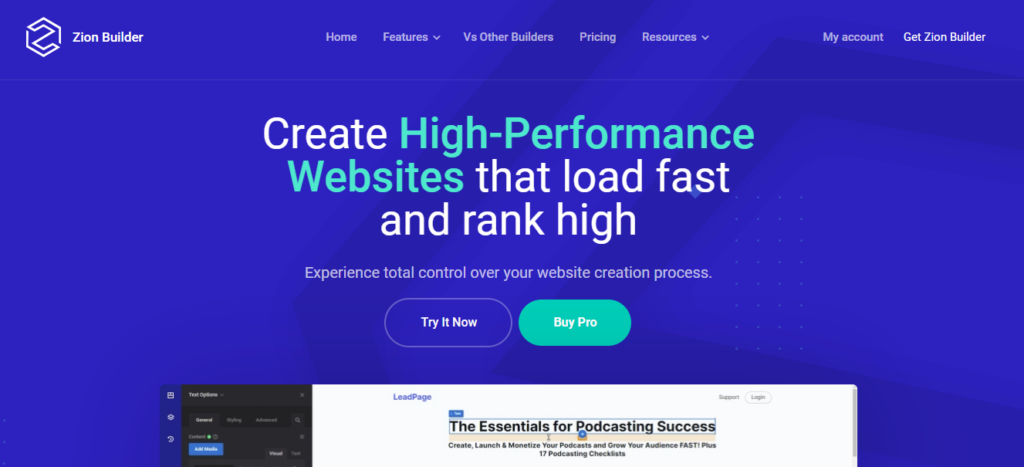
Strengths: Zion Builder offers exceptional flexibility and speed. Its clean code output and lightweight structure make it a solid choice for those prioritizing performance. The builder’s interface is intuitive, providing a streamlined workflow for both beginners and advanced users.
Pros: Zion Builder is highly customizable, allowing for detailed control over layouts and styling. It supports global elements, dynamic content, and advanced design settings, making it suitable for complex projects.
Cons: Although user-friendly, Zion Builder may require a learning curve for beginners unfamiliar with its advanced options. It’s a standalone builder, so compatibility with certain themes and plugins might be limited.
Step-by-Step Guide: Figma to WordPress Website Using Zion Builder
Bricks Builder
Bricks Builder is a performance-focused, theme-based page builder that offers complete design flexibility and advanced developer tools. It combines a drag-and-drop interface with powerful customization options, including dynamic data, theme styling, and advanced integrations.
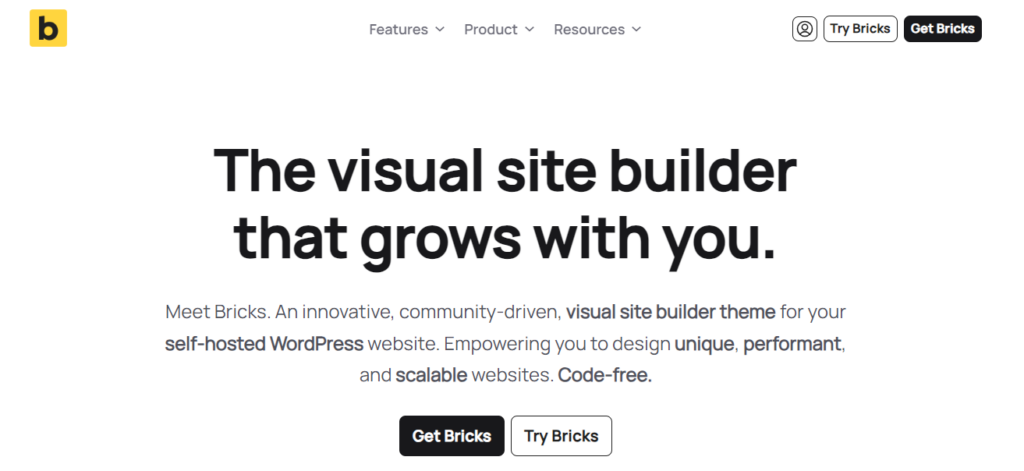
Strengths: Bricks Builder is ideal for users who want to create fast-loading, optimized WordPress websites with minimal reliance on additional plugins. Its dynamic content support and ability to build entire site structures make it a comprehensive solution for developers.
Pros: Bricks Builder is highly efficient, offering clean code output and fast performance. It supports global settings, dynamic data, and custom breakpoints, providing robust design capabilities for advanced projects.
Cons: Bricks Builder has a steeper learning curve, especially for those new to web development. Its feature set is developer-centric, which may not appeal to users looking for a simple drag-and-drop solution. Additionally, its functionality is tied to its theme, limiting flexibility for those preferring standalone builders.
Easy Steps to: Convert Figma to Bricks Page Builder
CodeDesign Builder
CodeDesign Builder is a developer-focused page builder designed for users who want complete control over their website’s design and functionality. It offers a blend of drag-and-drop simplicity with advanced tools for customizing HTML, CSS, and JavaScript. The builder emphasizes modularity and flexibility, allowing users to craft unique layouts tailored to their specific needs.
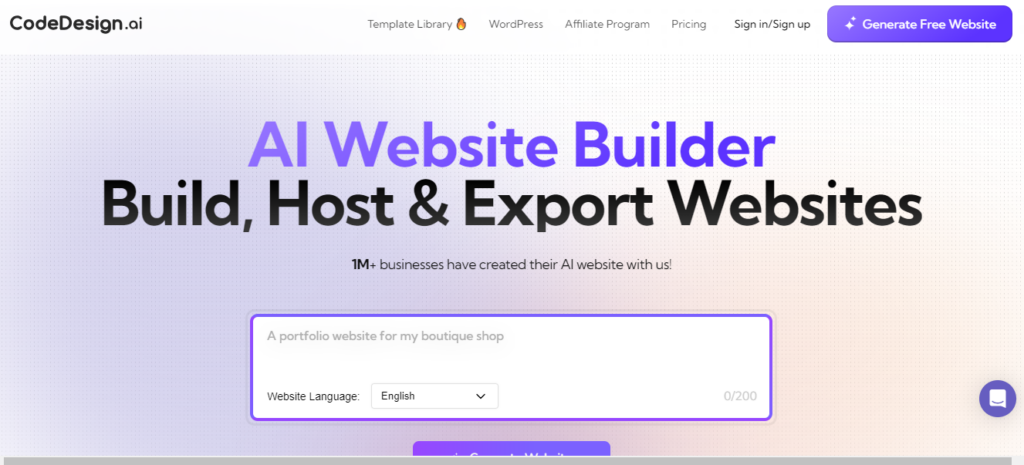
Strengths: CodeDesign shines in its ability to merge creative freedom with high performance. Its clean code output and optimization tools make it ideal for developers and advanced users who prioritize speed, functionality, and customizability.
Pros: The builder is highly adaptable, allowing for deep integration of custom code and dynamic content. It includes advanced styling options, reusable components, and responsive design tools, making it a powerful choice for complex projects.
Cons: CodeDesign’s advanced capabilities may feel overwhelming for beginners or users without coding knowledge. While it provides drag-and-drop functionality, its full potential requires technical expertise, making it less approachable for non-developers.
How to: Convert Figma to WordPress Using CodeDesign
Best Practices for Figma to WordPress Conversion
Converting Figma designs into a fully functional WordPress site requires a balance between preserving the original design and ensuring technical performance. By following these best practices, you can achieve a seamless and professional result:
Responsive Design
Responsive design is crucial in today’s mobile-first landscape. Test your WordPress site across multiple devices, including smartphones, tablets, and desktops, to ensure it delivers a consistent and user-friendly experience. Use the responsive design tools available in your page builder or site editor to customize layouts and elements for different screen sizes. Pay special attention to font sizes, spacing, and interactive elements like buttons to ensure usability on smaller screens.
By optimizing for responsiveness, you enhance user satisfaction and improve search engine rankings, as mobile-friendliness is a key factor for SEO.
Maintain Design Fidelity
Your WordPress site should closely resemble the original Figma design to maintain brand consistency and visual appeal. Use tools like Figma export plugins or page builders with advanced customization options to recreate design elements accurately. Pay attention to typography, color schemes, and spacing to ensure the design translates perfectly.
For complex layouts, consider page builders that support custom CSS and advanced features, allowing you to replicate even the most intricate design details. Maintaining design fidelity not only preserves the designer’s intent but also enhances the overall quality of the site.
Optimize for Performance
Performance optimization is essential for creating a fast and efficient WordPress site. Use page builder plugins that support caching, lazy loading, and minification to reduce page load times. Lightweight code and optimized images contribute to better performance, enhancing the user experience and improving your site’s SEO rankings.
Avoid overloading your site with unnecessary plugins or overly complex layouts, as these can slow down the site. Instead, focus on clean, efficient design practices and take advantage of tools that optimize web assets automatically.
Discover: The Role of Figma in Building Mobile-Responsive WordPress Websites
Test Thoroughly
Before launching your WordPress site, conduct comprehensive testing to validate its functionality, responsiveness, and performance. Test every interactive element, such as buttons, forms, and navigation menus, to ensure they work as intended. Verify that the site is responsive on all devices and browsers to avoid compatibility issues. Use performance analysis tools to check page load times and identify areas for improvement.
Finally, review the site’s SEO setup, including meta tags and structured data, to ensure it’s optimized for search engines. Thorough testing helps you identify and resolve issues, ensuring a smooth and successful launch.
By adhering to these best practices, you can ensure your Figma to WordPress conversion results in a site that is visually appealing, technically sound, and optimized for both users and search engines.
Conclusion
Page builders for Figma to WordPress offer a seamless way to convert designs into functional websites. Whether you prefer Elementor, Divi, or other page builders, each tool brings unique strengths to the table. By focusing on your project’s needs and exploring customization options, you can create a stunning WordPress website with minimal effort. For web designers and WordPress users alike, the right page builder is the key to efficient and successful website creation.
FAQs About WordPress Page Builders
Which page builder is best?
Elementor is often cited as one of the best page builders due to its flexibility, ease of use, and robust features. It offers a wide range of design options and is highly popular among new and experienced WordPress users.
What is the best one page website builder?
For one-page websites, WordPress is the best website builder option. It can create single-page websites with an easy drag-and-drop interface via Gutenberg WordPress block editor and various professional templates in just a few clicks.
Which is the best landing page builder?
SeedProd is widely regarded as one of the best tools for building landing pages. It allows for extensive customization, integrates well with marketing tools, and has strong A/B testing capabilities.
Which is better, Divi or Elementor?
Both Divi and Elementor have their strengths. Divi is known for its powerful theme and visual builder with advanced design capabilities. Elementor, on the other hand, is praised for its ease of use, speed, and widget options. Which is better depends on individual preferences; some users prefer Divi’s aesthetics, while others favor Elementor’s user interface.
What are some of the other WordPress page builders?
There are several lesser-known but best WordPress page builders, such as Beaver Builder, Brizy, and Oxygen. Each of these has unique features that cater to different levels of design and development needs.
Which is better custom website or just a page builder based website?
A custom business website offers unique design and functionality. It creates custom pages tailored to specific needs and is ideal for complex projects with flexible budgets and timelines. In contrast, a page builder-based website is cost-effective, quicker, and user-friendly. It is suitable for small businesses and individuals with limited technical skills. The choice depends on the project’s complexity, budget, and expertise level available.


