


Design in Figma is all about creativity, flexibility, and efficiency. While Figma provides ready-made shapes like rectangles, circles, and polygons, sometimes your project needs something unique. Custom shapes in Figma allow you to design logos, icons, illustrations, and layouts that go beyond the basics.
One of the best ways to create custom shapes is by using the Shape Builder Tool and Boolean operations. With these, you can combine, subtract, and refine shapes to bring your ideas to life.
In this guide, we’ll explore how to create custom shapes in Figma, step by step. You’ll learn how to draw basic shapes, combine them into complex forms, refine them with vector tools, and finally use them in your designs.
What Are Custom Shapes in Figma?
Custom shapes in Figma are forms that go beyond standard rectangles, ellipses, and polygons. They are shapes you create by combining or modifying basic ones.
For example:
- Combining a circle and a rectangle to create a magnifying glass icon.
- Subtracting a triangle from a circle to make a play button.
- Using Boolean operations to design unique icons, logos, or decorative elements.
Custom shapes are powerful because they let you design freely. Instead of relying only on pre-made assets, you can create exactly what your project needs.
Best Practices: Migrating to Figma Design System
Getting Started with Shape Tools in Figma
Before you can create custom designs and complex illustrations in Figma, it’s important to understand the basics. At the core of every project are the shape tools. These tools allow you to draw, edit, and refine elements that later become part of icons, logos, layouts, or any creative project.
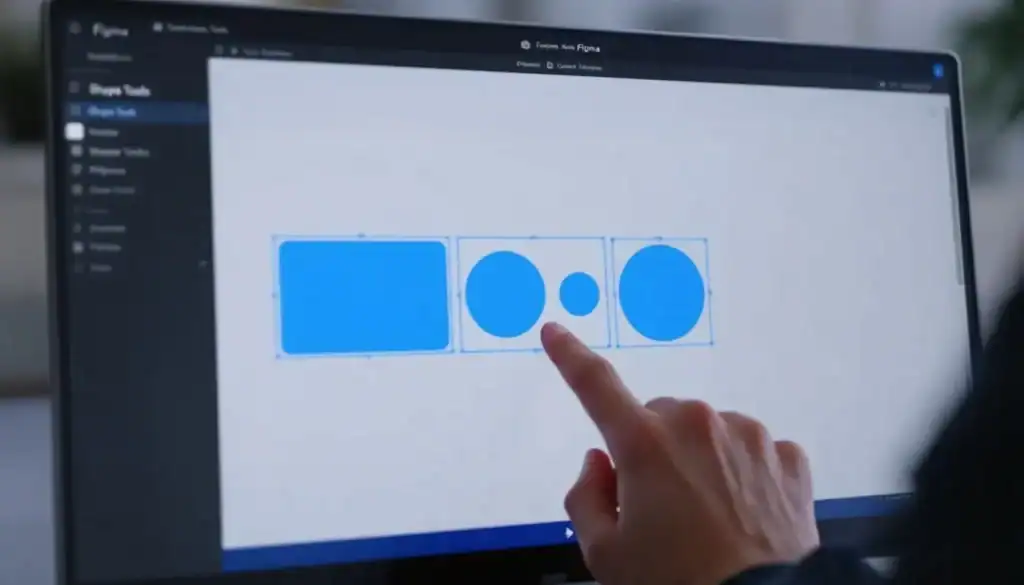
So, let’s explore the essential shape tools in Figma, how to use them, and why they’re important. You’ll also get practical tips to speed up your workflow and start experimenting confidently.
Shape Tools in the Toolbar
The first step to creating in Figma is learning the standard shape tools. These are located in the top toolbar and include:
- Rectangle (R)
- Ellipse (O)
- Line (L)
- Polygon (Y)
- Star (no shortcut by default)
These shapes are the building blocks of design. You can select any tool and draw directly onto the canvas by clicking and dragging.
For instance, if you select the Rectangle tool, you can create boxes, banners, or even grids by resizing and duplicating.
What’s powerful about these tools is their flexibility. A simple rectangle can turn into a button, a card layout, or even a base for a more complex design. By combining these basic shapes, you can start building custom visuals that go beyond the standard library.
Keyboard Shortcuts for Speed
As you get comfortable with Figma, you’ll notice that efficiency matters. Designers often rely on keyboard shortcuts to save time and maintain focus.
For example:
- Press R to instantly select the rectangle tool.
- Press O to switch to the ellipse tool.
- Hold Shift while drawing to keep your shapes perfectly proportional.
After some practice, using shortcuts becomes second nature. Imagine you’re creating a set of icons with circles and rectangles. Instead of switching back and forth with the mouse, pressing R and O will let you switch instantly. Over time, this small habit adds up to significant productivity gains.
The Pen Tool
Not every shape can be drawn with a rectangle or a circle. That’s where the Pen Tool (P) comes in. This tool allows you to plot anchor points and connect them with straight or curved lines.
For example, let’s say you want to draw a heart:
- Select the Pen Tool.
- Click to place anchor points along the outline of the heart.
- Adjust the curves by dragging the anchor handles.
The Pen Tool gives you the freedom to create any custom path. It’s especially useful when working on icons, illustrations, or logos that require unique geometry. With practice, you’ll be able to sketch shapes that look clean and professional.
Also read: Best Page Builders for Figma to WordPress Conversion
The Properties Panel
Drawing shapes is only the beginning. To refine them, you’ll use the Properties Panel on the right side of the Figma interface. This panel allows you to adjust key attributes, including:
- Corner Radius: Round the corners of a rectangle for buttons, cards, or organic shapes.
- Stroke Properties: Adjust line thickness, style, and color.
- Fill Options: Choose solid fills, gradients, or even image fills for backgrounds.
For example, if you create a rectangle and set its corner radius to 50%, it instantly transforms into a pill shape. This is perfect for buttons or UI elements. Similarly, changing a circle’s stroke thickness can turn it into a bold outline or a subtle accent.
The Properties Panel is essential because it helps you experiment. A few small adjustments can transform a basic shape into something visually interesting.
Know more: How to Create Social Templates in Figma with Figma Buzz
Practice Step
The best way to understand shape tools is through practice. Here’s a quick exercise:
- Draw a rectangle, a circle, and a polygon on your canvas.
- Use the Properties Panel to adjust their corner radius, fill colors, and stroke thickness.
- Experiment with holding Shift to make them perfectly proportional.
This simple exercise helps you see how flexible Figma’s shapes can be. With just a few tweaks, even the most basic forms can become unique.
Tips to Keep in Mind
As you get started, here are three key ideas to remember:
- Draw Basic Shapes First: Start simple before combining shapes into complex designs.
- Use Corner Radius: Rounded corners create friendly, modern, and organic shapes.
- Practice Boolean Operations: Learn to combine, subtract, and intersect shapes to build entirely new forms.
These habits will set the foundation for more advanced techniques, like building custom shapes and designing professional assets.
Mastering the shape tools in Figma is the first step toward building creative designs. From rectangles and circles to the pen tool and properties panel, each feature gives you more control over your work.
By practicing shortcuts, experimenting with corner radius, and adjusting fills and strokes, you’ll gain the confidence to move beyond the basics.
Once you’re comfortable with these tools, you’ll be ready to combine and refine shapes to create icons, logos, and complex illustrations. In short, mastering the basics unlocks endless possibilities.
Check out: Easy Methods for Photoshop to Figma Design Integration
Step to Building Custom Shapes in Figma
Once you’re comfortable with basic shapes, it’s time to combine them into unique designs.

Step 1: Using the Shape Builder Tool and Boolean Operations
Figma’s equivalent of the “Shape Builder” is its Boolean Operations. These operations allow you to combine or subtract shapes to form new ones. The four main Boolean operations are:
- Union (Add): Combines two or more shapes into one.
- Subtract: Removes the top shape from the bottom shape.
- Intersect: Keeps only the overlapping area between shapes.
- Exclude: Removes the overlapping part of shapes, leaving only the outer edges.
Example: Draw a circle and a smaller rectangle. Place the rectangle overlapping the circle. Next, use Subtract. You’ll end up with a “bite” taken out of the circle, like a Pac-Man shape.
Ultimate Guide: Best Page Colors While Designing in Figma
Step 2: Organizing with the Layers Panel
Each shape you draw appears in the Layers Panel. Rename and group them to stay organized, especially when combining multiple shapes. This is essential for projects with many icons or complex designs.
Step 3: Refining with Vector Tools
Once you create a custom shape, select it and click “Convert to Outline” or use the Vector Edit Mode. This lets you adjust individual anchor points for precision. For example, if your shape is almost a perfect star but one corner looks too sharp, you can drag the anchor point to smooth it out.
Practical Example: Creating a Cloud Icon
Draw three overlapping circles and use Union to combine them into one shape. Next, adjust the bottom with a rectangle and use Subtract to flatten the base. Lastly, refine with vector points to smooth the curves. Now you have a clean, custom cloud icon.
Read: How to Convert Figma to WordPress with Avada Builder
Step 4: Refining Shapes in Figma
Custom shapes often need fine-tuning. Figma gives you multiple tools to refine your work.
Modifying with the Pen Tool: If you want to tweak a custom shape, select it and enter Edit Object mode. You’ll see anchor points. Use the pen tool to add or remove points, adjust curves, or reshape the design.
Example: If you made a star but want one side slightly longer, drag the anchor point outward.
Adjusting with the Properties Panel: Use the properties panel to polish your shape:
- Change fill colors for better contrast.
- Experiment with gradients for depth.
- Adjust stroke thickness to make shapes bolder or lighter.
Using Redo Operations: Don’t hesitate to experiment. If you make a mistake, Undo (Ctrl+Z) or Redo (Shift+Ctrl+Z) helps you quickly go back and forth. This encourages creativity without fear of losing progress.
Canvas Positioning: Refinement is not just about the shape itself. Use the canvas area to align, resize, and position your shapes.
For example: Select multiple shapes and use alignment tools (top, center, bottom). Next, use Smart Guides to snap shapes into place.
Learn about: Designing Landing Pages in Figma and Launching Them on WordPress
Step 5: Designing with Custom Shapes
Once you’ve built and refined your shapes, it’s time to put them into real projects.
- Logos often require unique elements. For instance, combine circles, triangles, and lines to create a tech-inspired logo. By using Boolean operations, you can design shapes that are distinct and scalable.
- Custom icons set your design apart. For example, to create a music note icon, draw a rectangle (the stem) and then add a circle (the note head). Lastly, use Union to combine them.
- Custom shapes are not just for decoration. You can create unique frames for images or backgrounds. For instance, subtract a star shape from a rectangle to create a photo frame with a star cutout.
Here are some more creative examples
- Combine shapes to create a flower pattern.
- Use intersect to design a unique badge shape.
- Create abstract backgrounds by overlapping and subtracting multiple shapes.
The possibilities are endless once you master custom shapes.
Find out: How to Crop in Figma
Common Mistakes to Avoid While Using the Shape Builder Tool in Figma
The Shape Builder Tool in Figma is powerful for creating unique and complex designs. However, many users fall into common mistakes that slow down their workflow or lead to messy results. By being aware of these pitfalls, you can design more efficiently and keep your projects clean and professional.
- Not Naming Layers: When working with multiple shapes, leaving layers unnamed creates confusion. Always label your layers clearly. This helps you stay organized and makes collaboration easier.
- Overusing Points: Too many anchor points can make a shape look jagged and difficult to edit. Instead, use only the points you need. Clean, minimal paths are easier to refine and scale.
- Forgetting to Convert to Vector: Boolean operations often create grouped results. Forgetting to flatten or convert them into editable vectors can limit your control. Always finalize when necessary to keep shapes flexible.
- Ignoring Alignment: Misaligned shapes give designs an unprofessional look. Use Figma’s guides and alignment tools to keep everything consistent and balanced.
- Not Practicing Shortcuts: Relying only on the toolbar slows you down. Learning shortcuts like R for rectangle or O for ellipse speeds up your process and improves flow.
Further reading: How to Seamlessly Embed Figma into a WordPress Site
Conclusion
Mastering the shape tools in Figma is the first step toward building creative designs. From rectangles and circles to the pen tool and properties panel, each feature gives you more control over your work.
By practicing shortcuts, experimenting with corner radius, and adjusting fills and strokes, you’ll gain the confidence to move beyond the basics.
Once you’re comfortable with these tools, you’ll be ready to combine and refine shapes to create icons, logos, and complex illustrations. In short, mastering the basics unlocks endless possibilities.
FAQs About Custom Shapes in Figma
How can I combine basic shapes into unique shapes in Figma?
You can use Boolean operations to merge circles, rectangles, or other shapes into unique shapes that fit your project needs.
How do I turn a selected shape into a new shape?
Select your shape, apply a Boolean operation, and then flatten it into a single layer to create a new fully editable shape.
Can I use custom shapes alongside other elements in my design file?
Yes, custom shapes can be combined with text, images, or other elements within the same design file, keeping your structure flexible.
How do I adjust a shape’s width, angle, or fill?
Click the selected shape and use the properties panel to change its width or angle or apply a solid-color fill. Press enter to fine-tune vector points for precision.
Does Figma support advanced creation features like Adobe Illustrator?
Figma supports vector editing, containers like frames, and tools that let you access and customize shapes. While different from Adobe Illustrator, it provides strong creation support for a smooth design workflow.



