Designing from scratch can be time-consuming. Whether you’re working on a website, mobile app, or landing page, getting started quickly while maintaining quality is essential. Here, Figma templates can be significantly beneficial.
Figma is a cloud-based design tool that’s become a go-to for UI/UX designers. One of its most powerful features is its extensive template library. These ready-made files help you jumpstart projects, save time, and maintain consistency across your designs.
In this guide, you’ll learn how to find, customize, and use Figma templates. Whether you’re new to Figma or looking to speed up your workflow, this article has everything you need.
Why Use Figma Templates?
Figma templates bring structure, speed, and inspiration to the design process. Whether you’re working solo or as part of a larger team, they offer several practical benefits that can elevate your workflow.

Save Time with Pre-designed Templates
Designing from scratch can be time-intensive, especially when you’re on tight deadlines. Figma templates give you a professional starting point with pre-built layouts, components, and styles. Instead of spending hours creating UI elements, you can simply modify what’s already there and jump straight into project customization.
Ensure Design Consistency
Maintaining a consistent visual language is critical for brand identity. Templates often come with built-in style guides, reusable components, and design systems. This makes it easy to keep fonts, colors, spacing, and UI patterns aligned across all your screens without manually replicating them each time.
Read: How to Use Figma
Boost Creativity
Sometimes, staring at a blank canvas can stall the creative process. Templates offer design inspiration and new approaches to layout and structure. They can introduce you to innovative design patterns, layouts, or UX flows you might not have considered otherwise.
Improve Team Collaboration
Because Figma is a collaborative platform, using shared templates ensures that all team members are aligned from the start. Everyone works from the same design foundation, which reduces confusion, minimizes errors, and speeds up the feedback loop. Plus, with clearly named layers and components, handoffs to developers become smoother and more efficient.
Get a Head Start on Any Project
Whether you’re building a mobile app UI, website, landing page, or even an internal dashboard, Figma templates provide a reliable head start. With a solid structure in place, you can focus more on strategy, content, and user experience rather than the technicalities of layout and spacing.
Need Help Converting Figma Design Files to WordPress?
Whether it’s a landing page, blog, or full website, our team can turn your Figma files into fast, responsive, and SEO-friendly WordPress sites.
Key Features of High-Quality Figma Templates
Not all Figma templates are created equal. The best ones are thoughtfully designed to be flexible, scalable, and easy to work with. Whether you’re creating a landing page, a mobile app, or a full-scale design system, here are the key features to look for when choosing a high-quality Figma template:
Pre-Designed Layouts
A great Figma template usually comes with multiple screen or page variations that cover a range of use cases. This might include:
- Splash screens
- Login and signup screens
- Home dashboards
- Product listing or detail pages
- Contact forms and profile pages
These layouts are not only aesthetically appealing but also fully editable, allowing you to replace elements, rearrange sections, or update the style to match your brand. Instead of building each screen from scratch, you can start with a polished, professionally designed base that accelerates your project timeline.
Know more: How to Create a Project Front Page Design with Figma
Reusable Components
High-quality templates are packed with reusable UI components such as:
- Buttons
- Cards
- Input fields
- Navigation bars
- Modals and tooltips
These elements are often built as Figma components, meaning they’re linked instances of a master version. When you make a change to the master, say, updating a button color or padding, it reflects across all instances in the file. This ensures design consistency, reduces manual work, and makes future updates much easier to manage.
Easy Customization
A strong template is built with customization in mind. It typically includes a design system that features:
- Defined text styles (for headings, body text, captions, etc.)
- A cohesive color palette
- Grids and spacing systems
- Layer naming conventions and component organization
These foundational elements make adapting the design to your unique brand guidelines easier. You can swap in your own colors and fonts without disrupting the layout. Templates built this way also support scalability, so you can add new screens or features without compromising design integrity.
Simple Steps: How to Use Figma for Product Design
Figma Plugin Compatibility
Figma’s powerful plugin ecosystem makes designing faster and smarter, and high-quality templates are built to take advantage of it. Look for templates that integrate well with:
- Mockup plugins like Mockuuups Studio or Figma Mockup to display designs in real-world device frames.
- Content Reel for adding placeholder content such as names, avatars, and job titles.
- Iconify or Feather Icons to easily update icon sets across the UI.
- Blush or Unsplash for quickly inserting illustrations and images.
These plugins can greatly improve your workflow, especially during prototyping, testing, and final presentations.
Wireframes and Prototypes Included
Some templates go a step further by including low-fidelity wireframes and interactive prototypes. These help in the early stages of product design, allowing you to:
- Plan out layout and flow
- Test user journeys
- Share interactive demos with stakeholders
Having both wireframes and polished UI versions in one file makes it easy to transition from ideation to execution within a single environment.
Built-in Style Guides and Design Tokens
Templates that include a style guide or design token system are especially valuable for teams and long-term projects. These style guides often document:
- Typography hierarchy
- Button styles (primary, secondary, disabled)
- Icon usage
- Brand colors with hex values
- Spacing and sizing rules
This documentation not only ensures consistency but also makes the template easier to hand off to developers, who can reference these tokens directly in their codebase.
Community Support and Updates
Figma’s vibrant design community means many templates, such as likes, downloads, and user comments, come with social proof. High-quality templates are often:
- Regularly updated to reflect new trends or UI patterns
- Built with feedback from real users
- Maintained by active creators who respond to issues
This is especially important if you’re working on a client project or commercial product. You want to know that your template is reliable and up to modern standards.
Bonus: Multi-Platform Support
Some of the most versatile templates are designed for multiple platforms, such as web, iOS, and Android. These often follow platform-specific guidelines (like Apple’s Human Interface Guidelines or Google’s Material Design), making it easier to comply with UI best practices while maintaining a unified visual identity across devices.
Check out: Figma Interactive Components in WordPress
How to Find the Right Figma Community Template?
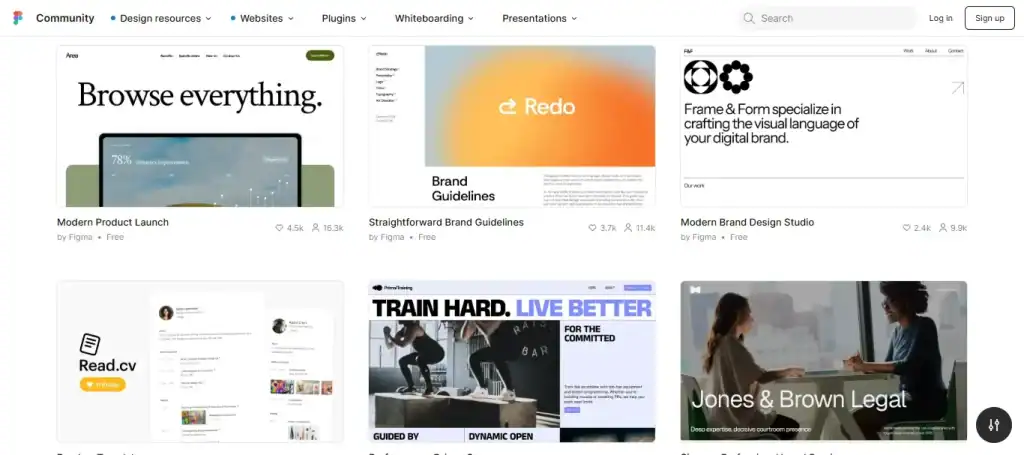
Figma’s Community section is packed with free templates shared by designers from around the world. Here’s how to find one that suits your needs:
Use the Search Bar
Head over to the Figma Community. Use the search bar to look for templates based on your project type. For example, you can search for:
- Website templates
- Mobile app UI
- Dashboard designs
- FigJam brainstorming templates
You can also filter by “Files,” “Plugins,” or “Widgets” to narrow down your results.
Browse by Categories
Figma categorizes templates into various groups. Some popular categories include:
- UI Kits
- Wireframes
- Icon Packs
- Landing Pages
- E-commerce Templates
- Mobile UI
This makes exploring specific types of templates for your design goals easy.
Use the File Browser and Sidebar
Within your Figma dashboard, the file browser helps you manage and organize existing templates. The left sidebar allows you to navigate between frames, components, and pages. This makes it easier to analyze whether a template is well-structured for customization.
Choose Based on Project Goals
Not all templates are created equal. When selecting a Figma template, consider:
- Type of project: Is it for a mobile app, landing page, or SaaS dashboard?
- Design style: Does it align with your brand’s tone: minimalist, bold, corporate, or playful?
- Customization options: Are elements grouped and labeled properly for easy edits?
Best Practices: Migrating to Figma Design System
Steps to Customizing a Figma Template
Once you’ve selected and imported a Figma template into your workspace, it’s time to make it your own. Customizing a template involves more than just changing colors or fonts; it’s about tailoring the design to fit your brand, goals, and user experience. Follow these steps to get started:
Step 1: Review the File Structure
Begin by exploring the template’s organization. Check the Pages, Frames, and Layers in the left-hand panel.
High-quality templates are usually structured with proper naming conventions, grouped elements, and separated design sections. Understanding the layout hierarchy will help you make precise edits without disrupting the overall design.
Tip: Look for a “Style Guide” or “Design System” page. Most templates include one for quick reference.
Step 2: Edit Using the Design Panel
Next, move to the Design Panel on the right-hand side of Figma. This is your main control panel for visual styling. From here, you can:
- Change colors and gradients
- Adjust typography (font size, weight, spacing)
- Replace images or backgrounds
- Tweak padding, margin, shadows, and strokes
Start by updating brand elements, such as primary colors, fonts, and logos, to align the template with your company or client identity.
Pro Tip: Use “Styles” (text and color) to make bulk edits easier later.
Read: How to Create a Website Mockup with Figma
Step 3: Update the Components
If the template includes components (and most do), take time to update the master components first. These include UI elements like buttons, cards, forms, or headers.
For instance, if you want to update all CTA buttons:
- Locate the master button component
- Change its color, font, or shape
- All button instances across the design will update automatically
This not only saves time but also ensures consistency across the entire project.
Note: Components are usually found in a dedicated “Components” page or labeled clearly in the Layers panel.
Step 4: Use Figma Plugins for Enhancements
Enhance your design with Figma’s plugin ecosystem. These plugins help fill content, create previews, and polish your final output. Popular plugins include:
- Figma Mockup: Showcase designs inside device frames.
- Unsplash: Add high-quality placeholder images instantly.
- Lorem Ipsum: Generate dummy text quickly.
- Mockuuups Studio: Create realistic and branded mockups for presentations.
- Content Reel: Add user names, images, and data for prototyping.
These tools streamline your workflow and help make the design presentation-ready.
Check out: How to Make Reaction Text in Figma
Step 5: Optimize and Export
Before finalizing the design:
- Organize your layers and frames
- Delete unused elements and components
- Rename assets clearly for the developer handoff
Once everything is in place, you can export assets in formats like PNG, JPG, SVG, or PDF, depending on project needs. For developers, Figma’s Inspect Mode provides CSS, iOS, and Android code snippets, making collaboration seamless.
Bonus: Use Figma’s “Prototype” tab to link screens and simulate user flows before handing off.
Don’t Forget FigJam Templates
While Figma is best known for its powerful UI design features, its companion tool, FigJam, is equally valuable, especially during the early stages of a project.
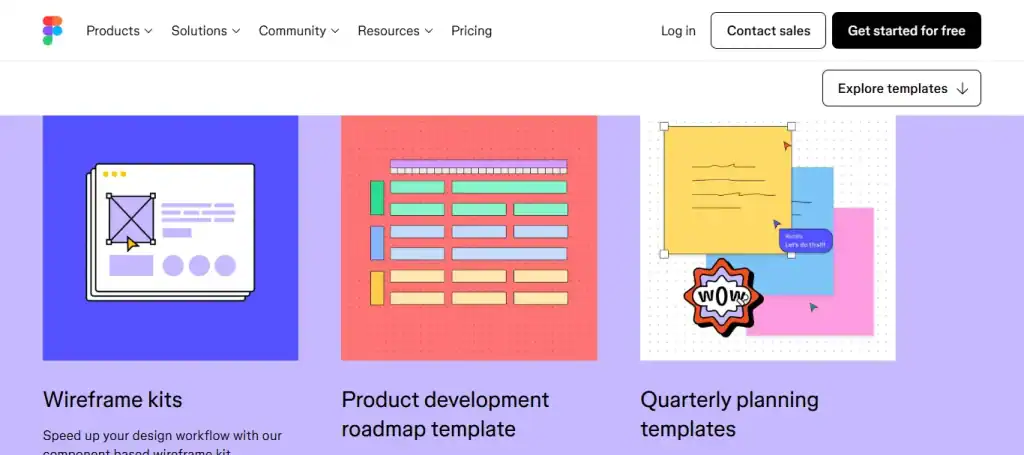
FigJam is a collaborative online whiteboard that allows teams to brainstorm, ideate, and plan in real time. Just like Figma, FigJam offers a wide range of ready-to-use templates that can save time and improve team alignment. These templates are designed for:
- Design sprints: Quickly define problems, explore solutions, and validate ideas with your team.
- Team retrospectives: Reflect on project milestones, challenges, and wins in an interactive format.
- User journey mapping: Visualize your users’ end-to-end experience and identify friction points.
- Product planning: Organize roadmaps, prioritize features, and align stakeholders around shared goals.
What makes FigJam templates especially powerful is their simplicity. They encourage fast, informal collaboration, allowing everyone on the team, including non-designers, to contribute ideas visually.
Using FigJam templates early in the design process helps teams stay focused and aligned before jumping into high-fidelity design work in Figma. It ensures that every screen or feature designed has a strategic purpose rooted in real user needs and project goals.
Which Tool is Right for Your Team: Figma vs FigJam
Conclusion
Figma templates are a game-changer for modern designers. Whether you’re building a startup website, launching a mobile app, or collaborating with a remote team, templates help you move faster without sacrificing quality.
They’re easy to find, simple to customize, and rich in features. From UI kits and icon sets to full-blown design systems, templates empower you to work smarter, not harder.
By combining templates with powerful plugins and FigJam collaboration, Figma creates a complete design ecosystem. You can streamline your workflow, maintain visual consistency, and focus more on creativity than repetitive tasks.
So the next time you open Figma, don’t start from scratch. Explore the community, find a template that fits your needs, and make it your own.
FAQs About Figma Templates
How to use Figma design templates?
To use a Figma design template, go to the Figma Community, search for the right template, and click “Duplicate” to add it to your Figma workspace. From there, you can customize it by editing text, colors, and layout using Figma components and the Design panel. Templates act as a great starting point for any design project.
How can you organize your designs into projects in Figma?
You can organize your designs by creating projects within your Figma team or workspace. Inside each project, group related design files, mockups, and design elements. Naming your files clearly and grouping by client, feature, or platform helps keep your design workflow clean and efficient.
Can I use Figma templates for commercial use?
Yes, many Figma templates are available for commercial use, but it depends on the license provided by the creator. Always check the licensing terms in the Figma Community before using a template for client work or future projects.
How do I import a Figma template?
To import a template, click “Duplicate” on the template page in the Figma Community. This adds it to your existing projects or lets you create a new project. You can also import .fig files by dragging them into your Figma dashboard or using the “Import file” option.